Webcams at Joybuy
These Joybuy product picks are designed for fixed webcam set-ups for online teaching, with face framing, speech and privacy in mind.
 No image available
AOC 4K PRO Webcam with Sony IMX363 sensor
The listed autofocus and 75° field of view suit a fixed webcam set-up.
The product name lists a Sony IMX363 sensor, PDAF autofocus, two microphones and a privacy shutter.
The listed connections are USB-A and USB-C.
Joybuy
 No image available
AOC webcam for PC with microphone
The listed adjustment options may be useful if you want to change the camera angle for a tutorial.
The product name lists 4K video, a 99° field of view, 180° tilt, 360° rotation and a sliding lens cover.
The product name says it works with Zoom and Teams; check the platform settings for the resolution participants will receive.
Joybuy
 No image available
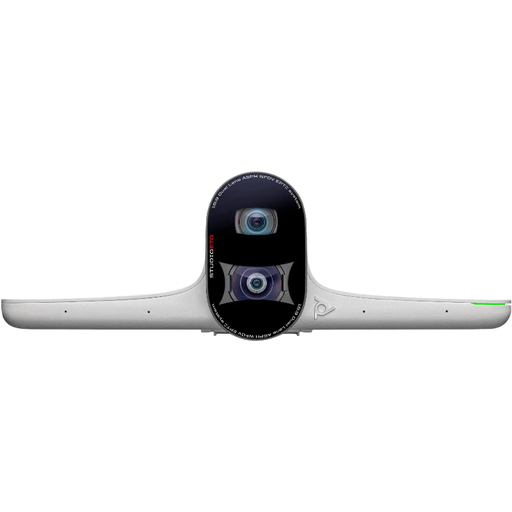
HP Poly Studio E70 Smart Camera
The product description lists framing and tracking modes for video meetings and lessons.
The listed connections and power options include USB-C, Ethernet and mains power; the camera is designed to be mounted or placed in a room.
Bear in mind the listed connections and the space needed to set it up.
Joybuy
 No image available
Philips 4000 Series 4K UHD Webcam, EU Version, SPL6408BT/00
The listed autofocus and built-in microphones are useful for a fixed webcam set-up for teaching.
The product name lists 4K UHD, autofocus, two built-in microphones and a privacy cover.
The product name lists a USB-A connection and a universal clip for laptops, desktops and monitors.
Joybuy
 No image available
Philips 2K QHD PC Webcam, EU Version, SPL6308S/00
The listed noise-cancelling microphone is useful if you want to give spoken explanations with this webcam.
The product name lists 2K QHD video and a noise-cancelling microphone.
According to the product name, the webcam has a clip mount for a laptop or desktop monitor.
Joybuy
Frequently asked questions
Do I need a 4K webcam for an online tutorial?
Not just to increase the resolution of a video call. Zoom has requirements for sending 1080p, including eligible accounts, settings and equipment. First decide what you want to show, then check which resolution your platform broadcasts.
How do I check my camera and sound before a tutorial in Teams?
In Teams, select your preferred camera and microphone in the device settings, check the video preview and make a test call. Microsoft Support advises checking the selected device settings; test from the place and in the lighting you’ll use for your tutorial.
What if the webcam or microphone doesn’t work properly after I buy it?
For a consumer purchase in the Netherlands, the legal guarantee covers what you could reasonably expect from the product; there is no fixed general time limit. Contact the seller if there’s a fault. ACM ConsuWijzer also explains that online consumer purchases come with a 14-day cooling-off period after delivery, subject to legal exceptions.
Can I record participants in my tutorial?
First consider which privacy rules apply to your recording and how you’ll use the footage. On 11 June 2026, the Chamber of Commerce explained that recognisable video and audio recordings count as personal data, and that a business or organisation needs a legal basis for processing it. The Dutch Data Protection Authority provides additional guidance for schools and universities on matters including informing people, storage and retention periods; these education guidelines don’t automatically apply to every private tutorial. Whether a specific recording is permitted depends on the organiser and how the footage is used.


