What should you look for when choosing?
First decide who needs to be seen and heard at the same time. Then choose the camera position, audio and any tracking or demonstration features to suit the way you teach.
| What to consider |
What to look for |
Who is this important for? |
| Getting the group in shot |
Check the field of view and framing from the planned camera and seating positions. |
If I want participants around the table to be visible alongside me, I’ll check how many seats fit in the frame. Around 36% of consumers prioritise a group shot. |
| Room audio |
Test the microphone from every speaking position and check which speaker is active in the meeting app. |
If people are speaking from different parts of the room, I want their voices to come through clearly without setting up the camera for just one speaker. Around 29% of consumers prioritise room audio. |
| Tracking a moving teacher |
Check the tracking features, movement capabilities and settings of the exact model. |
If I move around while teaching, I don’t want to have to keep adjusting the camera myself. Around 21% of consumers see camera tracking as their main priority. |
| Showing materials on the table |
Try tilting the camera towards the work surface and check that both your face and the materials can be framed clearly. |
If I want to show sketches or objects, I need a practical way to bring the table into view. Around 14% of consumers prioritise showing items on a table. |
Webcams and cameras at Joybuy
This selection includes personal webcams for teaching from a computer, as well as cameras for demonstrations or use in a meeting room.
 No image available
Logitech HD Pro Webcam C920e
A personal webcam for teaching from your computer.
The product description lists autofocus, two omnidirectional microphones and an adjustable clip for mounting on a laptop or external monitor.
Joybuy
 No image available
Philips 4000 Series 4K UHD Webcam SPL6408BT/00
A webcam for teaching from your computer and demonstrating materials.
The product information lists autofocus, dual built-in microphones, DeskView and Whiteboard Mode.
Joybuy
 No image available
Logitech MeetUp Black
A meeting room camera for a small space where several participants take part in an online tutorial together.
Logitech describes the MeetUp as a camera for small meeting rooms. The product information lists integrated microphones and a USB connection to a computer.
Joybuy
 No image available
Insta360 Link 2C Standard Bundle, Graphite Black
A webcam to consider if the teacher moves around while explaining or presents materials.
The product information lists AI tracking, auto-framing, DeskView, Whiteboard Mode and a built-in microphone.
Joybuy
 No image available
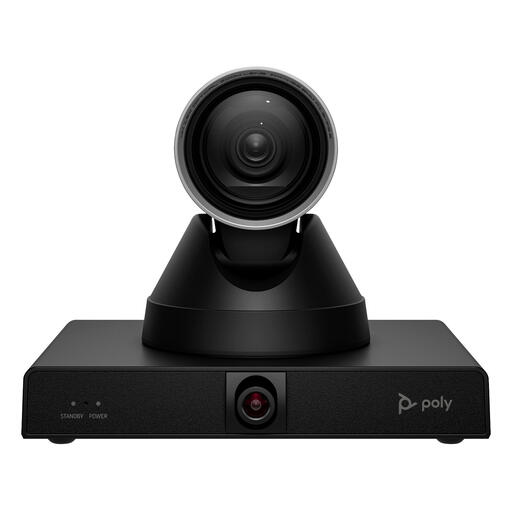
HP Poly Studio E60 Smart Camera
A conference camera with features for tracking a presenter and framing a group.
The product information positions this model for large meeting rooms and lists mounting on a display, tripod or ceiling mount. Check that it’s suitable for your room and mounting set-up.
Joybuy
Frequently asked questions
How can you check that the right camera and microphone are active before a tutorial?
In Microsoft Teams, select the camera, microphone and speaker separately in the device settings, then make a test call. Also test from the places where people will be speaking during the tutorial.
Do you need 4K if you mainly explain slides?
Not necessarily. First decide whether the speaker, the group or physical materials need to be clearly visible. Microsoft describes sharing content and participant visibility as separate considerations for a presentation room. Also assess the camera mode in the app you use.
What’s involved in installing or maintaining these cameras?
Check the connection and installation requirements for the exact model. Logitech describes USB-C and care of the mounting pad for the Brio 500; Logi Tune is required for automatic framing. Logitech describes the MeetUp 2 as connecting to a laptop or being used with a meeting room system.
Does the 14-day cooling-off period always apply when buying online in the Netherlands?
No. According to the Dutch Government, consumers buying at a distance are often entitled to a 14-day cooling-off period, but there are exceptions. If you’re buying for business, don’t assume that consumer rights apply; check which terms and conditions cover your purchase.
Can you record participants in an online tutorial without further consideration?
First, consider the privacy rules that apply and the purpose of the recording. The Dutch Data Protection Authority lists, for schools and universities, matters including agreements about recordings, information for pupils or students and retention periods. Whether those specific education rules apply to your tutorial depends on the organiser and participants.


