
Teacher facing backlight
You teach from a seated position beside a bright window and want your face to remain visible as the daylight changes. Elgato stresses that the amount of light reaching the camera affects the image.


For online lessons by a bright window, a good starting point is a camera set-up that gives your face enough light; HDR alone won’t guarantee this. For seated teaching with desk demonstrations, the tilt angle and focus distance matter too, while tracking may be useful if you move around. Also check the microphone, connection and resolution your teaching platform actually streams.
You teach from a seated position beside a bright window and want your face to remain visible as the daylight changes. Elgato stresses that the amount of light reaching the camera affects the image.
You show sketches, techniques or objects on your desk during a lesson. In that case, the camera angle and focusing distance matter. Logitech describes the Brio 500’s Show Mode for displaying work on your desk.
You stand while teaching or move between workstations, and don’t want to keep repositioning the camera yourself. Insta360 and OBSBOT describe tracking features for their respective models.
Start by testing the picture by the window. Then decide whether you mainly want to show work on your desk, move around the room, or connect your picture and sound with minimal fuss.
| What to consider | What should you check? | Who might prioritise this? |
|---|---|---|
| Keeping your face visible in backlit conditions | Check the exposure controls and any HDR limitations. Take a test shot in the lighting you usually teach in. | If I teach beside a bright window, I want my face to stay clearly visible as the daylight changes. Around 36% of consumers prioritise visibility in backlit conditions. |
| Showing work or objects | Check the tilt or desk mode and the focusing distance. Test whether the smallest details are visible at the intended distance. | If I show my hands, sketches or objects, I want them to remain in focus and easy to see at the actual working distance. Around 29% of consumers prioritise clear desk demonstrations. |
| Staying in frame while moving | Compare physical pan and tilt movement with automatic framing. Check what the camera needs to track. | When I move around the room while teaching, I don’t want to keep adjusting the camera myself. Freedom to move is the main priority for around 21% of consumers. |
| Picture, sound and teaching platform | Check the USB connection, whether there’s a built-in microphone, and which video options your teaching platform supports. | I want clear picture and sound that work with my computer and teaching platform, without unexpected settings. Ease of use is the main priority for around 14% of consumers. |
Even with HDR or adjustable exposure, the amount of light on your face still matters. A manufacturer’s description can’t predict exactly how the camera will perform by your window.
Take a test shot in your usual daylight and, if needed, adjust the exposure, the light on your face or the camera position.
Allow time to adjust your set-up before the lesson.
Your teaching platform may stream video at a lower resolution than the camera can deliver. A high camera specification alone doesn’t tell you how clearly your demonstration will come across in a lesson.
Check your teaching platform’s requirements and settings, and test whether students can see the details.
Models can vary in their focusing distance and whether they have a built-in microphone. For example, Elgato specifies a fixed focus of 30–120 cm and no built-in microphone for the Facecam MK.2.
Compare the distance of your demonstration with the model’s specifications, and check in advance which audio solution you’ll use.
The Brio 500 is an option for seated teaching when you also want to show work on your desk.
The Facecam MK.2 is designed for people who want to control the exposure themselves and usually sit at a fixed distance from the camera.
The Link 2 is worth considering if you move around during lessons; the Link 2C uses a different framing method.
The Tiny 2 Lite may suit standing lessons or demonstrations where hand tracking and preset positions are useful.
This Joybuy selection includes webcams for online teaching, as well as a monitor with an integrated webcam. By a bright window, check the picture in your own set-up and pay attention to the connection, microphone and features supported by your teaching platform.
 No image available
An option for online lessons from a monitor-based workstation, with a webcam built into the screen.
The product title lists a 27-inch QHD IPS screen and a 100 Hz refresh rate.
 No image available
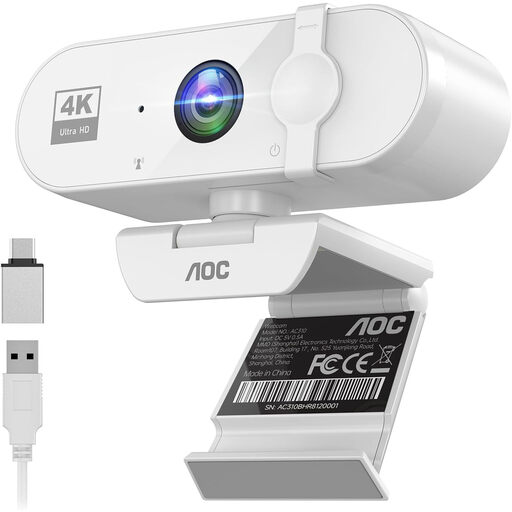
A webcam option for online teaching where autofocus and built-in microphones are useful.
The product title lists 4K, PDAF autofocus, dual microphones, a lens cover, a 75° field of view, and USB-A and USB-C connections.
 No image available
An option for seated teaching beside a bright window; the product description mentions automatic light correction, including for backlit conditions.
The product title lists 4K and a 99° field of view. The product description mentions HDR, a noise-cancelling microphone, USB plug-and-play and compatibility with Windows and macOS.
 No image available
An option for online lessons where autofocus and built-in microphones are useful.
The product title lists 4K UHD, autofocus, dual built-in microphones and a privacy shutter. This variant is black.
 No image available
An option for online lessons where a built-in microphone is useful.
The product title lists 2K QHD, a noise-cancelling microphone and a clip for attaching it to a desktop monitor or laptop screen. This variant is silver.
Not necessarily: your teaching platform may stream at a lower resolution than the camera can deliver. Zoom lists additional requirements for 1080p video in group meetings, so check the settings and requirements for your account, and test whether demonstrations are easy to see.
Take a test shot in your usual lighting conditions and check that your face remains visible. If needed, adjust the camera position, the light on your face or the exposure settings. Elgato describes both manual exposure controls and the effect of additional light; HDR isn’t a guarantee for every set-up.
Check that objects are in focus at the actual working distance, that your microphone works and that your teaching platform’s recording settings suit your needs. Elgato lists a fixed focus of 30–120 cm and no built-in microphone for the Facecam MK.2.
In addition to any manufacturer’s or seller’s warranty, you have a statutory guarantee: if a product is faulty despite being used normally, the seller is responsible for providing an appropriate remedy free of charge. ACM ConsuWijzer clarifies that there isn’t one fixed statutory two-year guarantee period for every product. For an ordinary online consumer purchase, you generally have a 14-day cooling-off period; check the applicable terms with the Dutch government.
Buying a webcam doesn’t determine this. The Dutch Data Protection Authority notes that schools and universities have policies or guidance on matters including filming pupils and teachers and making and keeping recordings. Whether a particular recording is permitted depends on the educational context and how personal data is processed.