First, choose a webcam that works with your computer and lesson app, then check that your tutor can hear you clearly from your usual seat. A basic camera may be enough for a conversation, but changing light, privacy at home or showing paper can make other features more important. A higher stated resolution doesn’t guarantee that your lesson app will stream a sharper image.
Who is this important for?
Learners who do a lot of speaking
You want your tutor to follow what you’re saying and see your facial expressions. Test the microphone from your usual sitting distance; the stated microphone features alone don’t tell you how clearly you’ll sound in your room. HP and Logitech describe microphone features for specific models.
Learners with a shared home office
You want to be able to check when the lens is covered and how much of your room is visible. Compare the lens cover and field of view with your own setup. The Dutch Data Protection Authority highlights the importance of privacy during online video calls in education.
Learners who show written work
You may want to switch from showing your face to a notebook or vocabulary card during a lesson. Check whether the camera can be pointed at your desk and whether text is legible from that position; Logitech describes this tilt feature for the Brio 500.
What to consider when buying
Start with a setup that works for live conversations, then add privacy or teaching-material features only if they suit your lessons.
| Concern |
What to look for |
Who it matters to |
| Voice and face |
Test the microphone in your lesson app from your usual seat and check which input device is active. |
If I want to be heard clearly and stay visible during speaking activities, I test the sound in my own room. Around 36% of consumers prioritise clear speech and a visible face. |
| Connection and app |
Check the USB port, operating system, screen mounting and camera selection in your lesson app. |
I want to be able to connect quickly before the lesson and select the webcam in my lesson app without any fuss. An easy-to-use setup that works is a top priority for around 29% of consumers. |
| Privacy and framing |
Check how much of the room is in view, and whether there’s a physical lens cover that closes properly. |
When I’m taking lessons in a shared home office, I want to decide when the lens is covered and what the camera shows. Around 21% of consumers prioritise control over privacy and framing. |
| Showing paper |
Test with your own paper, lighting and mounting height to see whether your tutor can read the text from the chosen angle. |
I sometimes want to show a notebook or vocabulary card, so I check whether the whole page and small print are clear. For around 14% of consumers, showing paper-based teaching materials is their main concern. |
What to watch out for
-
Assuming a higher camera resolution automatically means a better image for lessons
Your lesson app, account settings and internet connection all help determine the video quality that’s streamed. Zoom lists requirements for HD and Full HD in meetings, so the camera specification alone doesn’t determine what other people see.
First, check your lesson app settings and test the picture in a practice call.
-
Assuming the built-in microphone will work straight away
According to Logitech, the C920e’s built-in microphone is switched off by default.
Before your lesson, check how to enable the microphone on your model and which microphone is selected in your lesson app.
-
Assuming a tilting camera will capture documents clearly
The tilt feature on the Logitech Brio 500 doesn’t guarantee that your notebook or small print will be legible in your chosen setup.
Test a full page and the smallest text using your own mounting height and lighting.
-
Not checking the exact version in a product listing
A similar product name isn’t enough to confirm that it’s the version you’re looking for.
Before buying, check the full model number and compare the listed features with the manufacturer’s product information.
Webcam brands to consider
HP
HP describes the 320 FHD as a webcam for calls, with USB-A, a microphone and a lens cover.
- HP says the 320 offers automatic light correction and 1080p at 30 fps.
- The 320 has fixed focus. Check separately whether paper appears sharp enough with your setup.
Trust
Trust describes the TW-200 as a Full HD webcam with a built-in privacy filter.
- Trust lists 1080p, light correction and a built-in microphone for this model.
- The microphone range stated by Trust is a manufacturer’s claim, not an independent test of speech clarity.
Logitech
Logitech describes the C920e as having autofocus and light correction. According to Logitech, the Brio 500 has automatic framing and a mode for showing objects on your desk.
- These features may be useful if you move around during a lesson or sometimes want to show paper.
- The C920e microphones are switched off by default and enabled through Logi Tune. Logi Tune is needed for the Brio 500’s automatic framing feature.
Creative
Creative lists online lessons as a use case for the Live! Cam Sync 1080p V2.
- Creative describes UVC compatibility and SmartComms features such as automatic microphone muting and noise reduction.
- Creative says SmartComms requires its own app to be installed on Windows. These features aren’t an independent measure of how clearly you’ll be heard during language lessons.
Webcams at Joybuy
These webcams are designed for online calls and lessons. Check which connections and features suit your computer and lesson setup.
 No image available
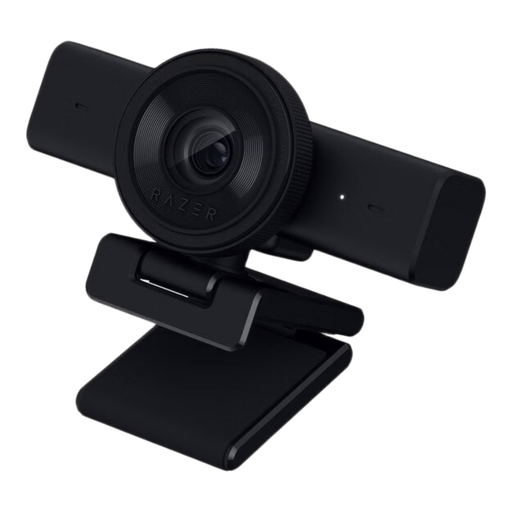
Razer Kiyo V2 X-webcam, 1440p / 1080p at 60 FPS, USB, Black
The stated USB connection and built-in stereo microphone are suited to a video-calling setup.
The product information lists autofocus and a physical privacy shutter. Windows 10 and Windows 11 are listed as supported operating systems; also check which camera is selected in your lesson app.
View at Joybuy
 No image available
AOC 4K PRO webcam with Sony IMX363 sensor
The product information lists dual microphones and autofocus for video calls; test the sound and picture with your own lesson setup.
The stated features include PDAF autofocus, automatic light and colour correction, a sliding lens cover, a 75° field of view and USB-A/USB-C connections.
View at Joybuy
 No image available
AOC webcam for PC with microphone, 4K
The built-in microphone and sliding privacy cover are listed as features for video calls; check the audio in your lesson app.
The product information lists automatic light correction, noise reduction, USB plug-and-play and a 99° field of view.
View at Joybuy
 No image available
Philips 4000 Series 4K UHD Webcam, EU Version, Black, SPL6408BT/00
According to the product information, this webcam has dual microphones and a privacy cover for a home lesson setup.
The title lists autofocus and dual microphones; the product information specifies a USB-A connection and a universal clip.
View at Joybuy
 No image available
Philips 2K QHD PC Webcam, EU Version, Silver, SPL6308S/00
The product information lists online lessons as a use case and a microphone with noise reduction.
According to the product information, the webcam clips onto a monitor or laptop screen. Check that this mounting option suits your workspace.
View at Joybuy
Frequently asked questions
Do I need a 4K webcam for online language lessons?
Not necessarily. First, check what your lesson app, account and internet connection actually stream. Zoom lists requirements for HD and Full HD in meetings, so a camera specification of 1080p or higher doesn’t determine on its own what other people see.
Why can’t my tutor hear me through a Logitech C920e?
According to Logitech, the C920e’s built-in microphone is switched off by default. If you want to use it, Logitech says to enable it through Logi Tune; then check which microphone is selected in your lesson app.
How do I use a webcam during a lesson?
Attach the webcam securely and check the camera and microphone settings in the app before your lesson. Close any physical lens cover when you don’t want to be on camera, and test whether paper or text is legible from the chosen angle.
What if a webcam I bought online isn’t right for my setup?
According to ACM ConsuWijzer, online purchases generally come with a statutory cooling-off period of up to 14 days after delivery, with some exceptions. You’re also entitled to a legal guarantee if a product doesn’t do what you could reasonably expect under normal use; contact the seller for help.


