
Learners using their own laptop
You’re taking the lesson on your own and want to be seen and heard without a complicated setup. Zoom Support lists a webcam and microphone as possible components of a video call.


If you’re joining the lesson on your own computer, a personal webcam will usually be enough to show yourself on screen; focus on the connection and microphone setup. If several learners are sitting in front of one camera, check that everyone is in shot and test the sound from each seat. The number of people joining from other locations doesn’t, in itself, mean you need a wide-angle camera: Zoom Support describes gallery view as a setting for how you see participants on screen.
You’re taking the lesson on your own and want to be seen and heard without a complicated setup. Zoom Support lists a webcam and microphone as possible components of a video call.
You’re joining together from one location and want to fit everyone into the camera frame. Logitech and Trust describe webcams with features you can compare for this kind of shared setup; you should also test the sound from every seat.
You want to show paper or objects while practising. Logitech describes a Show Mode feature for the Brio 500; check that its positioning and controls suit your lesson setup.
Start by considering whether you’ll be sitting in front of the camera alone or with others. Then test the sound and check that the connection and settings work with your computer and lesson app.
| What to consider | What should you check? | Who should pay particular attention? |
|---|---|---|
| Clear sound | Test your chosen microphone and speakers or headphones in the lesson app, from where you normally sit. | When practising your pronunciation, you’ll want to speak clearly and hear others well. Around 31% of consumers say clear sound is their main purchasing concern. |
| Your image | Take a test shot in the lighting you usually have for lessons and compare it with your current camera. | For an individual lesson, you’ll want to be clearly visible in the lighting at your desk, without choosing features you don’t need. Around 25% of consumers prefer to have a clear image of themselves. |
| A shared camera | Check the field of view and positioning with everyone in their usual seat; ask each learner to say a test sentence. | If several people are using one camera, you’ll want everyone to be in shot and easy to hear. Around 19% of consumers focus on having a shared camera view. |
| Privacy | Check whether the webcam has a lens cover and see how much of your surroundings will be visible before the lesson. | If you want to control when the lens is visible and how much of your surroundings are shown, this is an important factor to consider. Around 13% of consumers put privacy first. |
| Connection and settings | Check that the connection is compatible with your computer, and test before the lesson that the app can access the camera and microphone. | If you want a straightforward connection and to get started without interruptions, check your computer’s settings too. Around 12% of consumers say connection and settings are their main consideration. |
People joining from other locations don’t need to appear in your camera’s view. The lesson app’s gallery view determines how you see them on your screen.
Choose the field of view based on the people physically sitting in front of your camera. Zoom Support describes gallery view as a feature of the meeting app.
A microphone specification doesn’t tell you how clearly it will pick up speech from different seats in your room.
For a shared setup, ask each learner to say a test sentence from their usual seat, then listen back through the lesson app.
If the built-in microphone doesn’t suit your setup, a separate audio solution could mean an extra device and connection.
Paid-for additional cover is separate from your statutory guarantee. The ACM ConsuWijzer explains statutory guarantees alongside the seller’s guarantee.
Compare what additional cover offers and check which exclusions apply.
Logitech describes a range of webcam models for personal video calls and showing materials.
According to HP, the HP 320 FHD 1080p webcam is designed to connect via USB-A.
Trust describes the Tanor and TW-250 as webcams with built-in microphones; the features listed vary by model.
This selection includes webcams for an individual lesson setup, as well as models whose stated field of view you can compare for a shared camera setup. In practice, check that everyone is in shot and easy to hear from their usual seat.
 No image available
An option to compare for a personal lesson setup, where you can assess the stated field of view and microphones.
The product name lists 4K, a Sony IMX363 sensor, PDAF autofocus, dual microphones, a lens cover, a 75° field of view and USB-A/USB-C.
 No image available
The stated field of view makes this model worth comparing if several learners are sharing one camera; test the sound from every seat.
The product name lists 4K, a built-in microphone, a privacy shutter, a 99° field of view and noise reduction.
 No image available
An option to compare for a personal lesson setup; check that the connection and settings work with your computer.
The product name lists USB, 30 fps and the variant code 960-001076.
 No image available
For a personal lesson setup, this model has specific features you can compare when considering framing and audio.
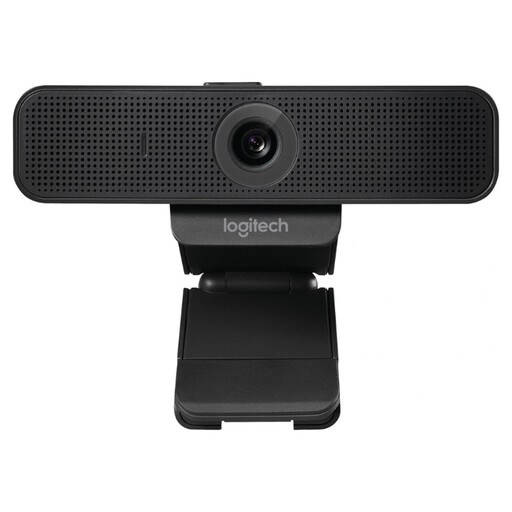
Logitech lists Full HD video, a fixed 78° field of view and dual omnidirectional microphones for the C920e.
 No image available
An option for an individual computer setup; check that the connection and camera features you want work with your lesson app.
The product name lists 4K UHD, an 8MP camera, autofocus, dual built-in microphones, a privacy shutter and EU Version.
Not if the other participants are at their own locations, each using their own camera. The lesson app controls how they appear on screen; focus on the field of view if several people will be sitting physically in front of your camera.
Check your image in your usual lighting, select the right camera and microphone in the lesson app, and test speaking and listening. If you use Windows, check the camera and microphone access settings if needed.
You don’t need paid-for additional cover to have a statutory guarantee when buying as a consumer in the Netherlands. The ACM ConsuWijzer refers to statutory guarantees alongside the seller’s guarantee; compare any additional cover separately with your existing rights.
Don’t assume that you can. The Dutch Data Protection Authority says that educational institutions can’t simply make recordings showing pupils or students. The rules that apply to your lesson depend partly on who organises and records it, so check the organiser’s recording policy and arrangements.