Who are these webcams for?

Teacher who moves around

If you stand up or walk around while teaching, you won’t want to keep adjusting the camera by hand. Compare a tracking camera with a fixed frame, and test the tracking feature in your own setup. Insta360 and OBSBOT describe models with tracking features.

Teacher giving demonstrations

If you show your hands, materials or a whiteboard, focus on how clearly the work area is shown, not just your face. Insta360 describes a whiteboard mode for Link 2, while OBSBOT lists hand tracking for Tiny 2 Lite.

Instructor with people in the room

If participants in the same room as you will also be speaking, check whether everyone will be in shot and can be heard clearly from different seats. Logitech describes the MeetUp 2 as a camera for small shared spaces, with group framing.

What should you look for when choosing?

Fixed webcam

Choose this if: you teach from your seat and online participants join from their own devices.

Bear in mind: you’ll need to stay within the fixed frame. Also check the USB connection and the picture quality settings in your video-calling app.

Tracking camera

Choose this if: you move around while teaching or change position between demonstrations. Insta360 describes physical pan-and-tilt tracking for Link 2; OBSBOT lists features including hand tracking and preset modes for Tiny 2 Lite.

Bear in mind: some features may require software or specific computer specifications. Test whether the camera follows your movements without cutting off your demonstration.

Camera for a work area or whiteboard

Choose this if: you show objects, activities or text on a board. Insta360 documents a whiteboard mode for Link 2.

Bear in mind: the standard whiteboard mode uses recognition markers in all four corners. Test the distance, lighting and framing in your own space.

Room-focused camera

Choose this if: several speakers are in the same room as you. Logitech describes the MeetUp 2 as a video bar for small spaces, with group framing.

Bear in mind: you’ll need to plan the positioning and cabling, and check that everyone can be heard clearly from each seat.

What to consider What to look for Who is this important for?
Tracking movement Check the tracking area and any software requirements; test the movements you usually make. If I walk around the room while teaching, I don’t want to keep moving the camera myself. Around 31% of consumers prioritise staying in shot while moving.
Clear audio Test microphone selection, echo and voice clarity in your own video-calling app and teaching space. When participants ask questions, I want them to hear my answers clearly from wherever they’re sitting. Around 31% of consumers prioritise being heard clearly during interaction.
Showing a work area Check that the whole board or work area is clearly in shot and easy to read; find out whether you need extra settings or markers. When I demonstrate an activity or some text, the work area needs to be clearly visible. Around 23% of consumers focus mainly on demonstrations and a readable board.
Group in one room Assess the group framing and test how clearly people can be heard from different seats. If participants are in the same room as me, I want them all in shot and clearly audible. Around 15% of consumers prioritise capturing several speakers in one location.

Common buying mistakes

  • Assuming 4K on the box means 4K for every participant

    The outgoing picture quality also depends on the video-calling platform, account settings, computer and connection. Zoom lists separate requirements for HD and Full HD in group calls.

    Before choosing a camera for its higher resolution, check the available output quality in your own video-calling app.

    A higher setting may require a particular account, computer or connection, even if the group meeting doesn’t use that quality.

  • Using a personal webcam for several speakers in one room

    A personal frame isn’t the same as group framing and audio capture for people sitting at different distances. Logitech describes the MeetUp 2 as offering group framing and voice equalisation; test these features in the room itself.

    Map out where people will sit and how far they’ll be from the camera, then test the picture and sound from every seat.

    Depending on the room, you may need a different microphone or camera setup.

  • Confusing a manufacturer’s warranty with your full statutory rights

    According to ACM ConsuWijzer, statutory consumer rights in the Netherlands don’t have a fixed two-year time limit and are separate from any commercial warranty.

    Keep your proof of purchase. If a product doesn’t perform as you could reasonably expect under normal use, report the problem to the seller.

Brands to consider

Logitech

The C920s is a personal webcam with fixed framing; according to Logitech, the Brio 500 adds auto-framing. The MeetUp 2 is designed for small shared spaces. These models suit different setups.

  • Logitech specifies a fixed 78° field of view for the C920s. RightSight auto-framing on the Brio 500 requires Logi Tune.
  • A personal webcam won’t bring participants at other locations into shot by itself. If you have a group in the same room, also assess the framing and sound from different seats.

Insta360

According to Insta360, Link 2 is a webcam with physical pan-and-tilt tracking and a documented whiteboard mode.

  • The manufacturer describes a choice between tracking one person or a group.
  • The standard whiteboard mode uses recognition markers in all four corners of the board. Check that your board and settings are suitable for your space.

OBSBOT

OBSBOT describes the Tiny 2 Lite as a tracking camera with hand tracking and preset modes.

  • The stated modes and computer requirements vary depending on the resolution and frame rate combination; check which settings your computer supports.
  • The field of view and tracking feature don’t guarantee that a whole group or work area will stay visible in every room.

Jabra

Jabra positions the PanaCast 20 as a personal video conferencing camera, with features including Intelligent Zoom and picture-in-picture.

  • Jabra lists a 90° horizontal field of view and an integrated privacy shutter.
  • Don’t assume this personal camera model can replace a camera and audio setup for participants spread around the same room without testing it first.

Webcams and cameras at Joybuy

This selection includes webcams for personal tutorials and cameras for demonstrations or presentations in larger spaces.

Dell Pro P P2726DEV 27-inch QHD IPS monitor with webcam

Dell Pro P P2726DEV 27-inch QHD IPS monitor with webcam

An option if you’re looking for a monitor with an integrated webcam for online teaching.

27-inch QHD IPS; 100 Hz; integrated webcam.

View at Joybuy

Full HD 1080p webcam with microphone

Full HD 1080p webcam with microphone

A webcam for tutorials where you want to capture picture and sound from your computer or laptop.

1080p video; 120° lens; built-in microphone; USB Plug & Play.

View at Joybuy

AOC 4K PRO webcam with Sony IMX363 sensor and PDAF autofocus

AOC 4K PRO webcam with Sony IMX363 sensor

An option if you want to show a face, product or document during a tutorial; test the focus in your own setup.

4K; 1080p at 60 fps; PDAF autofocus; 75° field of view; two microphones; USB-A/USB-C.

View at Joybuy

AOC 4K webcam with microphone and privacy cover

AOC 4K webcam with microphone and privacy cover

An option if you want to frame a wider scene and cover the webcam when it’s not in use.

4K; 99° field of view; built-in microphone; sliding privacy cover.

View at Joybuy
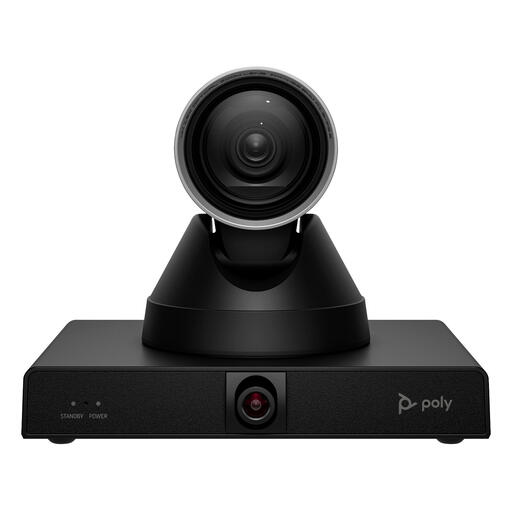
HP Poly Studio E60 Smart Camera 4K MPTZ with 12x optical zoom

HP Poly Studio E60 Smart Camera 4K MPTZ with 12x optical zoom

An option for a tutorial in a larger space, with presenter tracking and group framing.

4K video; 12× optical zoom. The mount must be suitable for the 1,79 kg weight.

View at Joybuy

Frequently asked questions

Do you automatically need a 4K webcam for a group call?

No, not necessarily. The resolution sent also depends on your video-calling platform, account, settings, computer and connection. Zoom lists separate requirements for HD and Full HD in group calls, so first check what your platform and setup can support.

How can you test a tracking camera before your first tutorial?

Have a test call and try the movements and demonstrations you’d normally use. Select the camera and microphone in your video-calling app, then check the framing. Logitech states that RightSight auto-framing on the Brio 500 requires Logi Tune; Insta360 describes how to choose tracking settings through Link Controller.

Can you record a tutorial featuring identifiable participants?

First, check which privacy rules apply to your situation. The Dutch Data Protection Authority explains that an organisation processing personal data needs a lawful basis under the GDPR; consent is one possible basis, but it isn’t automatically the only one. For educational institutions, it’s also important to agree on recording, informing pupils or students, and how long recordings will be kept.

What warranty applies to a webcam bought in the Netherlands?

According to ACM ConsuWijzer, alongside any manufacturer’s or seller’s warranty, you have statutory rights if the product doesn’t perform as you could reasonably expect under normal use. In the Netherlands, these rights don’t have a fixed two-year time limit. The seller is responsible for providing an appropriate solution if a product is faulty.

Does a CE logo prove that a webcam has good picture quality?

No. Dutch government information explains that the CE mark is the manufacturer’s declaration that the product complies with applicable EU rules, not a quality mark. Assess picture and sound quality separately from the product information and conformity documentation.
