Which set-up is right for you?

Artist with a permanent desk

You want to record the whole portrait and your hands from a fixed position. The working distance, mounting and connection to your computer will determine whether a webcam suits your set-up. Logitech and Elgato describe webcam models with mounting points; check the specifications of the version you’re considering.

Creator who changes the framing

You want to switch between the whole page and close-up details, and are happy to check that the camera body, lens and set-up work well together. Canon, Sony and Panasonic describe mirrorless cameras with interchangeable lenses; the lens and mounting are separate choices.

Artist working under tricky artificial light

You want to avoid flicker or a colour cast affecting the paper and pencil tones. You’ll still need to make a test recording with your own lighting, as the settings won’t show you how your particular light will appear on camera.

What should you consider when choosing?

Webcam with computer-based recording

Best for: a permanent recording spot where you use your computer to record.

Bear in mind: check the distance from the lens to the paper, the mounting and computer compatibility. A stated 4K mode alone won’t tell you whether the image will flicker under your light.

Mirrorless camera with a suitable lens

Best for: a set-up where you want to adjust the lens and framing for different working distances, or record without a computer.

Bear in mind: the camera body alone won’t determine the framing or mounting; check the exact lens and recording settings.

What to consider What should you check? Who should pay particular attention?
Flicker and changing brightness Record a video using your own light. Netbeheer Nederland states that the mains frequency in the Netherlands is 50 Hz; Sony Support lists 1/50 or 1/100 second as possible shutter speeds for reducing flicker in a 50Hz environment. I want to avoid bands or changes in brightness disrupting my recording. Around 31% of consumers filming under artificial light say flicker is their top priority.
Framing and focus Measure the distance from the lens to the paper and check the focusing range, field of view and mounting. For the Facecam 4K, Elgato specifies a fixed focusing range of 30–120 cm at 4K. I want to keep the whole page and my drawing hand in focus from the planned mounting height. Around 25% of consumers prioritise framing and focus.
How the paper and greys appear Check whether the white balance is adjustable and assess a test recording on the screen you’ll use to watch the video. Canon Europe describes white balance as a way to adjust a recording to the light source being used. I want white paper and subtle pencil tones to remain clear under my light. Around 25% of consumers say how paper and greys appear is their main purchasing concern.
Computer set-up Check the connection, computer requirements, cable length and video mode you want. Also check that you can mount the camera in the right position above your work surface. I want to record from the same desk without having to manage a stand-alone camera set-up. Around 19% of consumers prioritise a simple computer-based workflow.

Buying pitfalls

  • Focusing on 4K alone

    A resolution label won’t tell you whether the camera can focus from your mounting height or frame the whole drawing page.

    Measure the distance from the lens to the paper and the size of your work area. Compare these with the focusing range, field of view and mounting point of the exact model.

    If the page isn’t in focus or fully in frame, you may need to change the working distance or mounting.

  • Buying a camera to fix flickering lights

    The light source and shutter speed both affect whether bands appear; no setting can guarantee a flicker-free result with every light.

    First, make a test recording with your current lighting and check whether a different video shutter speed reduces the bands.

    You may need to adjust the recording settings or your existing lighting.

  • Comparing only the camera body on a mirrorless camera

    The camera body doesn’t guarantee that the included lens will give you the framing you want from your working distance.

    Check the exact kit lens, mount, framing and mounting options before choosing a camera body.

    You may need to choose a suitable lens or mount separately.

Brands to compare

Logitech

The Brio 4K is a webcam option for fixed, computer-based recording.

  • For this model, Logitech lists autofocus, 4K/30 fps and a tripod thread.
  • These specifications don’t tell you whether the webcam will frame the whole page in focus from your mounting height, or record without flicker under your light.

Elgato

The Facecam 4K is a webcam option where working distance and computer compatibility need consideration.

  • Elgato lists a 1/4-inch mounting point and a focusing range of 30–120 cm at 4K.
  • It has fixed focus, so check that your distance from the paper falls within this range.

Canon

The EOS R50 is a mirrorless camera with interchangeable lenses.

  • Canon specifies an APS-C sensor and RF mount for the EOS R50, with support for RF and RF-S lenses.
  • A suitable lens and a mount for your work surface are still separate choices. Canon’s explanation of white balance isn’t a test of this model for recording a pencil portrait.

Sony

The ZV-E10 II is a mirrorless camera with an interchangeable lens, offering options for different framings.

  • Sony describes the ZV-E10 II as an APS-C camera with an interchangeable lens.
  • Sony lists possible shutter speeds for reducing flicker in a 50Hz environment; test the results with your light and camera set-up.

Panasonic

The LUMIX G100D is a Micro Four Thirds option; there is also a product listing for a kit with a 12–32mm lens.

  • On its UK product specifications, Panasonic lists 4K/25p for the G100D.
  • Check the exact Dutch kit version, included accessories and recording conditions before applying the specification to your choice.

Products at Joybuy

This selection includes webcams and compact cameras for video recording. Check each model to make sure the mounting, framing and controls are suitable for filming above a drawing page.
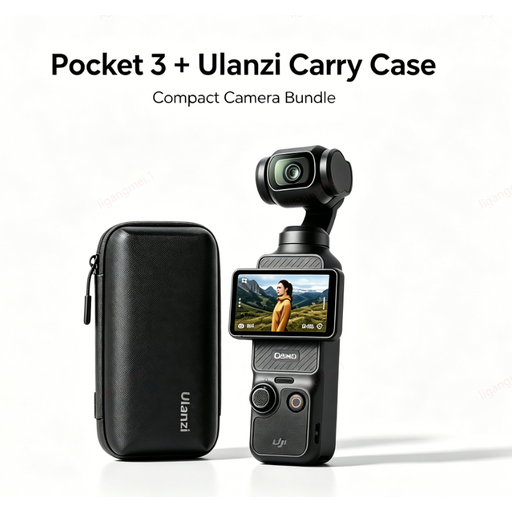
DJI Pocket 3 with Ulanzi Custom Storage Carry Case

DJI Pocket 3 with Ulanzi Custom Storage Carry Case

The product description calls it a compact camera with stabilisation for handheld video. Check whether you can mount it above your work surface and achieve the framing you want.

View at Joybuy
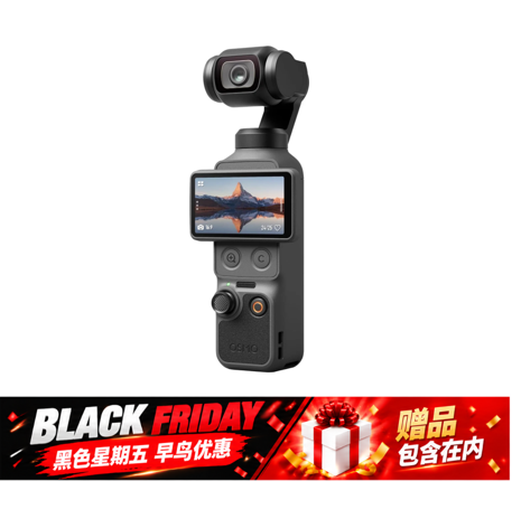
DJI Osmo Pocket 4 Standard Combo

DJI Osmo Pocket 4 Standard Combo

The product name describes a pocket gimbal camera for video. Check the mounting and field of view before choosing it to record above a drawing page.

The title lists 1-inch CMOS, 4K/240fps, 3-axis stabilisation, 2× lossless zoom, 107 GB of built-in storage and a 2-inch rotating screen.

View at Joybuy
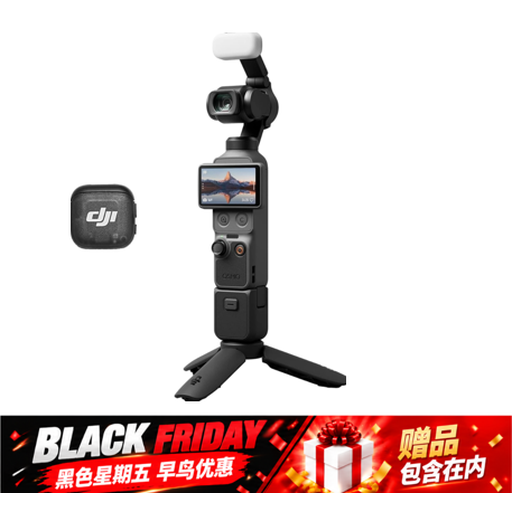
Osmo Pocket 4 Creator Combo

Osmo Pocket 4 Creator Combo

The product name describes a pocket gimbal camera for video. Check that you can mount it in the position you want above the drawing page.

The title lists 1-inch CMOS, 4K/240fps, 3-axis stabilisation, 2× lossless zoom, 14-stop dynamic range, 107 GB of built-in storage and a handle with a 1/4-inch thread.

View at Joybuy

Philips 4000 Series 4K UHD Webcam SPL6408BT/00, EU version

Philips 4000 Series 4K UHD Webcam SPL6408BT/00, EU version

The title describes a webcam for computer-based recording. Check that the clip and your computer set-up work for the camera height you want above your work surface.

The title lists 4K video and autofocus. The product description mentions USB-A and a universal clip for mounting on a computer or monitor.

View at Joybuy
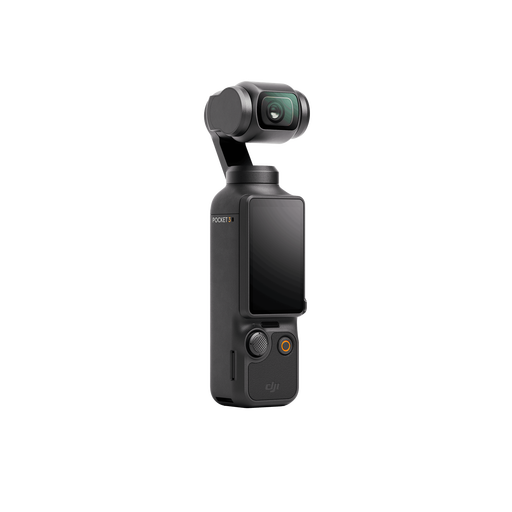
DJI Osmo Pocket 3 Creator Combo

DJI Osmo Pocket 3 Creator Combo

The product name describes a vlogging camera for video recording. Check the mounting and framing before using it above a drawing page.

The title lists 1-inch CMOS, 4K/120fps video, 3-axis stabilisation, tracking, autofocus and an included microphone.

View at Joybuy

Frequently asked questions

How can I check for flicker before recording a full drawing session?

Record a short video under the lights you’ll actually be using, then check for bands or changes in brightness. According to Netbeheer Nederland, the mains frequency in the Netherlands is 50 Hz; Sony Support lists 1/50 and 1/100 second as possible shutter speeds for reducing flicker in this kind of environment. LED lighting can behave differently, so don’t rely on choosing a setting instead of making a test recording.

How can I stop white paper from looking yellow or green?

Check the white balance under the artificial light you’ll be using and assess a test image. Canon Europe explains that different light sources can create a colour cast, and that white balance helps adjust the recording to the light.

Can I position a webcam close above my drawing page?

First, measure the distance from the lens to the paper and compare it with the focusing range of the exact webcam and video mode. For the Facecam 4K, Elgato specifies a fixed range of 30–120 cm at 4K; also check that the whole page fits in the frame.

What are my rights if a camera I bought online is faulty?

For a consumer purchase in the Netherlands, the product must meet the standard you can reasonably expect with normal use; ACM ConsuWijzer explains the seller’s legal responsibility. Online purchases also generally come with a cooling-off period of up to 14 days after delivery, subject to legal exceptions. The cooling-off period and your legal rights if a product doesn’t meet the terms of the contract are separate matters.

Can I publish a drawing video if identifiable people appear in it?

If identifiable people appear in your video and you share it, the GDPR may apply. The Dutch Data Protection Authority states that footage covered by the GDPR needs a lawful basis for processing; consent is one possible basis, but it isn’t automatically the only one. The situation also depends on how and with whom you share the recording.
