What should you look for when choosing?
Assess picture and sound from your usual teaching position. Manufacturer features give you useful points of comparison, but they don’t guarantee the same results in every room.
| What to consider |
What to look for when buying |
Who is this most important for? |
| Keeping your face visible in window light |
Compare HDR or adjustable exposure, and test the picture with the window in its usual position during lessons. |
If I teach beside a bright window, I want my face to remain recognisable. Around 36% of consumers say facial visibility is their top priority. |
| Clear speech |
Check whether a microphone is built in and test your chosen audio input from your teaching position. |
For listening and speaking exercises, I want students to follow what I’m saying clearly. Around 29% of consumers prioritise clear speech. |
| Staying in frame during exercises |
Compare a fixed crop with automatic reframing or tracking, and check which software you’ll need. |
If I stand up or move around during an exercise, I don’t want to keep adjusting the frame myself. Around 21% of consumers make keeping movement in frame their top priority. |
| A reliable, privacy-conscious teaching setup |
Check the connection, operating system, camera access and which microphone your teaching app uses. |
For a teaching setup that works without hassle, I want to know in advance whether my computer and app are compatible with the camera and audio input. Around 14% of consumers prioritise compatibility and a suitable setup. |
Joybuy webcams for online lessons
This selection from Joybuy includes webcams for computer-based lessons and a camera described for hybrid meeting rooms. So also check whether the connection and features suit your teaching space.
 Image unavailable
AOC 4K PRO webcam with Sony IMX363 sensor
An option to compare if you’re looking for automatic light correction and built-in microphones for computer-based lessons.
The product description lists PDAF autofocus, a 75° field of view, automatic light and colour correction, dual microphones, a lens cover and USB-A/USB-C connection.
Joybuy
 Image unavailable
AOC 4K webcam with HDR and microphone
Worth comparing if you have a fixed computer-based teaching position and are looking for a model with HDR and a built-in microphone.
The product description lists a 99° field of view, tilt and rotation, automatic light correction, a noise-cancelling microphone and a privacy shutter.
Joybuy
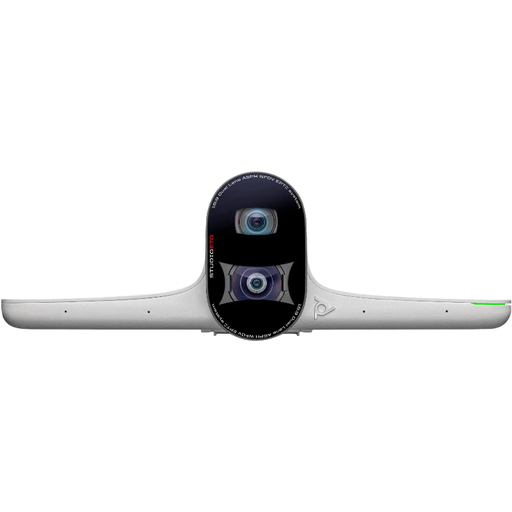 Image unavailable
HP Poly Studio E70 Smart Camera
This camera is described for hybrid meeting rooms; first check whether that use suits your teaching space and setup.
The product description lists two cameras, 4K video, 7.3× digital zoom, and Poly DirectorAI framing and tracking.
Joybuy
 Image unavailable
Philips 4000 Series 4K UHD Webcam, SPL6408BT/00
An option to compare if you want autofocus and built-in microphones for computer-based lessons.
The product name lists 4K UHD, autofocus, dual built-in microphones, a privacy shutter and EU Version.
Joybuy
 Image unavailable
Philips 2K QHD PC Webcam, SPL6308S/00
Worth comparing for online lessons if you’re looking for a QHD webcam with a noise-cancelling microphone system.
The product description lists a clip for mounting on a monitor or laptop and a noise-cancelling microphone system; the product name lists EU Version.
Joybuy
Frequently asked questions
Do you need 4K for online conversation lessons?
Not necessarily: first check which video quality your teaching platform, account and computer actually use. Zoom Support lists requirements for HD video, so your webcam’s maximum resolution isn’t necessarily the quality your students receive.
What can you test after connecting your webcam?
Check how your face looks with the window in its usual position during lessons, and test the sound from your usual seated or standing position. Select the microphone you want to use in your teaching app; on Windows, also check that the app has permission to access the camera.
Does every webcam have a microphone for your lessons?
No. Check each model and test your chosen audio input in your teaching app. For example, Elgato says the Facecam MK.2 has no built-in microphone, so you’ll need a separate one with this model.
Can you record an online lesson with students?
That depends on the purpose, how you plan to do it and the applicable legal basis; choosing a webcam doesn’t answer this question by itself. The Dutch Data Protection Authority advises schools and universities to assess privacy risks and set clear arrangements covering matters such as recordings, informing students, and storing and deleting footage.


