What should you look for?
First, decide how you’ll use the camera and how much of the room you’re happy to show. Then compare the microphone, field of view and installation requirements with your computer and lesson platform.
| What to consider |
What should you check? |
Who is this important for? |
| Clear speech |
Compare the microphone features and test the noise suppression settings in the lesson app you use. |
If I practise speaking aloud while my housemates are at home, I want my pronunciation to be easy to follow without conversations around me being picked up too. Clear speech is the top priority for around 36% of consumers. |
| Visual privacy |
Check the field of view, framing and camera placement; see whether it has a physical lens cover. |
When I have lessons in a shared space, I want to show only what’s necessary and keep housemates or personal belongings out of shot. Limiting how much of the surroundings is visible is the top priority for around 29% of consumers. |
| Picture quality in changing light |
Check the light correction and autofocus, and whether automatic framing requires additional software. |
If I have lessons in different places or in changing light, I want to stay clearly visible without having to move my entire set-up each time. Around 21% of consumers prioritise a usable picture in changing lesson conditions. |
| Easy connection |
Check the available USB connection, operating system compatibility and whether any additional software is needed. |
When I want to start a lesson quickly on my own computer, I want to know in advance that the camera will connect and work without having to set up extra features. Around 14% of consumers say easy installation is their top priority. |
Webcams and conference cameras at Joybuy
This selection includes webcams and a conference camera for online lessons and video calls. In particular, compare the field of view, microphone features and connection with your own lesson set-up and computer.
 No image available
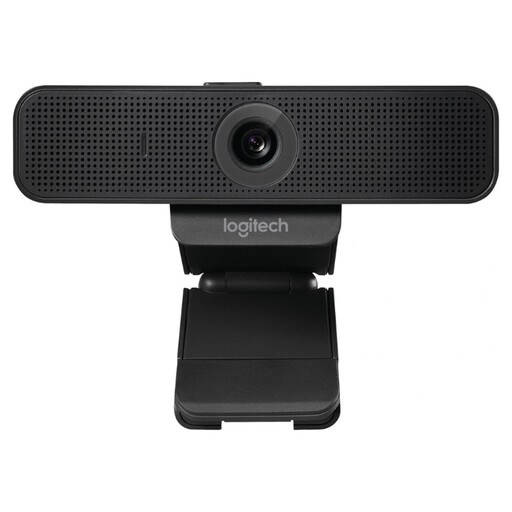
Logitech C925e USB webcam, black, 960-001076
An option for video calls from a fixed spot; the stated lens cover can help shield the lens after your lesson.
Full HD video, autofocus and a built-in microphone.
The stated field of view is 78°.
View at Joybuy
 No image available
Philips 4000 Series 4K UHD webcam, SPL6408BT/00, EU Version, Black
An option for taking part in lessons if you’re looking for a webcam with a built-in lens cover.
The product name lists 4K UHD, 8 MP, autofocus, dual microphones and a privacy cover.
The product variant is listed as EU Version, Black.
View at Joybuy
 No image available
Philips 2K QHD PC webcam, SPL6308S/00, EU Version, Silver
A webcam option for video calls with a stated noise-cancelling microphone feature.
2K QHD video; the product information lists a noise-cancelling microphone and a clip for a laptop or monitor.
The product variant is listed as EU Version, Silver.
View at Joybuy
 No image available
Logitech MeetUp, 3840 x 2160 pixels, 30 fps
This conference camera is designed for video calls; its stated wide field of view may show more of your surroundings in a shared space.
The product information lists a 120° field of view and built-in microphones.
The product name lists a resolution of 3840 x 2160 pixels and 30 fps.
View at Joybuy
 No image available
Insta360 Link 2C Standard Bundle, Graphite Black
An option to compare if automatic framing and a physical privacy switch suit your lesson set-up.
The product information lists 4K, autofocus, HDR and a physical privacy switch.
The microphone is listed as having AI noise cancellation; check how it performs with your own lesson app and in your own space.
View at Joybuy
Frequently asked questions
Is a built-in webcam microphone enough for pronunciation practice?
That depends on your room and lesson platform. Try a speaking exercise with the app you use while the household is going about its normal routine. Zoom offers adjustable noise suppression if you have lessons on Zoom; stated microphone features don’t guarantee that other voices will be filtered out.
What should you check before connecting your webcam?
Check that the USB connection and your computer’s operating system are compatible. Also check the framing before your lesson and see whether extra features require software; Logitech lists Logi Tune as a requirement for RightSight on the Logitech Brio 500.
What should you do with the camera after your lesson?
Close any physical lens cover and check which apps have access to the camera. A covered lens can’t capture a usable picture, but that says nothing about the microphone or recordings made previously.
What warranty and cooling-off period apply to an online purchase in the Netherlands?
If a product is faulty, the retailer is your point of contact for your statutory rights; the Netherlands has no fixed statutory warranty period. For a qualifying distance purchase, you generally have 14 days to change your mind. Check the terms of your specific purchase, and don’t confuse an additional warranty plan with your statutory rights.
Can a language provider record a lesson with my room in view without asking?
Ask the provider in advance whether the lesson will be recorded, who may appear on screen and what arrangements apply. The Dutch Data Protection Authority outlines privacy obligations for online education at schools and universities; this does not establish which rules apply to a specific private language provider.


