
Joining a call alone at the table
Do you want to be clearly seen and heard without setting up a camera for the whole room? Check whether the microphone is suitable for the distance between you and your laptop or screen.


If you only join calls from the kitchen table, start with a personal webcam and focus on your seating distance, microphone and positioning. If several people sit at the table, check whether the camera captures them from the position you’ve chosen and whether its stated microphone range suits your setup. A wide-angle or 360° camera serves a different purpose from a webcam designed for one person; stated range figures don’t guarantee that everyone in your kitchen will be clearly heard.
Do you want to be clearly seen and heard without setting up a camera for the whole room? Check whether the microphone is suitable for the distance between you and your laptop or screen.
If several people are joining the call from one spot, the camera’s field of view and its ability to pick up voices from different seats matter more than a sharp close-up alone.
Want to put the equipment away after your meeting or keep the kitchen out of view? Check the mounting, cables and whether the model you’ve chosen has a physical privacy cover.
First decide whether you need only yourself, or the other people at the table too, to be seen and heard. Then choose a camera setup that suits the seating, microphone distance and available connections.
| What to consider | What to check before buying | Who is this important for? |
|---|---|---|
| Being heard clearly from your seat | Measure the distance to the microphone and check how to activate and select it. For the Logitech C920e, Logitech states that it is activated via Logi Tune and has an optimised pickup range of up to one metre. | If I’m joining a call alone, I want to be heard clearly from my seat without having to hunt for the microphone settings. Around 40% of consumers prioritise being heard clearly. |
| Picture and privacy | Check how much of the background the chosen viewing angle shows and whether you want a physical lens cover. According to HP, the Poly Studio P5 has an integrated privacy cover. | If I’m sitting at the table alone, I want to be clearly in frame and able to cover the lens afterwards. Around 30% of consumers prioritise framing and covering the camera. |
| Covering the whole table | Position the camera to suit the seating. Logitech lists a 120° diagonal field of view for MeetUp 2; Owl Labs specifies a 360° view and a 5.5 m microphone range for the Meeting Owl 3. | If several people are sitting at the table, I want the chosen setup to show them together and pick up voices from their seats. Around 20% of consumers prioritise covering the table. |
| Connecting and putting it away | Check that the connection is compatible with your computer and that there’s a power socket and a suitable place for the camera. Logitech states that the C920e uses USB-A; MeetUp 2 uses USB-C and has a separate power supply. | If I want to put the camera away after a meeting, I want to know whether the cables and power supply will work practically with my table. Around 10% of consumers prioritise quick setup and tidy storage. |
A high video resolution alone doesn’t tell you whether everyone at the table will be in shot. Logitech describes the C920e as a webcam for one user; Owl Labs says the Meeting Owl 3 is designed for a setup centred around the table.
First work out how many people will be sitting there and where they’ll be. Then compare the field of view and positioning options for that setup.
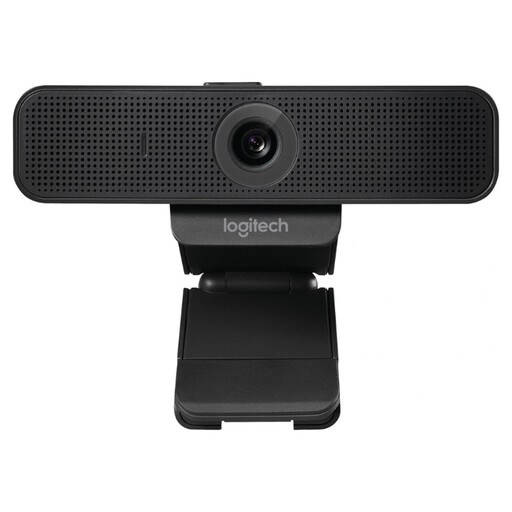
Logitech says the C920e’s microphones need to be activated via Logi Tune. Logitech lists an optimised pickup range of up to one metre; this doesn’t guarantee that voices further along the table will be picked up as clearly.
Before the meeting, test the selected microphone from your seat and check that it’s switched on.
According to its specifications, the Logitech MeetUp 2 has a USB-C connection and a separate power adapter. In a temporary workspace, the connection, cable routing and available space can all determine whether the setup is practical.
Before buying, check where the camera will go, which port your computer has and whether there’s a power socket within reach.
The models discussed range from a personal webcam to a group camera for a wider table setup.
The Studio P5 discussed here is a personal webcam for video calls, not a camera that captures the whole table from all sides, according to the product information.
The Meeting Owl 3 discussed here is designed for meetings with people sitting around one camera.
The Tiny 2 Lite discussed here is a personal, movable webcam for anyone who changes position during a call.
This Joybuy selection features personal webcams for joining a call from a seat at the kitchen table. They’re designed for a different setup from a camera that needs to capture a group around the whole table.
 No image available
A personal webcam for joining a call from a laptop or monitor; the product information recommends positioning it for one or two people.
The stated field of view is 78°. The description lists Full HD video, autofocus, a built-in microphone and a privacy cover.
 No image available
Suited to a personal setup if you want to be in shot while sitting at the table; the description mentions an adjustable clip for laptops and external monitors.
The product information lists 1080p video, a fixed 78° field of view, autofocus and automatic light correction. Logitech says the built-in microphones need to be activated via Logi Tune; the optimised pickup range is up to one metre. The description also mentions an attachable privacy screen.
 No image available
The product description mentions meetings and video calls from a laptop or monitor, with a universal clip for mounting on a monitor, laptop or tripod.
The product name specifies 4K UHD. The description mentions a built-in microphone with noise reduction.
 No image available
A PC or Mac webcam for video calls; the description mentions a physical privacy switch and compatibility with Microsoft Teams and Zoom.
The product name specifies 2K QHD and dual microphones. According to the product description, this model is not currently compatible with ARM-based Windows systems.
 No image available
A webcam for video calls whose product description mentions automatic framing for individuals or groups.
The product name specifies 4K, a 1/2-inch sensor, Auto-Framing, HDR and a microphone with AI noise reduction. The description mentions a physical privacy switch and states that the model is not currently compatible with ARM-based Windows systems.
Position a personal webcam so you’re in shot as the speaker, then select the camera and microphone you want to use in your meeting app. For the Logitech C920e, check that the microphones have been activated via Logi Tune; for MeetUp 2, also check the USB-C connection and separate power supply.
Resolution alone won’t tell you: first decide who needs to be seen and heard, and from which direction. Owl Labs lists 360° coverage and 1080p video output for the Meeting Owl 3, showing that resolution alone doesn’t explain how the camera will suit your table setup.
According to ACM ConsuWijzer, for an online consumer purchase you generally have up to 14 days after delivery to change your mind, subject to legal exceptions. If a product is faulty, the Netherlands Authority for Consumers and Markets says the seller is responsible for the statutory guarantee; there is no single fixed statutory guarantee period in the Netherlands.
The Dutch Data Protection Authority says organisations must offer secure video calling and chat options, and warns against discussing sensitive information through a consumer app. This doesn’t mean you need a particular camera model. Check your organisation’s policy and cover the lens or screen when you’re not using the camera.