What should you look for when choosing?
For a fixed overhead view, an adjustable arm is a sensible option to explore. If you want to switch between showing your face and your work surface, focus on the webcam’s position and controls.
Document camera above the work surface
Best for: You mainly want to show your hands, tools and build steps from above, and have room for a base beside your work area.
Keep in mind: The base takes up desk space. Measure to check that the camera can capture the entire area you want to show.
Adjustable webcam for showing your face and work surface
Best for: You want to switch between showing yourself and your model as you explain what you’re doing.
Keep in mind: Check that the mount can actually reach your work surface and that any software features work on your computer.
Webcam on a tripod
Best for: You already have a suitable place for a tripod and can film the model from some distance away.
Keep in mind: Elgato lists a focusing range of 30 cm and above for the Facecam Neo; check that your lens will be within this range.
The percentages indicate which purchasing need is the main priority for consumers in this model-making scenario; each row describes one primary priority.
| What to consider |
What to look for when buying |
Who is this most important for? |
| Overhead view and desk space |
Measure the area you want to show and decide where a base, arm or tripod can go. IPEVO lists a capture area of up to 440 × 330 mm for the V4K PRO 120. |
If I want to show my hands and work surface at the same time, the camera needs to sit above the right spot without blocking my workspace; around 36% of consumers would make an overhead view and desk space their top priority. |
| Focusing on small parts |
Measure the distance from the lens to the model and compare it with the stated range for the exact model. IPEVO lists a minimum of 10 cm; Elgato lists 30–120 cm for the Facecam Neo. |
If you mainly want to show small parts or joins, you’ll want to know whether they can be brought into focus at the distance you have in mind; around 29% of consumers would prioritise detail and focus. |
| Switching between your face and work surface |
Check the tilt angle from the chosen mount and whether any software features work on your computer. Logitech lists Show Mode for the Brio 500; OBSBOT describes a desk mode for the Tiny 2. |
If I also want to show my face while explaining, it’s important that I can point the camera where I need it without awkward repositioning; around 21% of consumers would make switching between face and table their main priority. |
| Connection, sound and set-up |
Check the USB connection, cable length, mounting position and whether you’ll need a separate microphone. Compare these details for the exact version. |
If you want to connect the camera to your existing computer in a small room, you’ll want to know in advance whether the connection and spoken audio will work in practice; around 14% of consumers would prioritise a simple set-up and connection. |
Joybuy products for demonstrations
This selection includes webcams for computer-based demonstrations and a camera for video conferences. Check that each model’s mounting options, focusing distance and audio suit your workspace.
 No image available
Philips 4000 Series SPL6408BT/00 4K UHD-webcam, EU Version, Black
Could suit you if you want to use built-in microphones during a computer-based demonstration; check the focusing distance before relying on it for small parts.
4K UHD, 8MP, autofocus, dual built-in microphones and privacy cover.
View at Joybuy
 No image available
Philips SPL6308S/00 2K QHD PC-webcam, EU Version, Silver
Could suit you if you want to place the webcam on a monitor or laptop screen; check that this position lets it capture your work surface.
2K QHD, noise-cancelling microphone and clip-on mount for desktop or laptop.
View at Joybuy
 No image available
Insta360 Link 2C Standard Bundle, Graphite Black
Could suit you if you’re considering a computer camera for demonstrations; check that DeskView mode gives you the view of your work surface you want.
4K webcam for PC/Mac, 1/2-inch sensor, auto-framing, HDR, microphone with AI noise reduction and gesture control.
According to the product information, this model is currently not compatible with ARM-based Windows systems.
View at Joybuy
 No image available
Insta360 Link 2 Standard Bundle
Could suit you if you’re looking for a computer camera for demonstrations and video calls; check that your intended position frames your model and hands clearly.
4K webcam for PC/Mac, AI tracking, auto-framing, HDR, microphone with AI noise reduction and gesture control.
View at Joybuy
 No image available
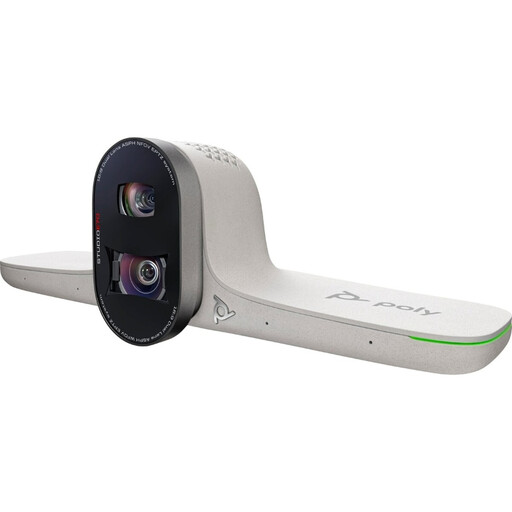
HP Poly Studio E70 Smart Camera
Could be worth considering if you’re looking for a video-conferencing camera; check first that its installation and framing are suitable for a small workspace.
View at Joybuy
Frequently asked questions
How can I check whether small parts will be in focus?
Measure the distance from the planned lens position to the model and compare it with the stated focusing range for the exact model. Elgato lists 30–120 cm for the Facecam Neo; IPEVO lists a minimum distance of 10 cm for the V4K PRO 120.
Can I use the document camera in a video call without extra software?
IPEVO describes the V4K PRO 120 as a USB-A/UVC camera that can be used with Teams and Zoom, among others. Also check that your computer and video-call app recognise the camera and that your computer meets the requirements for the image settings you want to use.
Will I need a microphone as well as the webcam?
It depends on the model and your existing audio set-up. IPEVO lists a built-in microphone for the V4K PRO 120; Elgato says the Facecam Neo has no built-in microphone. So check whether your computer’s microphone or a separate microphone will be suitable.
What if a camera I bought online doesn’t suit my set-up or turns out to be faulty?
For online purchases, ACM ConsuWijzer describes a cooling-off period that ends 14 days after delivery, subject to legal exceptions. A faulty product is a different matter: the Dutch Government points to the seller as your point of contact for a defective product.
Can I record a model-making session if other students are visible or can be heard?
Don’t assume you automatically have permission. The Dutch Data Protection Authority stresses that educational institutions should have agreements about showing students on camera and making and storing recordings. Check your course’s rules and, where possible, point the camera at the model. Whether you can make your own recording depends on what is captured and shared.


