
Explaining a map legend
You mainly discuss a paper map or its legend and want to keep the camera pointing at your desk for an extended period.


Choose a tilting webcam with a desk mode if you regularly switch between yourself and a compact map legend during a call. If the map will stay on the desk for a while, an adjustable document camera is a better fit. Check that the legend remains readable from your recording distance, how much of the shared desk will be in shot and whether the camera works with your meeting software. Manufacturers describe features and specifications, but these don’t tell you whether your map will be readable.
You mainly discuss a paper map or its legend and want to keep the camera pointing at your desk for an extended period.
You want to switch quickly between your face and a small section of the map on the desk during a video call.
You want to be able to move the set-up and avoid accidentally showing other documents.
Choose this option: if you regularly switch between yourself and a compact legend during the same call. Logitech describes Show Mode for desk work on the Brio 500 and MX Brio.
Bear in mind: the screen position may limit the camera angle and the area of the desk in view.
Choose this option: if the map will stay on the desk for an extended period, or you want to position the camera over different parts of the legend. IPEVO describes an adjustable arm for documents; AVer mentions USB camera use for teaching materials.
Bear in mind: the arm and base take up space, and switching to a view of your face varies by model.
| What to consider | What should you check? | Who is this important for? |
|---|---|---|
| Legend readability | Frame the legend as large as possible without losing essential map context. Check focus, working distance and how the image looks in your meeting app. | If I need to explain small letters and symbols, I want to be able to read them in the meeting app. Around 40% of consumers prioritise readability. |
| Switching between speaker and map | Check how you point the camera and whether the legend appears the right way up and is framed properly after switching. | If I often switch between my face and the map during one explanation, I want to do so smoothly. Around 23% of consumers prioritise switching between the speaker and the map. |
| Privacy and space at a shared desk | Check the frame before the call, put away any irrelevant documents and make sure the base or arm will fit on the desk. | At a shared desk, I want to show only the intended map and keep enough room to work. Around 22% of consumers prioritise privacy and space. |
| Connectivity, software and set-up | Check the required port, camera selection in your meeting app and whether any additional software is needed. | If I want to use the camera with my computer and meeting app, the connections and set-up need to work together. Around 15% of consumers prioritise connectivity, software and the overall set-up. |
A stated video resolution doesn’t tell you how much detail the legend will show in your chosen frame or how it will appear in the meeting app.
Consider recording distance, focus, framing and the final image in the meeting app together.
A desk mode on a specific webcam and a document camera with an adjustable arm are different set-ups; you can’t assume they’re interchangeable.
Check the exact model, and sketch or test the camera angle you’ll need above the map in advance.
You may need a different mount or set-up. Check this before choosing a model.
A wide frame may show other documents, while a document camera with an arm or base takes up desk space.
Check the live frame and put away any irrelevant materials before sharing the map.
The Brio 500 and MX Brio are worth considering if you also want to show desk work during a call.
According to IPEVO, the DO-CAM is a USB document camera that can also be used as a webcam for video calls.
The AVerVision M11-8MV is a document camera with a mechanical arm for materials on a desk and USB camera use.
According to ELMO, the MX-P3 is a portable document camera for paper materials, with several output options.
This selection of Joybuy products includes webcams and cameras for video calls. For each model, check that the camera angle, meeting software and framing you need work for your map legend.
 No image available
For anyone looking for a webcam for video calls who wants to show a map during the call; check whether the swivel lens and flexible tripod base give you the angle you need.
The product name lists Full HD 1080P, a microphone and USB Plug & Play.
 No image available
For anyone looking for a desktop webcam; check whether the model is available as a camera in your meeting app and whether the frame suits your map.
The product title lists autofocus and a privacy cover.
 No image available
For anyone looking for a PC webcam that, according to the product name, can be attached to a desktop or laptop screen; check how the map is framed at your workspace.
The product name lists a noise-cancelling microphone and a clip mount for a desktop or laptop.
 No image available
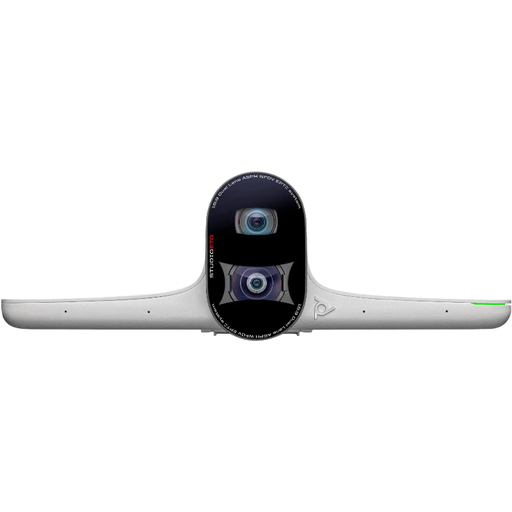
The product description positions the MeetUp as a conference camera for small meeting rooms; assess separately whether its frame is suitable for a map legend.
The description lists 4K video and a 120-degree field of view.
 No image available
For anyone who wants to show materials on their desk: the product description lists DeskView as a shooting mode. Check the live frame of your map before using the camera.
The product name lists a 1/2-inch sensor, Auto-Framing, HDR, a microphone with AI Noise Cancellation and Gesture Control.
Put the map in the intended position, frame the legend and view the image in the meeting app on a second screen or through a call with someone else. Check both letters and symbols; a stated resolution doesn’t measure how your set-up performs.
It depends on the model. IPEVO describes turning the DO-CAM’s camera head to switch between document and webcam use; AVer mentions using the M11-8MV via USB to show a presenter or materials. Check how easily you can do this at your desk.
Check the connection, camera selection in your meeting app, position of the base or screen mount, and framing before you go live. IPEVO describes the DO-CAM as having a USB cable, arm and base; this set-up differs from a tilting webcam.
No. According to ACM ConsuWijzer, statutory warranty depends on what you could reasonably expect from the product. If a product is faulty, the seller is responsible for providing an appropriate solution. Any manufacturer’s warranty is separate.
Keep the frame tight, and if personal data is involved, follow your organisation’s secure working practices. The Dutch Data Protection Authority advises organisations to provide secure video-calling options and discuss as little sensitive information as possible. Whether a particular recording is permitted depends on its content and circumstances.