
Regular map presenter
You often show a paper map on your desk. The small letters and symbols in the map key matter more than always being on screen yourself.


If you often show a paper map on your desk, an adjustable document camera is usually better suited to the task: you can position the lens above the map key. If you mainly make video calls and only show a map occasionally, choose a standard webcam only if a test at your intended distance shows the smallest text clearly. For both camera angles, the model must be able to swivel or switch views, and your meeting app must be able to share the camera feed.
You often show a paper map on your desk. The small letters and symbols in the map key matter more than always being on screen yourself.
You mainly make calls and only occasionally hold a map up to the camera. You want to know whether a webcam will work for this in your set-up.
You switch between showing your face and a map on the desk during a call, and want a camera that can handle both angles.
Check the smallest text on the map itself, at your planned camera distance and in your meeting app’s preview.
| What to consider | What should you check? | Who is this important for? |
|---|---|---|
| Showing small text clearly | Check the focus at your planned distance and whether the arm can position the lens above the map key. Test the smallest lettering in a trial call. | If I mainly explain a paper map with small symbols, I want the map key to remain legible in the shared view. Consumers who prioritise the readability of small map text make up around 42%. |
| Showing a map occasionally | Try the actual mounting angle and the distance at which the camera focuses. | During ordinary calls, I mainly want to stay on screen myself and only show a map occasionally. Consumers whose main use is video calling and whose secondary use is showing a map make up around 25%. |
| Switching between two views | Check whether the camera can physically reach both angles and how the image can be rotated or shared. Also check the frame rate at your chosen resolution. | If I switch between showing my face and a map on the desk during a call, I want to be able to do it with one camera. Consumers who consider switching between these two views important make up around 17%. |
| Connecting and sharing | Check the connection, compatibility with your operating system and how your meeting app shares the camera as a source. Test this beforehand. | I want to use the camera with my computer and meeting app without complicated installation. Consumers who prioritise easy connection and sharing the camera feed make up around 16%. |
A camera’s specifications don’t tell you how large the lettering will appear once you’ve framed the map and shared it through your meeting app.
Show the smallest text in the map key using your planned set-up and check it in a trial call before deciding based on resolution.
CZUR lists a maximum of 15 fps at 4K and up to 60 fps at 1080p for the Fancy S Pro.
Compare resolution and frame rate together for the exact model.
The Logitech C920s is described as a webcam for calls; this doesn’t confirm that it can be positioned usefully above a map on a desk.
Test the mounting, distance and focus with a map of a similar size. You may need a separate mount or a second camera for a different angle.
According to the Dutch government, your statutory right to a product that meets expectations may still apply after the manufacturer’s warranty has expired.
Keep your proof of purchase and report any fault to the retailer. Assess a paid-for extended warranty based on the additional cover it provides.
Document cameras for physical maps and documents; the V4K is a USB option for use above a desk.
According to its Dutch product page, the IRIScan Visualizer 7 combines a document camera with a webcam.
According to CZUR, the Fancy S Pro is a document camera and webcam with a switchable mode and adjustable arm.
Standard webcams such as the C920s are worth considering if calls are your priority and you only show a map occasionally.
According to ELMO, the MX-P3 is a document camera for paper presentation materials, with several output options.
This selection includes webcams and conference cameras for video calls and showing content from a desk. For each model, check whether you can point the camera at the map in your set-up and whether the smallest text is legible.
 No image available
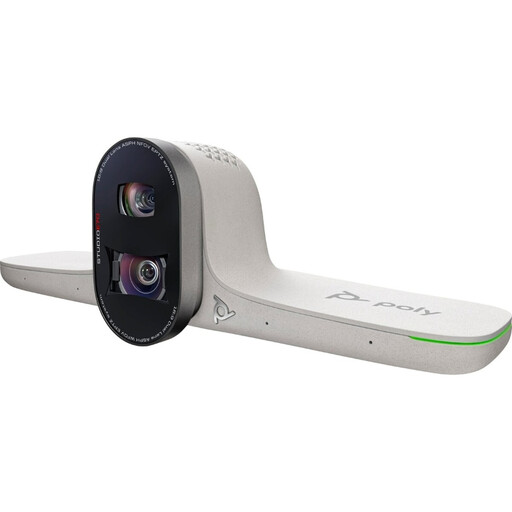
The product description focuses on video conferencing in large meeting rooms; check separately whether the camera can be positioned to show a map on a desk.
The installation instructions mention HP Poly software or drivers and mains power.
 No image available
Suited to consumers mainly looking for a webcam for video calls; test whether it can also focus on your map from the required distance.
The product name lists 4K UHD, 8MP and the EU version in black.
 No image available
A webcam option for consumers who mainly make video calls and may want to mount the camera on a monitor, laptop screen or tripod. Check that your chosen position gives you a clear view of the map key.
The product name lists 2K QHD and the EU version in silver.
 No image available
This webcam may be worth considering if you also want to show what’s on your desk during video calls. Test the angle and the readability of the smallest text on your map in your own meeting app.
The product name lists 4K, a 1/2-inch sensor, HDR and a microphone with AI noise reduction. According to the product description, Windows systems running on ARM are not supported.
 No image available
Suited to consumers looking for a webcam for video calls who also want to show a map occasionally. Check whether you can point the camera at the map in your set-up.
The product name lists 4K and a 1/2-inch sensor.
For the Teams desktop app on Windows or Mac, Microsoft describes the route Share > Camera content > Document and recommends using a USB document camera. Position the camera above the map and check the preview before sharing.
Yes. If the map is in a file or window, you can share your screen or a specific application window in Zoom. Check that screen sharing is allowed in the meeting; this option doesn’t replace filming a physical map.
Point the camera at the relevant part of the map and check the focus and orientation in the preview. A rotatable head, autofocus mode or image rotation may help if your model has that feature; CZUR lists these features for the Fancy S Pro, while IRIS lists automatic image rotation for the Visualizer 7.
The Dutch Data Protection Authority advises discussing as little sensitive information as possible during work-related video calls and handling personal data carefully. Whether you can share a particular map depends on its contents and the rules at your organisation.
According to the Dutch government, distance purchases often come with a 14-day cooling-off period; check the terms for your particular purchase. Your statutory right to a product that meets expectations is separate from any manufacturer’s warranty. If a product is faulty, contact the retailer.