
Often explaining things on paper
You work through calculations live and mainly need a stable, legible overhead view. IPEVO lists autofocus and a 342 × 255 mm capture area for the V4K; HUE describes the HD Pro as having manual focus.


If you often write out full calculations on paper, start by looking at a document camera with a capture area that suits your needs and focusing to match the way you work. If you mainly want to be on camera yourself and only occasionally show a large sketch, a webcam with a desk mode may be more practical. With either type, check that your smallest handwritten symbols are legible in the final meeting view.
You work through calculations live and mainly need a stable, legible overhead view. IPEVO lists autofocus and a 342 × 255 mm capture area for the V4K; HUE describes the HD Pro as having manual focus.
You want to show your face and occasionally share a sketch on your desk. Logitech lists Show Mode for the Brio 500 and MX Brio.
You want to move the camera between two positions, so consider how it can be positioned and adjusted. HUE describes the HD Pro as having an adjustable neck; AVer calls the U50+ both a document camera and a webcam.
Best for: regularly writing out a series of calculations or showing a full sheet of paper.
Bear in mind: the space needed for the paper and camera arm; the stated capture area doesn’t prove that small symbols will remain legible in a meeting app.
Best for: mainly being on a call and occasionally showing a sketch on your desk.
Bear in mind: check legibility for the exact model. Logitech warns that Show Mode on the Brio 505 and MX Brio 705 isn’t designed for very fine text; this warning doesn’t confirm the same limitation separately for the Brio 500 or MX Brio.
Best for: wanting to move one USB camera between paper and your face; AVer describes the U50+ as both a document camera and a webcam.
Bear in mind: one camera can’t provide two separate views at the same time; check how to switch views in your meeting app.
The key things to weigh up are legibility, switching between your face and paper, connectivity, and focus and lighting settings.
| What to consider | What should you check? | Who should consider this? |
|---|---|---|
| Legible calculations | Compare the capture area and focusing options; if possible, test your own handwriting in the meeting app you plan to use. | If I often write small fractions, exponents or other symbols, I want them to be legible in the shared view too. Around 36% of consumers say legibility of calculations is their top priority. |
| Switching between your face and a sketch | Check how the camera rotates or tilts and what participants see while you switch views. | If I mainly show myself and want to share a sketch now and then, a smooth switch matters. Around 29% of consumers prioritise switching between their face and a sketch. |
| Connectivity and software | Check that the connection is compatible with your computer and test the camera selection in your own meeting software. | If I want to use the camera with my existing computer and app, I want to know in advance that they’ll work together. Around 21% of consumers prioritise straightforward connectivity and software use. |
| Focus and lighting | Check the camera’s focusing type and whether its lighting is suitable for your workspace and paper. | If the light varies or I move the camera regularly, I want to be able to check the focus and see the paper clearly. Around 14% of consumers give focusing and lighting top priority. |
When you show more paper at once, each symbol takes up less space in the shared view. So a large capture area alone doesn’t tell you whether small calculations will be easy to read.
Check a test image for the smallest exponents, fractions and symbols you actually write.
A tilting webcam can be handy for sketches, but that doesn’t automatically make it a suitable replacement for a document camera when you need to show fine handwriting.
Check the information for the exact model and test your handwriting from the camera position you intend to use.
A product page by itself doesn’t confirm that the right version is available when you place your order.
When checking a current offer, confirm the model, version and availability before you decide.
The V4K is a USB document camera for showing paper from above.
The Brio 500 and MX Brio are webcams with Show Mode for switching between showing yourself and your desk.
The HD Pro is a USB document camera for lessons and demonstrations.
AVer describes the U50+ as an adjustable document camera that can also work as a webcam.
These product picks are for anyone looking for a camera or a monitor with an integrated webcam for working from home and showing documents. Check that the features listed for each model are suitable for explaining handwritten calculations live.
 No image available
Could suit a setup where you want to capture A3 documents; check whether the camera also provides the live view you need for your meeting app.
The product description mentions USB, scanning flat A3 and A4 documents, and OCR for more than 180 languages. OCR and scanning don’t prove that content will be legible during live video calls.
 No image available
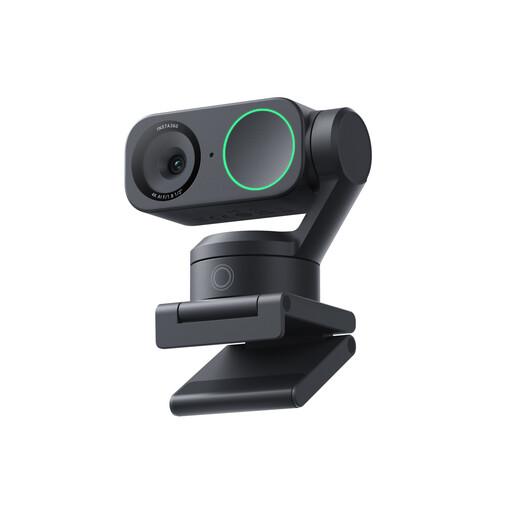
Could suit a setup focused on showing your face during video calls; check separately whether it can show your desk and small handwritten symbols clearly.
The product name lists 4K, a 1/2″ sensor, AI tracking, HDR and a microphone with AI noise reduction.
 No image available
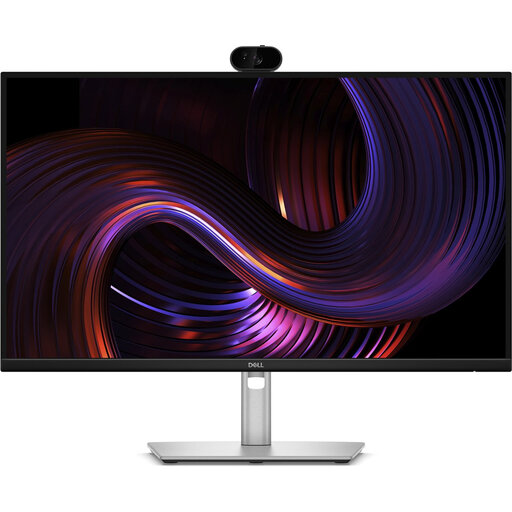
Could suit anyone looking for a monitor with an integrated webcam for a permanent workspace; check whether the camera is suitable for the paper view you need.
The product name lists a 27″ QHD IPS monitor with 100Hz and a webcam. The description also mentions a USB hub and USB Power Delivery.
Check the orientation in your meeting app’s preview. Logitech describes automatic image rotation for Show Mode on the Brio 505 and MX Brio 705; check separately whether this feature applies to the model you want to buy.
Not for every setup: IPEVO lists a USB Video Class interface for the V4K, and HUE says the HD Pro supports applications that recognise a USB camera. Check your computer and meeting app requirements; additional features such as annotation may require dedicated software.
For a typical online consumer purchase in the Netherlands, ACM ConsuWijzer says you generally have a 14-day cooling-off period from delivery, subject to legal exceptions. Your statutory guarantee is separate from any manufacturer’s warranty; your rights take into account what you can reasonably expect from the product.
The Dutch Data Protection Authority says organisations must provide staff with secure video-calling options and has separate privacy recommendations for educational institutions. The obligations that apply to an organisation depend on your role and situation; keep names and other sensitive information off the shared paper if they’re not needed.
No, a logo on its own isn’t an independent safety test. The European Commission explains that CE marking is only required for products covered by applicable EU rules, and that the manufacturer is responsible for compliance. If in doubt, check the details of the exact product and seller.