
Attending in dim light
You usually join meetings from one place and mainly want your face to be clearly visible. The room’s lighting and the webcam’s light correction are therefore important things to consider.


Start by ensuring faces are evenly lit, then check what low-light correction the webcam offers; a higher resolution alone won’t automatically make a face in the dark easier to see. Next, choose based on the framing and focusing you need, and check that the connection, microphone and any software are compatible with your work computer. Manufacturers’ claims about low-light performance are not an independent comparison in your meeting room.
You usually join meetings from one place and mainly want your face to be clearly visible. The room’s lighting and the webcam’s light correction are therefore important things to consider.
You stand up or move around during meetings and want to stay in frame. Check whether automatic framing works with the software and setup you use.
You switch between computers or meeting rooms and want to check the connection, software access, microphone and privacy cover in advance.
A good fit if: you mostly join meetings seated and want a simple connection, built-in microphone or lens cover.
Trade-off: automatic light balance doesn’t guarantee a good picture in every dimly lit room, and won’t automatically keep you in frame as you move.
A good fit if: you stand up or move within the frame while speaking; Logitech says RightSight auto-framing for the Brio 500 works with Logi Tune.
Trade-off: check whether you’re allowed to use Logi Tune on your work computer; the manufacturer’s low-light claim is not an independent test.
A good fit if: you want to compare more control over image settings or camera movement, for example when presenting or sitting in a fixed position.
Trade-off: check the system requirements, focus distance and video mode for each model; extra features won’t automatically solve poor lighting on faces.
Zoom recommends indirect lighting that falls evenly across faces. Test the picture in your meeting app first, then compare the webcam’s features.
| What to consider | What should you check? | Who should pay particular attention? |
|---|---|---|
| Face visibility in low light | Test with light in front of or slightly in front of your face; then compare the light correction offered by the exact model. | If you meet in a dimly lit room, you’ll want your face to remain clearly visible. Around 36% of consumers prioritise visibility. |
| Framing and focus | Decide who needs to be in frame at the same time, then check the field of view, focusing method and any software requirements. | If you move around or want to keep several people in frame, the crop is crucial. Around 22% of consumers prioritise framing. |
| Clear audio | Check whether the exact model has a microphone and test the audio input in your meeting app. | If colleagues need to hear you clearly during meetings, check in advance that the built-in microphone suits your setup. Around 14% of consumers prioritise clear audio. |
| Connection and software | Check the available port, system requirements and whether you’re allowed to install any required software. | If you want to use the webcam with a work computer, you won’t want to choose a feature that’s unavailable because of connection or software restrictions. Around 14% of consumers prioritise an easy connection. |
| Privacy between meetings | Check whether the model has a physical lens cover; for work calls, use the solution approved by your organisation. | If the webcam stays on a shared desk, you’ll want to cover the lens between meetings. Around 14% of consumers prioritise privacy. |
The room’s lighting affects what other participants see. The video quality available also depends in part on your meeting platform’s settings and requirements.
First improve and test the lighting on faces. Then compare the camera features and check what video quality your meeting platform supports.
A higher resolution may add little if the lighting or platform settings limit the final picture.
For RightSight auto-framing on the Logitech Brio 500, Logitech specifies that Logi Tune is required.
Before buying, check whether you’re allowed to use the required software on your work computer.
A feature may be unavailable on a managed work computer if you can’t use the required software.
A physical cover blocks the camera lens, but it doesn’t secure the connection or service you use for meetings. The Dutch Data Protection Authority says organisations must offer secure options for video calls or chat.
Check both the physical camera control and the meeting service your organisation approves for work calls.
The Brio 100 is a simple option for video calls; the Brio 500 is aimed at those who want to compare light correction and, with Logi Tune, automatic framing.
The Kiyo Pro is a model worth looking into if changing light conditions are a key factor in your choice.
The Tiny 2 is worth comparing if, alongside low-light performance, autofocus and camera movement are important to you.
The Facecam MK.2 is worth comparing if you sit in a fixed position and want to control the image settings.
The Ovala 2K QHD is worth comparing if connection options and a physical privacy shutter are your priorities.
This selection includes webcams for individual video calls and a camera for meeting rooms. The listed image, connection and privacy features can help you compare models, but they are not an independent low-light test.
 Image unavailable
Could suit you if you’re looking for autofocus, adjustable image settings and a physical lens cover.
The product name lists 1440p/1080p and USB. The product information mentions Synapse for adjusting image settings and a privacy shutter.
 Image unavailable
Could suit you if you’re looking for a webcam with automatic light and colour correction, dual microphones and a lens cover.
The product information lists a Sony IMX363 sensor, PDAF autofocus, 4K and a 75° field of view. The connection is listed as USB-A/USB-C.
 Image unavailable
Could suit you if you want to compare automatic light correction, built-in audio and a physical lens cover.
The product information lists 4K, HDR, a 99° field of view, automatic light correction, a built-in microphone with noise reduction and a USB-A-to-USB-C adapter.
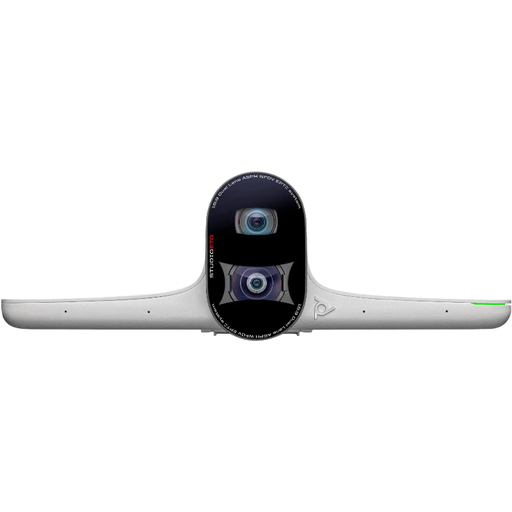 Image unavailable
Could suit a dedicated meeting room where several participants need to be in frame and framing or tracking modes are useful.
The product information lists a dual camera, 4K, a 93° to 111° field of view, and Poly DirectorAI framing and tracking. Connections: USB-C and Ethernet. It can be mounted freestanding or on a wall.
 Image unavailable
Could suit you if you want to compare autofocus, two built-in microphones and a physical lens cover for meetings.
The product information lists 4K, autofocus, dual microphones, an integrated privacy cover and a USB-A connection.
Not necessarily. First, test even lighting on faces, preferably indirect, and check the picture in your meeting app. Zoom points out that room lighting affects what others see; how well light correction works still depends on the conditions.
A 4K camera specification on its own doesn’t guarantee Full HD output in Zoom. Zoom says 1080p for group meetings is limited to certain account types, including Business and Enterprise. Check your account’s settings and requirements before treating extra resolution as a deciding factor.
Check the connection and system requirements, then test the camera and microphone in your meeting app. Extra features may require software: Logitech specifies Logi Tune for the Brio 500’s auto-framing. Also check whether you’re allowed to use that software on your work computer.
When you buy from a business at a distance, you’re usually entitled to a 14-day cooling-off period. You’re also entitled to a product that matches the agreement. The Dutch government states that the Netherlands has no fixed statutory guarantee period; if a product is faulty, you can ask the seller to put things right. Check the terms that apply to your purchase.
The Dutch Data Protection Authority says organisations must offer secure options for video calls or chat and are responsible for secure communication with colleagues and customers. Some sectors have stricter requirements. This general guidance doesn’t assess a specific app or company setup; ask which solution your organisation has approved.