
Joining alone from a dark room
You’re joining from a computer and mainly want to be clearly visible without showing your whole room.


If you’re joining on your own from a computer, consider a personal webcam with a low-light setting or feature, and check the picture in your own room. If several people are sitting around one table, a conference room camera is a better option to assess. As well as the field of view, consider how far away the furthest speaker will be. A light adjustment feature alone doesn’t prove that a camera can capture the whole table clearly, both visually and acoustically.
You’re joining from a computer and mainly want to be clearly visible without showing your whole room.
You’re looking for a set-up that captures several faces and voices in the same room.
You want to check that the camera, connection and meeting software work with the existing set-up.
First decide whether the camera needs to show just you or a group around a table. Then assess the lighting, microphone range and connection for that specific set-up.
| What to consider | What to look for when buying | Who should prioritise it? |
|---|---|---|
| Picture quality in low light | Check a sample image using the lighting in your meeting room. Logitech describes RightLight 3 with HDR for the Brio 4K; Insta360 mentions image processing for dark rooms on the Link 2. These are claims made by the manufacturers. Microsoft Teams also has a setting to adjust brightness. | If I’m sitting at my computer on my own, I want my face to remain visible in low light. Around 36% of consumers give low-light picture quality top priority. |
| Everyone around the table in shot | From the planned camera position, check whether the people sitting at the ends of the table will also be visible. HP specifies a 110° horizontal field of view for the Poly Studio R30; Jabra lists a 180° panoramic view for the PanaCast 50. These figures alone don’t tell you which camera is better suited to your room. | If we’re meeting with several people in the same room, I want to see everyone without having to position the camera awkwardly. Around 29% of consumers prioritise group framing. |
| Clear audio | Compare the distance to the furthest speaker with the stated microphone range, then test a call from that seat. Logitech lists a microphone range of up to 1 metre for the Brio 4K; HP gives a range of up to 4,57 metres for the Poly Studio R30. These are stated specifications, not a guarantee of clear audio in your room. | If the people furthest away at the table also need to be heard clearly, I want to know whether the microphone will work from their seats. Around 21% of consumers give clear audio top priority. |
| Connection and set-up | Check the ports, cables included and system requirements. Jabra lists USB-C for the PanaCast 20; HP specifies a USB-C port for the Poly Studio R30 and says it includes a USB-C-to-USB-A cable. Also check which camera and microphone are selected in the meeting app. | If I manage the existing meeting room, I want to know whether the camera works with the computer and meeting app. Around 14% of consumers give connection and set-up top priority. |
A camera may work well for someone sitting close to the computer, but that doesn’t mean it will pick up voices clearly from other seats. Logitech lists a microphone range of up to 1 metre for the Brio 4K.
First decide whether one person or several people in the same room will be joining. Then check the picture and sound from the furthest seat.
For a conversation around a table, you may need an additional group audio solution or a different camera set-up.
Resolution and field of view describe different features from how the picture looks under the lighting in your room. Microsoft describes a setting in Teams to adjust brightness in low light.
Check the sample picture using the actual lighting in the room. Use resolution and field of view to assess what needs to be visible, not as proof of picture quality in a dark room.
The group framing Logitech describes for MeetUp 2 shouldn’t be attributed to the MeetUp without checking first.
Before buying, check the full model name and version, and only associate features with the model they apply to.
The Brio 4K is a personal webcam; MeetUp 2 is a USB video bar for small meeting rooms. They’re different types of solution.
The Link 2 is designed for personal video calls where changing lighting and flexible framing may be important.
The PanaCast 20 is a personal webcam; the PanaCast 50 is a separate panoramic solution for a small meeting room.
The Studio R30 is a USB video bar for a small meeting room where group video and audio from around the table matter.
The Meet 2 is a compact personal webcam for someone sitting close to the computer.
This selection includes personal webcams for joining from a computer and a camera for meetings with several participants. Choose based on who needs to be in shot, and check the picture, microphone range and connections for your room.
 No image available
A personal webcam for joining meetings from a computer; the product description mentions support for Teams and Zoom, and a built-in omnidirectional microphone.
The title lists 1440p/1080p at 60 FPS. The product description mentions autofocus, a privacy shutter and a USB-A connection.
 No image available
A personal webcam for computer-based meetings; the product description mentions automatic light and colour correction.
The product name lists a Sony IMX363 sensor, PDAF autofocus, two microphones, a privacy shutter and a 75° field of view. The connection is listed as USB-A/USB-C.
 No image available
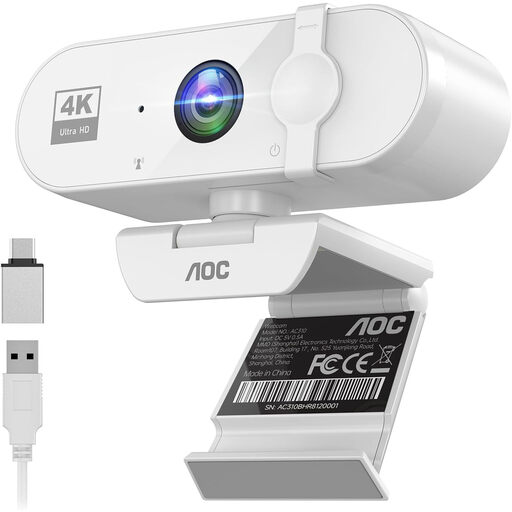
A personal webcam for meetings from a computer; the product description mentions HDR and automatic light correction.
The title lists 4K, a 99° field of view and microphone noise reduction. It also mentions a privacy shutter, plug-and-play USB connection and mounting clip.
 No image available
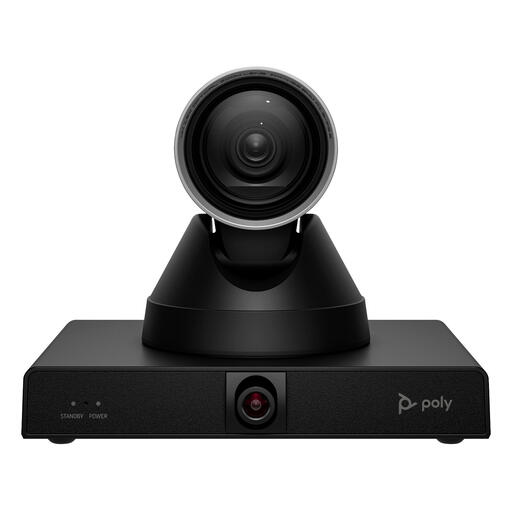
A conference camera for a set-up with several participants, where zoom and control of camera movement may be important.
The product description lists 4K video, 12× optical zoom and pan-tilt-zoom control. It also mentions group framing, presenter tracking and mounting on a display, tripod or ceiling.
 No image available
A desktop webcam for video calls from a computer; the product description mentions two built-in microphones with noise reduction.
The product name lists 4K UHD, 8 MP, autofocus, a privacy shutter and the black EU version. The description mentions a mounting clip and USB-A connection.
Yes. Microsoft describes the ‘Adjust brightness’ setting in Teams as a way to improve video in low light. Check the preview beforehand using the lighting in your meeting room; the setting doesn’t guarantee that a dark room will be well lit.
From the planned mounting position, check whether the people sitting at the ends of the table are in shot and whether the furthest speaker can be heard clearly. HP gives a 110° horizontal field of view and a microphone range of up to 4,57 metres for the Poly Studio R30; these figures don’t guarantee that every seat in your room will be covered clearly by the picture or sound.
Check that the ports and cables are compatible, then select the intended camera and microphone in the meeting app. Jabra lists USB-C for the PanaCast 20; Microsoft explains how to choose the camera device in Teams.
For the version you’ve chosen, check whether the required mounting equipment and cables are included, and what warranty terms apply. Jabra lists a two-year warranty in the technical specifications for the PanaCast 20; this doesn’t tell you anything about the terms for other models.
The Dutch Data Protection Authority states that organisations must offer secure video calling options and notes that stricter security requirements apply to some sectors. This doesn’t prescribe a particular camera model or mean that every team meeting must be recorded. Make sure your use of the meeting app complies with your organisation’s policies.