What should you look for when buying?
First decide whether you need one person or a group at a table to be seen and heard. Then check the connection, the audio options in your meeting app and what the camera will show of its surroundings.
Personal webcam
Choose this option if: you’re sitting on your own behind your laptop and mainly want to be seen clearly.
Bear in mind: a webcam for one person won’t necessarily work well for an entire table; check the microphone and app settings.
Video bar for a group space
Choose this option if: several group members are sitting at the same computer and one device needs to capture the room.
Bear in mind: a stated field of view or microphone range doesn’t tell you how clearly people will be heard over colleagues talking; also check the power supply and placement.
| What to consider |
What to look for |
Who is this important for? |
| Being heard clearly over background noise |
Test your chosen microphone where you plan to use it; in Teams, also check the available noise-suppression settings. |
If I’m joining from a noisy office, I mainly want to speak clearly without other voices drowning out the conversation. Around 36% of consumers put clear speech first. |
| Everyone at the table being seen and heard |
Check the number of people, their distance from the camera, the field of view and the microphone’s position. |
If several group members are sharing one camera, I want everyone to be clearly visible and able to take part in the conversation. Around 29% of consumers give group coverage top priority. |
| Connecting and selecting audio |
Check the USB port and power supply; select the intended camera, microphone and speaker in your meeting app. |
If I switch laptops or workspaces, I want to connect without confusion and use the right audio. Around 21% of consumers say ease of connection matters most. |
| Privacy for participants and bystanders |
Check the camera’s framing, see whether it has a lens cover, and agree any recordings with the organisation concerned. |
If bystanders or sensitive information could appear on camera, I want to know in advance what the camera will capture and whether anything will be recorded. Around 14% of consumers put privacy first. |
Joybuy products for this use
This selection includes personal webcams and cameras for meeting rooms. For each model, check that it suits your room, connection and preferred audio setup for your study group.
 No image available
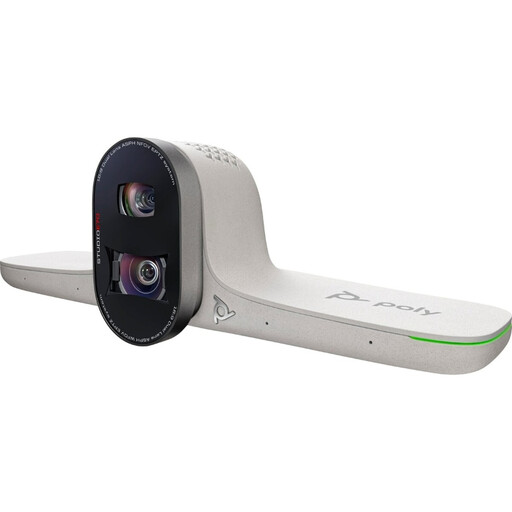
HP Poly Studio E70 Smart Camera
The product description presents this model as suitable for hybrid meeting rooms; check that the room and installation work for your setup.
The description mentions dual cameras, smart framing and tracking. Listed specifications include 4K video, a field of view of 93° to 111° and 7.3× digital zoom. USB-C and AC power are listed for installation.
View at Joybuy
 No image available
Philips 4000 Series 4K UHD Webcam SPL6408BT/00
This webcam is an option for joining individually; check that its built-in microphones suit the audio conditions in your office.
The product title lists 4K UHD, 8 MP, autofocus and dual built-in microphones. The description mentions mounting on laptops, desktop computers and monitors, plus a USB-A connection. This is the EU version in black, with a privacy cover.
View at Joybuy
 No image available
Philips 2K QHD PC Webcam SPL6308S/00
This webcam is designed for joining from a computer; check the microphone and selected audio device in your meeting app.
The product title lists 2K QHD and a noise-cancelling microphone. The description mentions a clip for mounting on a monitor or laptop screen, or use on a tripod. This is the EU version in silver.
View at Joybuy
 No image available
Logitech MeetUp Black 3840 x 2160, 30 fps
This all-in-one conference camera is described as suitable for small meeting rooms; check that the field of view and audio setup suit the number of people at the table.
The description lists 4K video, a 120° field of view, built-in microphones and a speaker. The title specifies 30 fps. According to the installation instructions, it connects to a computer via USB.
View at Joybuy
 No image available
Insta360 Link 2C Standard Bundle, Graphite Black
This webcam is described as suitable for video calls; check that the software and microphone settings listed suit the way you plan to use it.
The product title lists 4K, a 1/2-inch sensor and a microphone with AI noise reduction. The description mentions HDR, a physical privacy switch and Auto Framing for individuals or groups. Microsoft Teams and Zoom are listed as platforms.
View at Joybuy
Frequently asked questions
Can I connect a camera and still use a different microphone?
Yes. In Microsoft Teams, you can choose an audio device before joining. Also check that your computer and, if you’re using a browser, the browser have access to the microphone and speakers. Check this separately for any other meeting app.
How can I reduce office noise during a Teams call?
Microsoft Teams offers adjustable noise suppression on the platforms listed by Microsoft. Test the setting with the microphone you’ll actually use; the feature doesn’t prove that every voice around you will disappear.
Does a video bar need more than a USB port?
It depends on the model. The HP Poly Studio R30 specifications list an AC power adapter as well as USB. Check the connections required and what’s included in the box before installation.
What warranty applies if my camera develops a fault?
When you buy as a consumer in the Netherlands, you’re entitled to a product that meets reasonable expectations, but there’s no fixed statutory warranty period. According to the Dutch government, the assessment depends on factors including the product, normal use and what was promised at the time of sale. If a product is faulty, the seller must provide an appropriate solution.
Can a study group in an office be recorded without permission?
Not simply because there’s a camera in the room: agree any recording with the participants and the organisation concerned in advance. The Dutch Data Protection Authority advises educational institutions to agree arrangements for filming students and teachers, recordings and retention periods. This guidance doesn’t give a general yes-or-no answer for every study group outside an educational institution.


