
Making a call alone in a shared room
You want to see your family without accidentally including your housemates or their living space. An adjustable frame and a lens cover can help, but a lens cover won’t mute the microphone.


For a one-to-one call, start with the device you already own or a personal webcam with a field of view and lens cover that suit your room. If several people need to join in at once, compare a wider conference camera with the privacy and audio features you need in a shared space. The Consumers’ Association lists a laptop, tablet or smartphone as options for video calls.
You want to see your family without accidentally including your housemates or their living space. An adjustable frame and a lens cover can help, but a lens cover won’t mute the microphone.
You want several people to be seen and heard at the same time. Compare a standard webcam with a wider camera and room audio, such as the setup Logitech describes for MeetUp.
You want to see whether your laptop, tablet or phone can handle a family call before buying a separate camera. The Consumers’ Association lists these devices as options for video calls.
First decide whether you’ll be calling alone or whether several people on your side will join in at once. Then consider which parts of the shared space you’re happy to include in the picture and sound.
| Buying priority | What should you check? | Who is this for? |
|---|---|---|
| Keep housemates out of the picture and sound | Check the adjustable field of view, physical lens cover and how to mute the microphone in your calling app. | If I’m calling alone, I want to keep housemates and their living space out of the picture and sound; around 31% of consumers say privacy is their top buying priority. |
| Get several people in the picture together | Decide how many people will be joining at once, then compare the field of view, positioning and audio setup. | If we’re joining from the table together, I want everyone to be seen and heard; around 23% of consumers say this is their top buying priority. |
| Make sure speech is clear | Compare the stated microphone specifications with your seating distance, and check which microphone is selected in your calling app. | If there’s other noise at home, I want my family to hear me clearly; around 23% of consumers prioritise clear speech. |
| Avoid buying something you don’t need | First try a call using the device and calling app you actually plan to use. | If my laptop, tablet or phone already does the job, I don’t want to buy a separate camera; around 23% of consumers want to identify a shortcoming in their existing setup first. |
A wide-angle camera can be useful when several people are joining, but it also shows more of the shared room.
Choose the frame based on who’s actually taking part, and check the preview before the call starts.
A physical cover blocks the lens, but it doesn’t switch off the microphone.
Check both the lens cover and the microphone setting in your calling app, and mute the microphone when you’re not speaking.
Trust says the TW-200 can pick up voices and sounds from up to 5 metres away. That specification alone doesn’t tell you how a call will sound with housemates or other background noise.
Consider where you’ll actually sit and the surrounding noise, and check which microphone your calling app is using.
Logitech positions MeetUp for small meeting rooms, while a laptop or phone you already own may be enough for one-to-one calls.
Test your current setup first, and choose a room-wide camera only if several people need to join together.
This comparison includes the personal Brio 500 webcam and the MeetUp conference camera for small rooms.
The TW-200 is a personal Full HD webcam with a privacy filter; Trust describes the TW-250 as a QHD model with dual microphones.
The PowerConf C200 is designed for one-to-one video calls, with a field of view you can adjust in software.
Meet 2 is a compact webcam with automatic framing, designed for people who move around during a call.
The Studio P5 is a personal webcam with a manually operated lens cover.
These product picks are personal webcams for video calls, with features such as a lens cover, a stated field of view or built-in microphones. Before buying, check that the connections and any required software are compatible with your computer and setup.
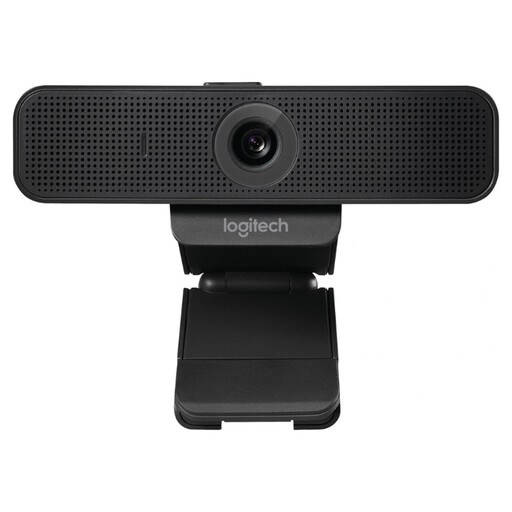 No image available
The stated 78° field of view and built-in lens cover may be useful if you’re calling alone and want to keep the frame tight.
Full HD, autofocus, built-in microphone and privacy cover. The product name specifies USB and 30fps.
 No image available
The stated privacy cover may suit a setup where you want to cover the lens between calls.
The product name specifies 4K UHD, 8MP, autofocus, dual built-in microphones and a privacy cover. EU Version, Black.
 No image available
The product description mentions a clip for attaching it to laptops and monitors, making it suitable for those setups.
2K QHD. The description mentions a noise-cancelling microphone. EU Version, Silver.
 No image available
Auto-framing and the physical privacy switch are listed features for video calls where you want to adjust the framing and cover the lens.
4K, 1/2"-sensor, HDR, microphone with AI noise reduction and gesture control. According to the product description, this model is not compatible with ARM-based Windows systems.
 No image available
The product description lists AI tracking and auto-framing for video calls where you move around.
4K, 1/2"-sensor, HDR and built-in microphone with AI noise reduction. The product name specifies use with PC and Mac.
Not necessarily. The Consumers’ Association lists a laptop, tablet or smartphone among the options for making video calls. Try your existing device first, and only choose a separate camera if you want to solve a specific problem with picture, sound or positioning.
Set up and check the frame before the call, and let your housemates know you’re going to make a call. A physical lens cover blocks the picture when it’s closed, but it doesn’t switch off the microphone; mute it separately in your calling app when needed.
Check that you can connect the camera to your computer and that any adjustment software is supported. AnkerWork says you can adjust the PowerConf C200’s field of view using AnkerWork software. Also check which camera and microphone are selected in your calling app.
The Dutch Data Protection Authority does not give a specific yes-or-no ruling for every live family call where housemates might appear in the background. The Authority says the GDPR does not generally apply to private recordings for household use, but also explains that conditions may apply when footage is made available to an unrestricted audience, for example. A temporary family call is not the same as a landlord using surveillance cameras in shared living spaces.