
Team around one meeting table
Several colleagues share one camera and all need to be visible and easy to hear for remote participants.


A standard webcam is suitable when everyone joins from their own workspace. If a group is sitting around one table, consider a conference camera or video bar. If you’re sharing a camera, check that everyone is in shot and can be heard clearly. Share the draft through your meeting software: a higher camera resolution won’t automatically make shared text easier to read.
Several colleagues share one camera and all need to be visible and easy to hear for remote participants.
Everyone joins from their own workspace. The camera shows the participants, while the draft is shared through the meeting app.
Participants are sitting far apart or close to the camera, so coverage and positioning need extra attention.
When: participants each sit at their own computer and the camera mainly shows one speaker.
Trade-off: the Logitech Brio 505 has a specified microphone range of up to 1.22 m; you’ll also need to share the document separately through the meeting app.
When: colleagues are together in a small meeting room and join the meeting using one laptop or room PC.
Trade-off: check the table layout, power supply and cable routing. A wide field of view alone doesn’t tell you whether people can be heard clearly from every seat.
When: participants are sitting far apart and the room calls for a wide view.
Trade-off: position it to suit the room. Specified coverage and audio features don’t prove how the camera will perform in every setup.
| What to consider | What should you check? | Who is this important for? |
|---|---|---|
| Everyone in shot | Measure the table layout and compare it with the specified field of view and positioning options. | If I’m sharing one camera with colleagues, I want to check that everyone fits in the frame. Around 31% of consumers give camera coverage top priority. |
| Making speakers easy to hear | Compare the seating positions with the microphone setup and test voices during installation, including at the far end of the table. | When several people are speaking around the table, I want remote participants to be able to follow everyone. Around 25% of consumers prioritise clear audio. |
| Sharing a draft so it’s easy to read | Check whether the meeting app lets you share a window or screen, and agree which version of the document everyone will view. | When we’re reviewing text together, I want to share the document directly rather than film it with the camera. Around 25% of consumers put document sharing first. |
| Connecting and installing | Check the available port and operating system. For a video bar, also check the power supply, cabling and connection to the laptop or room PC. | If I want to connect quickly, I look at the connections already available at my workspace or in the meeting room. Around 19% of consumers give ease of installation top priority. |
The Logitech Brio 505 has a specified microphone range of up to 1.22 m. This doesn’t mean the microphone will pick up voices clearly all around a long table.
Decide in advance how many people will share one camera and microphone, and where they’ll be sitting.
You may still need a different microphone or camera for the room.
A camera shows people or whatever is in front of the lens. Share a digital draft through the meeting app.
Test window or screen sharing before the meeting, and use the camera to show the participants.
A wide field of view doesn’t prove that people can be heard clearly from every seat. Manufacturers list field of view and audio features separately.
Check the framing, audio clarity and positioning together in the room where you plan to use the camera.
You may need to make further adjustments or choose a different audio solution for the final setup.
The Brio 505 is designed for an individual workspace. Logitech positions MeetUp 2 as a video bar for small BYOD and PC meeting rooms.
HP offers the Poly Studio R30 as a USB video bar for small meeting rooms.
Jabra positions the PanaCast 50 as a video bar for rooms where a wide view of the participants is needed.
These products include webcams for individual computer workspaces and a camera for a meeting room. Choose based on how many participants will share one camera and which connections you need.
 No image available
An option for joining meetings from your own computer; the product description mentions a built-in stereo microphone.
The product name specifies 1440p/1080p at 60 FPS and USB.
 No image available
A webcam for PC meetings from an individual workspace; the product name mentions dual microphones.
The product name specifies 4K, autofocus, a 75° field of view, a lens cover and USB-A/USB-C connectivity.
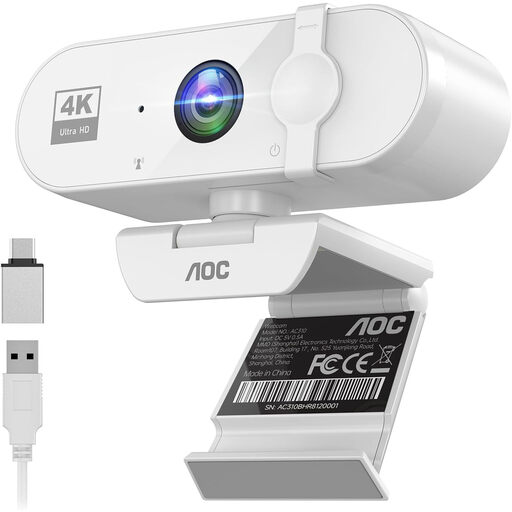 No image available
A webcam for use with a laptop, desktop or PC; the product name mentions a built-in microphone.
The product name specifies 4K, a 99° field of view and a privacy cover.
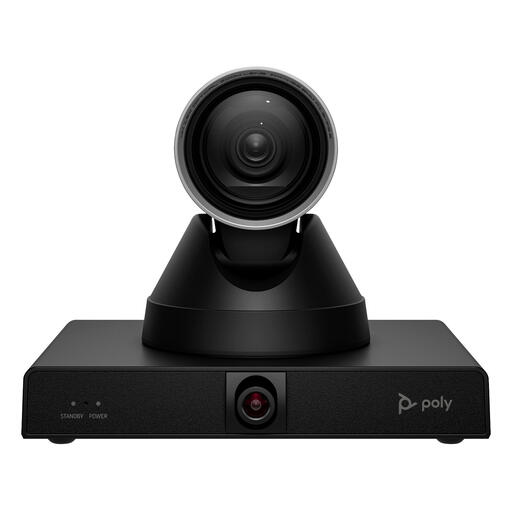 No image available
The product description says it is designed for large meeting rooms, and mentions group framing and presenter tracking.
The product description specifies 4K, 12× optical zoom and PTZ control. Installation requires mounting and power via PoE or a 12V adapter.
 No image available
A desktop webcam for an individual computer workspace; the product name mentions built-in dual microphones.
The product name specifies 4K UHD, autofocus and a privacy cover.
Not automatically. Share a digital draft as a window or screen in the meeting app; Microsoft describes both options for Teams. Choose your camera based on the people who need to appear on screen.
It varies by model. HP describes the Poly Studio R30 as connecting to a PC via power and USB. Logitech describes MeetUp 2 as suitable for a BYOD or PC setup; an optional active USB cable may be needed for a single-cable setup.
Don’t assume so. Processing personal data requires an appropriate legal basis under the GDPR. The Dutch Data Protection Authority says that an organisation must assess for itself which legal basis applies. Buying a camera doesn’t in itself give you permission to use footage for another purpose.
Choose your meeting app and document-sharing settings to suit the content and your organisation’s policies. The Dutch Data Protection Authority says organisations should provide secure options for business video calls. A webcam alone doesn’t provide that security.
For a consumer purchase, the Dutch government says statutory warranty applies: you’re entitled to a product that works as it should. A manufacturer’s or seller’s warranty may also apply. For a business purchase, check separately which agreement and terms and conditions apply.