
Team with several speakers
Reviewing a draft with colleagues seated in different places, and wants remote participants to be able to see the group.


Choose a standalone webcam if one colleague will do most of the presenting and your existing microphone and speaker already pick up the other participants clearly. For several speakers or seating positions, a conference camera with a suitable field of view and room audio is often a better fit, but test visibility and audibility in the actual room. Share the digital draft separately through your meeting software.
Reviewing a draft with colleagues seated in different places, and wants remote participants to be able to see the group.
Speakers often take turns or sit some distance from the laptop; considers microphone placement and room audio as well as the camera view.
Usually has one presenter speaking and wants to share the digital draft clearly, with the camera and document each serving their own purpose.
Best for: situations where one colleague does most of the presenting and the existing audio picks up the other speakers.
Consider: check that everyone is within the camera’s view and microphone range from their own seat; share document details through your meeting software.
Best for: situations where several colleagues are taking part and you want a camera and room audio in one device.
Consider: a quoted wide field of view or integrated audio doesn’t prove that every seat in your room will have a clear view or sound.
Best for: situations where chairs are arranged along a front wall, or participants are seated around a table.
Consider: a front-facing view and a 360° setup need different placements; test which arrangement works best in your room.
| What to consider | What to check before buying | Who is this important for? |
|---|---|---|
| Everyone in view | Check from the actual camera distance and furthest seats that the whole group fits in the frame. Don’t compare horizontal and diagonal fields of view as if they were the same measurement. | When colleagues are spread out, I want remote participants to see the whole group, not just the person nearest the camera. Around 36% of consumers prioritise a group view. |
| Speakers easy to hear | Ask someone to speak from each seat and listen in from another connection; check the microphone selection, speaker and echo in the meeting app. | When speakers sit further from the laptop or take turns, I want to know that everyone will remain easy to hear. Around 29% of consumers prioritise room audio. |
| Digital draft easy to read | Check that you have the right document version in advance, then share the intended window or screen through your meeting software. | I want to review text and changes together without relying on a camera filming a screen or paper. Around 21% of consumers prioritise document viewing. |
| Connecting and positioning | Check the ports, power, cable routing and mounting location required for your chosen setup. | If the room needs to be ready quickly, I want to know in advance which connections and placement are needed. Around 14% of consumers prioritise a simple setup. |
Resolution alone doesn’t tell you whether everyone will be in view, easy to hear or able to read the digital draft. These are separate parts of a meeting.
Test the picture and sound from the actual seats, and share the digital document through your meeting software.
A personal webcam is designed for one user, while a video bar for a small room may have integrated audio. Check what your existing microphone setup already picks up.
Choose based on who will be speaking and how far away they’ll be. If your existing audio isn’t up to the job, you may need separate audio equipment.
Logitech describes the standard BYOD setup for MeetUp 2 as using two cables, with a one-cable setup available using an optional Active USB cable.
Check the box contents, laptop ports and required cable routing for the model you choose.
Logitech offers the Brio 500 personal webcam, as well as the MeetUp and MeetUp 2 conference cameras for small rooms. These are different setups for a main presenter and a group, respectively.
HP describes the Poly Studio R30 as a USB video bar for small meeting rooms.
PanaCast 50 is a front-facing video bar designed for setups where a wide group view matters.
According to Owl Labs, Meeting Owl 4+ combines a camera, microphone and speaker setup for participants seated around the device.
This selection includes standalone webcams for laptop calls and a USB video bar for small meeting rooms. If you choose a standalone webcam, check separately whether your existing audio picks up the whole group.
 Image unavailable
A standalone webcam for a laptop or monitor setup when one colleague is leading the meeting.
The product name lists 4K UHD, 8 MP, autofocus, dual built-in microphones and a privacy cover. EU Version, black.
 Image unavailable
A standalone PC webcam to consider when mainly one speaker will be joining via a laptop or desktop computer.
The product name lists 2K QHD, a noise-cancelling microphone and a clip for mounting on a screen. EU Version, silver.
 Image unavailable
A USB video bar to consider for a front-facing setup with several colleagues in a small meeting room.
Logitech lists a 120° field of view for MeetUp and describes it as having integrated audio. The product name lists 3840 x 2160 pixels and 30 fps; test the picture and sound from the furthest seats.
 Image unavailable
A standalone webcam for video calls from a PC or Mac; check whether it’s suitable for meetings with people in several seats.
The product name lists 4K, a 1/2-inch sensor, automatic framing, HDR, an AI noise-cancelling microphone and gesture control.
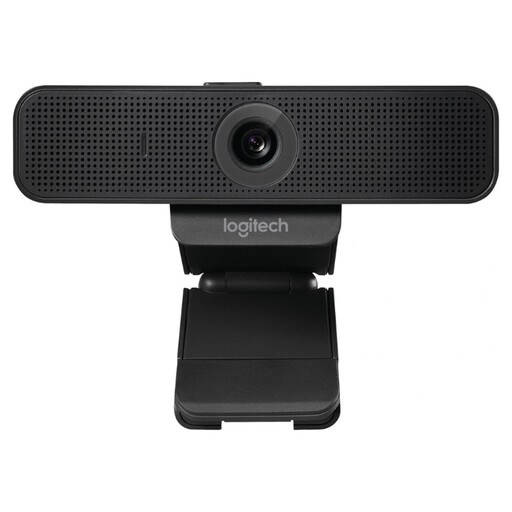 Image unavailable
A standalone USB webcam for a laptop or monitor setup; check whether the framing described is suitable for the number of participants and where they’ll be sitting.
The product name lists 30 fps. The product description says the framing is designed for one or two people, which may be limiting if several colleagues are spread out.
To share a digital draft in Microsoft Teams, use the Share feature and choose the intended window or screen. The camera is there to show the participants; check which document version and any other on-screen content will be visible.
Follow the connection instructions for the exact model and test the picture and sound from all the seats you plan to use. Logitech describes different BYOD setups for MeetUp 2; HP describes a connection for Poly Studio R30 that uses power and USB to a PC.
Before and after the meeting, check whether the camera, microphone and any recording features are switched on in the meeting app. If the same equipment is used to monitor employees on an ongoing basis, specific GDPR requirements apply. The Dutch Data Protection Authority states, among other things, that employers must inform employees; this is not necessarily the same as a regular, active video meeting.
No. Don’t assume there is a fixed statutory guarantee period in the Netherlands or that consumer rights automatically apply to a business purchase just because of a manufacturer’s guarantee. According to the Netherlands Authority for Consumers and Markets, when a product is sold to a consumer, the seller is responsible for the statutory guarantee if the product doesn’t meet what the consumer could reasonably expect. For a business order, check the contract and guarantee terms separately.