If you’re calling from a spot close to the computer, a personal webcam will usually be the better fit. If several people in the room need to take part at once, consider a conference camera with integrated room audio. Decide in advance who should be visible and audible, and test the camera in its planned position: a wider view can also show other people in the classroom. The Dutch Data Protection Authority stresses that educational institutions should keep the impact on privacy from video calls to a minimum.
Who will be using the camera?
One person calling from the classroom
You want to be seen during the family call while keeping as much of the rest of the classroom out of view as possible. The Dutch Data Protection Authority asks educational institutions to limit the impact on privacy from video calls; Logitech describes the C920e as a personal webcam.
A small group calling together
You want family members to be able to see and hear several participants at once. So consider both the camera’s field of view and the audio from the seats; Logitech and HP describe their conference cameras as having integrated audio.
School staff arranging the setup
You need to connect the camera to a school computer and agree in advance who will be visible and whether the call will be recorded. The Dutch Data Protection Authority points out that schools must inform pupils and parents about the processing of personal data.
What should you look for when choosing?
First decide whether one person or a group will be taking part. Then check the field of view, how clearly people can be heard from their seats, and whether the camera can connect to the school computer.
For a family call from a classroom, the most important camera requirements depend on who is taking part and where the camera will be positioned.
| What to consider |
What should you look for? |
Who should pay particular attention? |
| Privacy and field of view |
Check who is visible from the camera’s position, and agree with the school who can take part and whether recording is allowed. Logitech lists a 78° diagonal field of view for the C920e; HP lists 120° for the Studio R30. |
If I’m calling from a classroom, I want to be able to check that other pupils are out of view. Around 31% of consumers put privacy first. |
| Audio for a group |
Test how clearly people can be heard from the furthest planned seat. Logitech optimises the C920e microphones for audio up to one metre away; HP lists three microphones and a built-in speaker for the Studio R30. |
When several people are joining in, I want to know whether family members can hear everyone clearly without participants having to sit close to the computer. Around 25% of consumers prioritise audio for groups. |
| Showing everyone at once |
Check that everyone’s seat fits within the frame and that no bystanders appear at the edges. A wider field of view can show more of the classroom. |
If we’re taking part as a group, I want everyone involved to be visible at the same time. Around 25% of consumers prioritise seeing the whole group. |
| Connection and setup |
Check which USB port is available, whether the cable will reach, if mains power is needed, and which camera and microphone are selected in the calling app. |
When I need to connect the camera to a school computer, I want to know in advance whether the setup will work in the chosen position. Around 19% of consumers say that connecting to the existing setup is most important. |
Common pitfalls
-
Choosing a camera based only on its wide field of view
A group view can also show pupils or other people who aren’t taking part in the family call. The Dutch Data Protection Authority stresses that educational institutions should keep the impact on privacy from video calls to a minimum.
First decide who can be visible, then check the full view from the camera’s planned position.
-
Expecting a personal webcam to capture audio across the whole classroom
Logitech optimises the C920e microphones for audio up to one metre away. That doesn’t guarantee that participants at the back of a classroom will be heard clearly.
Test the audio from every intended seat and check that the chosen setup provides suitable room audio.
-
Treating MeetUp and MeetUp 2 as the same model
The original Logitech MeetUp and MeetUp 2 are separate models. The specifications and cable requirements for one don’t automatically apply to the other.
Check the full model name and the specifications for that particular version.
-
Assuming the original MeetUp delivers 4K with any USB cable
According to Logitech, 4K on the original MeetUp requires a USB 3.0 cable, and the calling app must support 4K.
Check the cable and the calling app’s settings and capabilities before relying on 4K.
Brands worth considering
Logitech
Logitech describes the C920e as a personal webcam and the original MeetUp as a USB conference camera for small rooms. MeetUp and MeetUp 2 are different models.
- According to Logitech, the C920e has a focused field of view, a privacy shutter and microphones optimised for use at close range.
- The microphone range doesn’t guarantee clear audio at the back of a classroom. For 4K on the original MeetUp, Logitech says a separate USB 3.0 cable is needed, provided the calling app supports 4K.
HP Poly
HP describes the Studio R30 as a USB video bar for small rooms, designed as an option for a planned group setup.
- HP specifies a 120° field of view, three microphones and a built-in speaker for the Studio R30.
- The stated product specifications aren’t based on independent testing in a classroom. The setup uses USB and mains power.
OBSBOT
According to the manufacturer, the Tiny 2 Lite is a movable personal webcam for someone who moves around during a call.
- OBSBOT specifies motorised movement and two built-in microphones.
- The stated field of view and microphones don’t prove that a group in a classroom will be clearly visible or audible.
AnkerWork
AnkerWork describes the PowerConf C200 as a personal USB webcam with an adjustable field of view, rather than a product designed as a video bar.
- AnkerWork lists software-adjustable fields of view of 65°, 78° and 95°, dual microphones and a built-in lens cover.
- The stated audio features aren’t based on independent testing of how clearly people can be heard in a classroom.
Webcams for personal use
These Joybuy product picks are personal USB webcams for one participant sitting close to the computer. If several people will be taking part, check separately that the field of view and audio work well from their seats.
 No image available
AOC 4K PRO Webcam
An option for one participant who wants to connect a webcam to a PC.
The product name lists 4K, a Sony IMX363 sensor, PDAF autofocus, a 75° field of view, dual microphones, a lens cover and USB-A/USB-C.
Joybuy
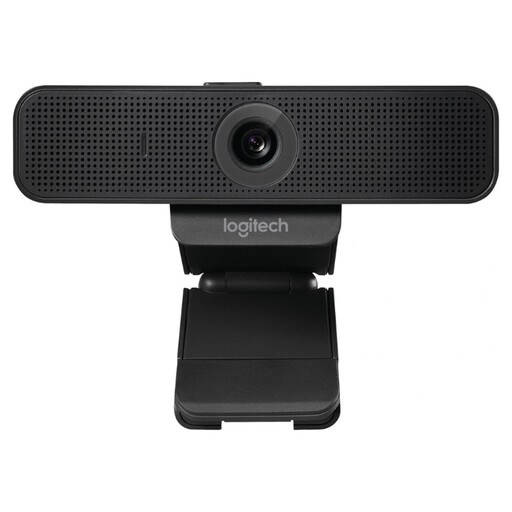 No image available
Logitech C925e, 30 fps, black, 960-001076
A personal USB webcam to consider for a call with one or two participants sitting close to the screen.
The product name lists 30 fps and the black finish. Check that the field of view suits the planned seating positions.
Joybuy
 No image available
Logitech HD Pro Webcam C920e
A personal webcam for someone sitting close to the computer; check separately whether its built-in audio is suitable for your setup.
Logitech specifies Full HD video, a fixed 78° diagonal field of view, two microphones and an attachable privacy shutter for the C920e. The microphones are optimised for audio up to one metre away, not to guarantee coverage of the whole classroom.
Joybuy
 No image available
Philips 4000 Series 4K UHD webcam, EU version, black, SPL6408BT/00
A personal webcam to consider when one participant will be on camera using a PC or laptop.
The product name lists 4K UHD, an 8MP camera, autofocus, dual built-in microphones and a privacy cover.
Joybuy
 No image available
Philips 2K QHD PC webcam, EU version, silver, SPL6308S/00
A webcam for one person taking part in a video call; check that the USB connection and mounting are suitable for the computer.
The product name lists 2K QHD and a microphone with noise reduction.
Joybuy
Frequently asked questions
Do you need a wide-angle conference camera if only one person is calling family?
Not necessarily: Logitech describes the C920e as a webcam for an individual sitting close to the camera. A group setup is mainly useful if other people also need to be seen or heard. Check whether the computer’s speaker or a separate speaker will be enough.
How can you test the camera setup before the family call?
Put the camera in its planned position, select the camera and microphone you want to use in the calling app, then make a test call from every intended seat. Check the field of view, audio, USB connection and any mains power requirements; product specifications alone can’t show how the setup will work in your classroom.
Can you make a 4K call on the original Logitech MeetUp using the cable supplied?
According to Logitech, 4K on the original MeetUp requires a USB 3.0 cable. Also check that the calling app supports 4K; the MeetUp 2 model name refers to a different model.
What should a school consider if a family call may be recorded?
The school should review the relevant privacy arrangements for the call and keep the impact on privacy to a minimum. The Dutch Data Protection Authority also reminds educational institutions to inform pupils and parents about the processing of personal data. The arrangements that apply will depend, among other things, on who organises the call and who appears on camera; don’t assume consent or rules for permanent CCTV apply without checking.


