For one pupil in a shared classroom, a manageable frame is usually more important than the widest field of view. Choose a wide angle mainly if several participants are deliberately meant to appear together. HP specifies 66° for the 320 FHD and Lenovo 95° for the 300 FHD. A lens cover only shields the lens, not the microphone. Make sure the call and any recordings comply with the school’s policies, as advised by the Dutch Data Protection Authority.
Who is this guide for?
A pupil making a call alone
They want their family to see them without unnecessarily showing classmates or personal information. The Dutch Data Protection Authority stresses the need for rules about pupils appearing on camera during online lessons. So consider the framing, camera position and how to cover the lens after the call.
Someone calling from a noisy classroom
They want to be heard clearly when others are talking nearby. Compare the built-in microphone with a headset and test what is actually picked up in the calling app. Google Meet lets you check your audio devices before joining.
A small group calling together
They want several permitted participants to fit in the same frame. The right field of view and camera position matter more than resolution alone; Lenovo specifies a 95° field of view for the 300 FHD.
What should you look for?
First decide who is allowed to appear on camera and where the webcam will go. Then check the audio, connection and access to the calling app on the school computer separately.
| What to consider |
What to look for when buying |
Who is this important for? |
| Privacy and framing |
Check the field of view and whether there is a lens cover. View a test image from the planned seat and follow the school’s policies. |
I want to make a call without accidentally showing classmates or personal information. Around 33% of consumers say privacy and a restricted frame are their top buying priorities. |
| Clear audio |
Check whether you can use a headset and test which microphone the calling app selects. |
If people are talking in the classroom, I want my own voice to come through clearly without unnecessary background noise. Around 27% of consumers put clear audio first. |
| Framing participants |
Compare the field of view of the exact model and test the distance, height and focus in the intended position. |
When several permitted participants are on a call together, I want to fit them in the frame without showing too much of the classroom. Around 20% of consumers give group framing top priority. |
| Connection and access |
Check which port is available, which calling app you’ll use and whether camera access is permitted on the school computer. |
I want to be able to use the webcam with the available computer, rather than discovering during the call that access is blocked. Around 20% of consumers say connection and access are their main considerations. |
Common buying mistakes
-
Assuming a lens cover provides complete privacy
A cover shields the lens when closed, but it doesn’t tell you which microphone is active during a call.
Check the framing and microphone separately. Close the cover when the camera isn’t needed, and mute the microphone when you’re not taking part.
-
Choosing the widest field of view without checking the classroom
HP specifies 66° for the 320 FHD and Lenovo 95° for the 300 FHD. A wider angle may show more of the classroom; the specification alone can’t tell you who will appear on camera from your position.
First decide who is allowed to join the call, then test the image from the planned camera and seating positions.
-
Buying a higher resolution to fix a poor-quality call
The selected audio device, echo or network connection can also affect a call. Simply changing the camera won’t necessarily solve these issues.
Test the camera, microphone, any headset and the connection in the calling app before choosing a webcam.
Brands to consider
HP
The HP 320 FHD is an option for one caller looking for USB-A, fixed focus and a detachable lens cover.
- HP specifies a 66° field of view, automatic light correction and Chromebook certification for this model.
- The focus is fixed. Check the framing from your actual seating distance; a lens cover doesn’t mute the microphone.
Logitech
Logitech says the Brio 100 is designed for straightforward video calls, with 1080p, a built-in microphone and an integrated lens cover.
- Logitech lists automatic light balance and compatibility with several calling platforms.
- Check the actual framing and audio capture in the classroom; the product specifications don’t show how the microphone performs amid classroom noise.
Lenovo
The Lenovo 300 FHD is worth considering if you’re looking at group framing and manually adjustable focus.
- Lenovo specifies a 95° field of view and two microphones.
- A wide angle may also show people who aren’t taking part. Set the focus for the call distance and check the framing in the intended position.
Trust
Trust says the TW-200 combines 1080p, a privacy filter and a microphone with a stated range of up to 5 metres.
- The stated microphone range may be useful if permitted participants are sitting further from the camera.
- In a shared classroom, the microphone may also pick up other people. The stated range isn’t an independent test of how clearly voices can be heard.
Creative
The Live! Cam Sync 1080p V2 is an option if you’re looking at specific audio features as well as a webcam.
- Creative describes automatic muting and noise reduction through SmartComms.
- The installation instructions specify the Creative app on a Windows PC. Check whether you’re allowed to install the software on the school computer.
Webcams at Joybuy
These webcam options are relevant for family calls from the classroom. Compare the available field of view, microphone details, lens cover and connection with your setup and school computer.
 No image available
AOC 4K PRO Webcam with Sony IMX363 sensor
An option to compare if you’re considering both lens cover and the listed microphones for a video call.
The product name lists 4K, PDAF autofocus, two microphones, a lens cover, a 75° field of view and USB-A/USB-C.
View at Joybuy
 No image available
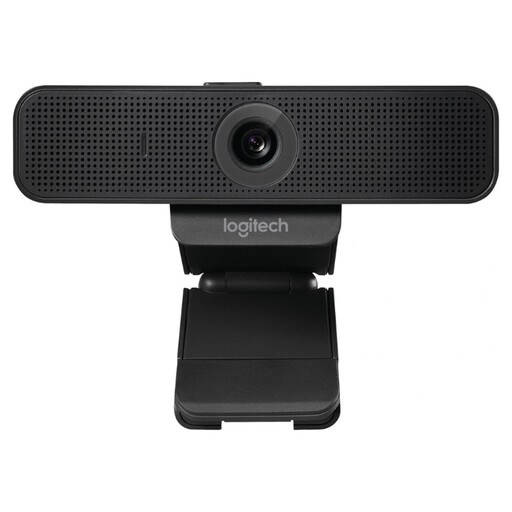
Logitech C925e USB 30fps Webcam Black
An option if you’re looking for a USB webcam. Check in advance that the connection is compatible with the available school computer, and test the picture and sound in the calling app you use.
The product name lists USB and 30 fps.
View at Joybuy
 No image available
Philips 4000 Series 4K UHD Webcam, SPL6408BT/00
An option to compare if you’re looking for a lens cover and built-in microphones for a call from the classroom.
The product name lists 4K UHD, 8 MP, autofocus, dual microphones, a privacy cover and EU Version, Black.
View at Joybuy
 No image available
Philips 2K QHD PC Webcam, SPL6308S/00
An option if you want to consider the stated microphone feature; test what sound is picked up in your classroom using the calling app.
The product name lists 2K QHD and a noise-cancelling microphone. It also lists EU Version, Silver.
View at Joybuy
 No image available
Logitech MeetUp Black, 3840 × 2160, 30 fps
An option to consider if several participants will be taking part in a call together; check that the framing and setup suit the school room.
The product name lists 3840 × 2160 pixels, 30 fps and Black.
View at Joybuy
Frequently asked questions
Can you show other pupils to your family or make a recording from the classroom without permission?
Don’t assume you have general permission just because it’s a family call. The Dutch Data Protection Authority distinguishes between strictly private use within a limited circle and data processing by a school. Separate privacy rules apply to recognisable images that a school creates or publishes. Ask what school policies apply to the call and any recordings, and keep people who aren’t taking part out of frame.
How can you check that the picture and sound are working before the call?
Select the intended camera and microphone in the calling app, then use the preview or test function. Google Meet lets you check your camera, microphone and speaker before joining. On a Windows computer, you may also need app permissions or settings from the administrator.
What if your family hears an echo or the classroom is too noisy?
First check which audio device is selected. Google recommends using headphones to help with echo and suggests a headset with a microphone as one possible solution for poor audio. Changing the webcam won’t necessarily solve echo or background noise.
Are you always entitled to exactly two years’ legal guarantee on a webcam in the Netherlands?
No. According to the Government of the Netherlands, there is no fixed statutory guarantee period in the Netherlands: you’re entitled to a product that works properly, and what you can expect depends partly on the product. If a product is faulty, contact the seller; a manufacturer’s guarantee is additional.


