
Vandaag of morgen in huis

Kwaliteit gegarandeerd

Welkomstaanbiedingen ontgrendelen: GRATIS bezorging | Tot 80% korting | Gratis 30 dagen JoyPlus-proefperiode
Download de app
A webcam for video calls needs to do more than simply display an image. Home workers, students, professionals and streamers quickly notice when a camera struggles with backlighting, the microphone picks up background noise or the connection is not compatible with their laptop. A high resolution on the packaging does not tell the whole story.
This practical guide focuses on the features that really make a difference during Zoom and Microsoft Teams calls.
A 4K webcam can capture plenty of detail, but that does not automatically mean the picture will be better in every meeting situation. The software being used, internet connection, lighting and sensor also play a part. Some apps also compress the image to a lower resolution.
For normal home working, a Full HD webcam is often sufficient. 4K is particularly useful for streamers, presentations where detail matters or users who want to crop the image without immediately losing too much sharpness.
A camera can deliver a sharp image while the microphone clearly picks up keyboard noise, fans or traffic. So do not just look for the term ‘webcam with microphone’; also check for features such as multiple microphones, noise reduction and automatic gain control.
Claims about AI noise reduction come from the manufacturer. According to Insta360’s own product information, certain models use AI noise reduction to reduce background noise. The final experience depends on the room, distance from the camera and software being used.
A PC webcam or laptop webcam usually connects via USB, but check in advance which type of port is available. Also consider:
Full HD, usually 1920 × 1080 pixels, is a practical choice for online meetings. 2K or QHD offers more pixels and can produce a sharper image when supported by the camera and software. 4K generally means 3840 × 2160 pixels, but always check the maximum frame rate. For example, a product may support 4K at 30 fps, while a lower resolution allows higher frame rates.
For video calls, 30 fps is usually perfectly usable. For a webcam used for streaming or gaming, higher frame rates may be relevant.
A webcam with autofocus keeps your face or another subject in focus as you move. This is useful for presentations or product demonstrations. Also check whether the camera offers automatic light correction. Ideally, position the webcam at eye level and make sure a window is not directly behind you. Software can only partially compensate for poor lighting.
A webcam with one built-in microphone may be sufficient for personal use, but in a noisy room, a model with multiple microphones or additional noise reduction is worth considering. For a conference webcam, a wide field of view, built-in speaker and microphone are more important than high resolution alone.
However, a wide field of view can also show more of your room. So do not automatically choose the widest angle.
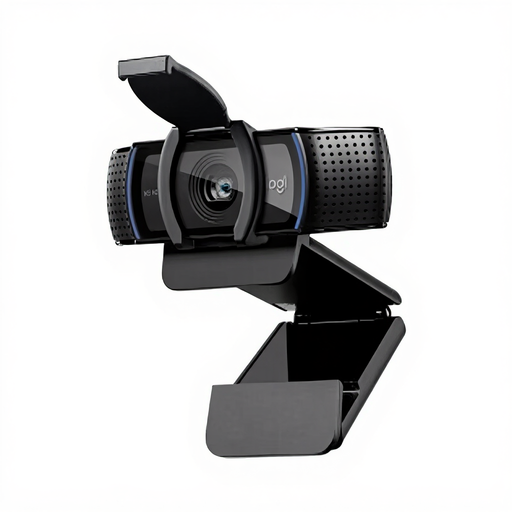
Why it suits this profile: This PC webcam is designed for one user and connects via USB. The specifications list Full HD resolution, autofocus and compatibility with Zoom and Microsoft Teams, among others.
The fixed 78-degree field of view prevents too much of the room from appearing in shot. The included privacy cover helps physically block the lens.
1920 × 1080 pixels, built-in dual omnidirectional microphone, autofocus and adjustable clip.
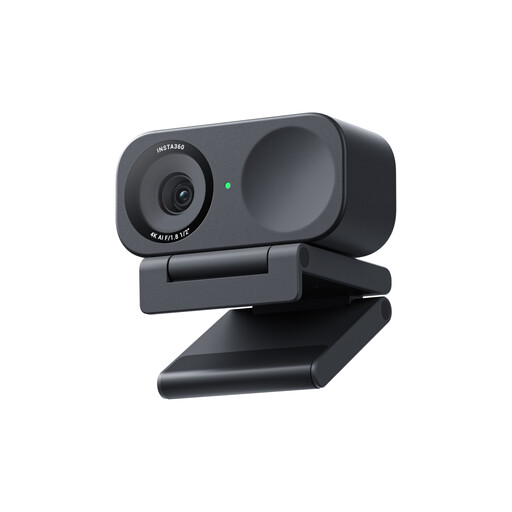
Why it suits this profile: This model is designed for users looking for 4K video, autofocus and automatic framing for video calls, streaming and presentations.
The product information mentions PDAF autofocus, HDR and a physical privacy switch. This means you can look beyond the 4K label alone.
1/2-inch sensor, 4K video, auto-framing, HDR, AI noise reduction according to Insta360 and support for Zoom, Teams and Twitch.
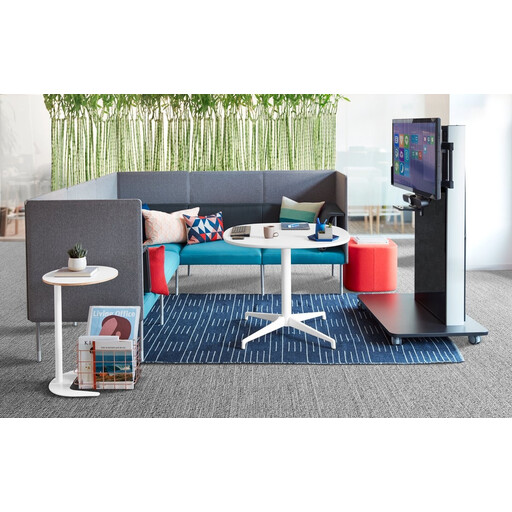
Why it suits this profile: This video conferencing camera is designed for small meeting rooms and collaboration around a table, rather than personal use with a laptop.
The wide field of view and built-in microphones are designed for multiple people in the room. This makes a separate laptop webcam less likely to become a limitation.
4K resolution up to 30 fps, 113-degree field of view according to the specifications, built-in microphone and speaker.

Why it suits this profile: This webcam is a step up for anyone looking for more detail than Full HD but who does not need a meeting room system.
The product name mentions QHD and a microphone with noise reduction. However, check in advance whether your meeting app supports this resolution.
2K QHD classification, clip-on mounting for desktop or laptop and built-in microphone with noise reduction according to the product information.
We have put together a complete, up-to-date list of products that fully meet these strict selection criteria and the applicable European safety regulations.
Use this quick checklist before ordering a webcam for video calls:
For one person at a desk, Full HD is generally sufficient, provided the lighting and internet connection are good. A 4K webcam is particularly useful when you need extra detail, want to crop the image or also use the camera for streaming.
Place the camera on the laptop or monitor, connect the USB cable and then select the webcam in the settings of Zoom, Microsoft Teams or another application. If your laptop only has USB-C ports, a suitable adapter may be required.
Its lifespan depends on cable strain, storage, frequency of use and software support. Do not place the webcam under tension, avoid pulling on the cable and keep the lens free from dust. A physical privacy cover can also prevent you from having to move the camera every time it is not in use.
