Don’t automatically start with a higher resolution. First, screen or reposition the bright window light, then check how your face looks in your training app. If the contrast is still strong, compare the HDR and exposure features of each model. Only choose tracking if you move around during exercises, and check the microphone and connection separately.
Who is this buying guide for?
Participant dealing with difficult window light
You usually sit still during training and want to stop your face from disappearing against a bright window. Zoom notes that daylight can affect how the camera captures an image, so start by adjusting the lighting and then assess the camera features.
Participant who asks questions
You speak regularly and want your trainer to hear you clearly. Assess the microphone separately from the lighting and test the input you’ve selected: Microsoft Support explains how to choose a device and make a test call in Teams.
Participant who demonstrates exercises
You stand up, move around or show work on your desk. Insta360 describes tracking that follows movement, while Logitech mentions automatic framing and a mode for showing your work on the Brio 500.
What should you look for when buying?
First, assess the camera image with the window in the position you’ll use during training. Then compare lighting, microphone, freedom of movement and connection, based on what you actually need.
| What to consider |
What to look for |
Who is this important to? |
| Being visible in bright window light |
Check a test image at the time of your training. If the contrast remains strong, compare the HDR and exposure settings and their limitations. |
If I’m sitting by a bright window, I want my face to remain visible without immediately focusing on resolution. Around 42% of consumers prioritise staying visible in bright window light. |
| Being heard clearly |
Test the microphone from your usual seat and check which input the meeting app is using. |
If I ask questions, I want my voice to come across clearly and the right microphone to be selected. Around 25% of consumers put clear audio first. |
| Moving around or showing your work |
Decide whether the camera needs to show your face, your hands or both, then check the framing in your training app. |
If I stand up or show something on my desk, I don’t want to move out of shot. Around 17% of consumers prioritise being able to move around or show their work on camera. |
| Connection and controls |
Check the camera plug, the available port and whether any software and video modes work on your computer. |
If my computer or meeting app can’t use a feature, it won’t help me during training. Around 16% of consumers focus mainly on connection and controls. |
Buying pitfalls
-
Choosing based on resolution alone when the window determines the image
Zoom notes that daylight can affect how the camera captures an image. AnkerWork advises against using the PowerConf C200 in backlit conditions; a higher resolution won’t automatically solve the lighting problem.
First, try screening the window or adjusting the camera angle and the light on your face. Then assess the image and only compare the features of specific models afterwards.
-
Assuming HDR is available in every video mode
Support depends on the setting you choose. Dell lists HDR for the WB5023 at 24 or 30 fps; Elgato says HDR on the Facecam MK.2 is automatically disabled at 720p120.
Check that the HDR mode works with the resolution and frame rate you want to use in your training app.
-
Assuming the built-in microphone will be active automatically
Dell says the WB5023’s microphone must be enabled through the accompanying app. Your meeting app may also have a different microphone selected as its input.
Select the microphone you want before training and make a test call from your usual seat.
Brands to compare
Dell
The WB5023 is worth considering if you’re looking for a fixed webcam with documented HDR and face exposure features.
- Dell lists DOL-HDR, face detection exposure, autofocus, USB-A and certification for Teams and Zoom.
- According to Dell, HDR is available at 24 or 30 fps. The listed imaging features don’t guarantee how the webcam will handle backlighting in your room.
Logitech
The Brio 500 could suit you if you want to consider framing or showing work on your desk as well as light correction.
- Logitech lists RightLight 4, Show Mode and automatic framing via Logi Tune.
- An assessment of image correction in a dark home office won’t tell you how the camera performs beside a bright window.
Insta360
The Link 2 is worth considering if you move around during exercises and want the camera to follow your movements.
- Insta360 lists HDR, a 1/2-inch sensor and motorised tracking.
- Tracking can’t replace a suitable lighting setup. Only choose this feature if you actually move around during training.
Elgato
The Facecam MK.2 is an option if you want to adjust the HDR settings and connection to suit your needs.
- Elgato documents a High setting for strong light contrast and fixed focus with a specified range of 30–120 cm.
- According to Elgato, HDR is disabled at 720p120. USB 3.0 is required for the listed uncompressed video modes.
AnkerWork
The PowerConf C200 shows why you should take the lighting conditions into account when choosing a webcam.
- AnkerWork lists image settings as a possible adjustment if you can’t avoid a backlit spot.
- AnkerWork says the C200 doesn’t have HDR and advises against using the model in backlit conditions. The settings don’t guarantee that the problem will go away.
Webcams at Joybuy
These Joybuy webcam picks are designed for online training beside a bright window, with different options for image settings, microphones and framing.
 No image available
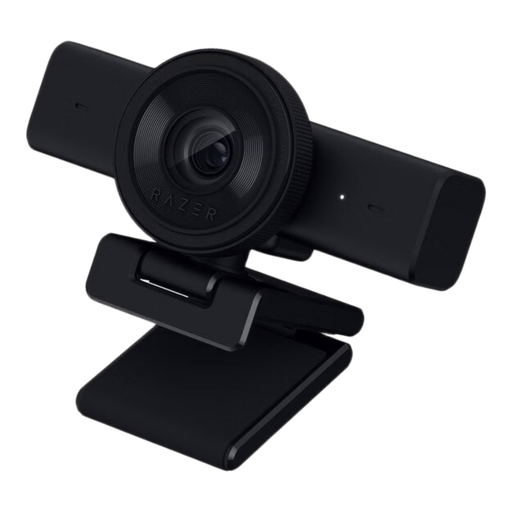
Razer Kiyo V2 X webcam, black
An option for a training call if you want to adjust the image settings yourself.
1440p at 30 fps or 1080p at 60 fps; USB-A 2.0; built-in stereo microphone. The description mentions adjustable image settings via Razer Synapse.
View at Joybuy
 No image available
AOC webcam for PC with microphone
Worth a look if you’re looking for HDR, light correction and a built-in microphone in one webcam.
The description lists 4K video at 30 fps, HDR, automatic light correction, a built-in microphone and a 99° field of view. The camera can be tilted or rotated to adjust the framing.
View at Joybuy
 No image available
Philips 4000 Series 4K UHD Webcam, SPL6408BT/00, EU Version
An option for a training call if autofocus, built-in microphones and a camera cover are important to you.
4K UHD, 8 MP, autofocus, dual built-in microphones and a privacy shutter.
View at Joybuy
 No image available
Insta360 Link 2C Standard Bundle, Graphite Black
An option if you want automatic framing during exercises and want to compare the webcam’s image settings too.
4K, 1/2-inch sensor, HDR, automatic framing, AI tracking and a microphone with AI noise reduction. According to the product description, this model isn’t compatible with ARM-based Windows systems.
View at Joybuy
 No image available
Insta360 Link 2 Standard Bundle
An option to compare if you move around during training and want to weigh up tracking against a fixed camera angle.
4K, 1/2-inch sensor, HDR, AI tracking and automatic framing. The description also lists a built-in microphone with AI noise reduction.
View at Joybuy
Frequently asked questions
Will a 4K webcam automatically help with a bright window?
No. Resolution and lighting are two different things to consider. Zoom advises taking daylight into account, so first check how your face looks in the meeting app. According to Zoom, whether the app sends video at 1080p depends on factors including your subscription, device and bandwidth.
What should you set up just before training?
First, check the camera image with the window in its actual position. Then select the camera and microphone you want to use in the meeting app and make a test call; Microsoft Teams offers device selection and a test call.
Can you use HDR on a webcam in every video mode?
No, it varies by model and video mode. Dell lists HDR for the WB5023 at 24 or 30 fps; according to Elgato, HDR on the Facecam MK.2 is automatically disabled at 720p120.
Are you allowed to record a training session with your webcam?
Buying a webcam doesn’t in itself give you permission to record or use other people’s personal data. According to the Dutch Data Protection Authority, processing personal data requires a valid legal basis under the GDPR; consent is one possible legal basis. Whether a specific recording is allowed depends on its purpose and the circumstances.


