What should you look for when choosing?
Mouse with extra scrolling controls
Choose this option: if you often scroll horizontally through wide tables or time series and prefer a familiar mouse shape.
Keep in mind: extra features are only useful if your chart software supports the scrolling action you need.
Vertical mouse
Choose this option: if you want to try a different hand position and the model suits your hand size and preferred hand.
Keep in mind: you may need time to get used to the different grip, and a vertical shape does not automatically include a separate horizontal scroll wheel.
Trackball
Choose this option: if you would rather control the pointer with a ball than move the mouse across your desk.
Keep in mind: it works differently from a conventional mouse, so check that the size and connection suit you.
Central pointing device or rollerbar
Choose this option: if you would rather control the cursor in front of your keyboard than use a mouse beside your hand.
Keep in mind: check that you have enough space in front of your keyboard and that this type of control suits the way you work.
When editing weather charts across two screens, the best mouse for you depends on what you do most often: moving through wide datasets, selecting small points on a chart or finding a different hand position.
| What to consider |
What to look for when buying |
Who is this important for? |
| Wide time series |
Check whether the mouse supports horizontal scrolling and whether your spreadsheet or chart software responds to it. |
If I often move through wide tables or time axes, I want to do so without having to use a different scrolling method each time. Around 33% of consumers say horizontal navigation is their main requirement. |
| Accurate pointing |
Check whether the sensitivity is adjustable; you can also adjust pointer speed in Windows. |
When selecting small points and controls, I want to keep the pointer under control. Around 27% of consumers give accurate pointing top priority. |
| Hand comfort |
Check your preferred hand, hand size and the space around your keyboard; allow time to get used to a different type of control. |
If I work on charts for long periods, I want a mouse shape that suits my hand and workspace. Around 27% of consumers say the control style is their main consideration for extended use. |
| Connections and devices |
Decide whether you will use the mouse with one or more computers, then check the connection and system requirements. |
If I want to use one mouse with both a desktop and a laptop, I check the connection and device-switching features. Around 13% of consumers say switching between computers is their main requirement. |
Mouse options at Joybuy
These Joybuy mice suit a range of needs, from horizontal scrolling and a vertical hand position to trackball control. Compare how they work and check that the model suits your hand, computer and chart software.
 No image available
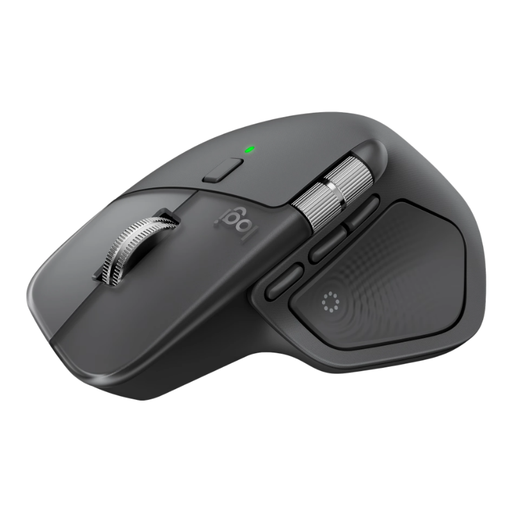
Logitech MX Master 4 Graphite
Worth considering if you often scroll horizontally through wide time series; check that your chart software supports horizontal scrolling.
Joybuy
 No image available
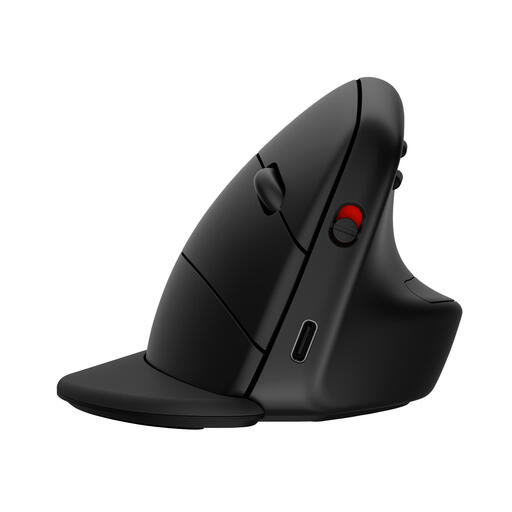
HP 925 Ergonomic Vertical Mouse
A vertical mouse to consider if you are looking for a different hand position; this model is designed for right-handed use and has a detachable wrist rest.
Joybuy
 No image available
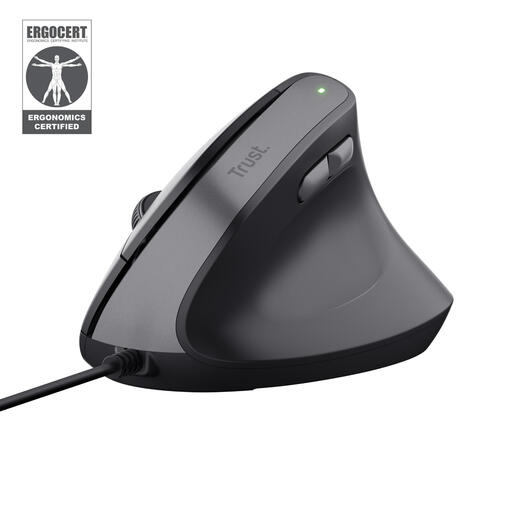
Trust Bayo II vertical wired mouse, black
A vertical mouse to consider if you want a different hand position and a wired connection; this model is designed for right-handed use.
Joybuy
 No image available
Logitech ERGO M575S Graphite
A trackball to consider if you have limited desk space and want to control the pointer with your thumb; it works differently from a conventional mouse.
Joybuy
 No image available
Logitech Lift Vertical Ergonomic Mouse Graphite
A vertical mouse to consider if this shape suits you; this model is designed for small to medium-sized right hands.
Joybuy
Frequently asked questions
Do I need a special mouse for two screens?
No, not just because both screens are connected to the same Windows computer. Arrange the screens in Windows display settings to match how they are positioned on your desk, then check that the pointer crosses between them where you expect.
How can I adjust the pointer to select small points on a chart?
If you use Windows 10 or 11, start by adjusting pointer speed under Bluetooth & devices, then Mouse. Adjustable sensor sensitivity on a mouse can offer another option; a higher maximum dpi rating alone does not guarantee more accurate chart plotting.
Is changing my mouse enough if I spend a lot of time at a screen?
No. Pay attention to your workspace too, and vary your screen, keyboard and mouse tasks. Arboportaal recommends adjusting your workspace to suit your body and seeking help if you start to experience discomfort.
What warranty applies if a mouse bought in the Netherlands proves faulty during normal use?
According to the Dutch government, you are entitled to a product that is fit for purpose, and you should contact the retailer for a solution. The Netherlands does not have a fixed statutory warranty period of exactly two years for every product. What you can expect depends, among other things, on the product, its price and the information provided at the time of sale. Any manufacturer's warranty is in addition to this.
Do Dutch rules on screen-based work automatically apply to every private buyer?
No. The obligations described by Arboportaal apply to employers and employees' workplaces. Whether those workplace rules apply to you depends on your working situation; they are not a general requirement for buying a mouse for personal use.


