
Map detail reader
You compare large historical waterway maps and want to read the labels without constantly switching between the overview and the details. The Consumers’ Association explains that a larger screen can show more at once.


If you mainly view large maps with small labels, start by considering the screen space available and try one of your own scans at actual size and zoomed in. Then decide what matters most: a larger screen, portability, local storage or stylus support. A larger tablet is less convenient to handle, and viewers and download permissions vary between collections.
You compare large historical waterway maps and want to read the labels without constantly switching between the overview and the details. The Consumers’ Association explains that a larger screen can show more at once.
You want to save permitted scans locally and view them in different places. The National Archives states that you can only download images that have a download button.
You record observations alongside maps or documents, so a suitable stylus and app may be more useful than screen size alone.
First, test a representative scan on the tablet you’re considering. Then decide whether screen space, offline files, annotations or portability matters most to you.
| What to consider | What to look for | Who is this most important for? |
|---|---|---|
| Map details on one screen | Compare screen sizes and try one of your own scans in the viewer you plan to use, both as an overview and zoomed in. | If I want to read small map legends without constantly switching between the overview and the details, the amount of visible screen space is my top priority. Around 36% of consumers say map details are their main reason for buying. |
| Saving scans locally | First check whether the scan in question can be downloaded. Then compare the available storage with the files you want to keep. | I want to be able to open permitted scans offline, for example when I can’t rely on having an internet connection. Around 29% of consumers say local storage is their top priority. |
| Taking notes | Check whether a stylus is included with the exact model, and whether your chosen app supports annotating the file. | If I want to add comments to maps or documents, the stylus and app need to suit the way I work. Around 21% of consumers say annotation is their main requirement. |
| Portability and accessories | Try holding the tablet and check which accessories are included with the model. | When I take my tablet with me often, I want to weigh up the larger screen against the size and any accessories I might need. Around 14% of consumers prioritise portability and avoiding unnecessary accessories. |
The National Archives describes features such as a navigator and full-screen mode, but this doesn’t confirm how the viewer will work with your tablet, browser and scan.
Before you buy, open a representative map on the device you’re considering and try viewing the overview, zooming in and navigating around.
Not every archive image you can view online has a download button. So extra storage won’t help with a scan you can’t save.
Check with the collection whether the specific file can be downloaded and what usage information is provided.
Stylus support and what’s included in the box are two different things. The app you choose also needs to be able to annotate your file.
Check the model code, the accessories included and the app’s features. You may need to buy a stylus or another accessory separately.
The Galaxy Tab S10 FE+ range could suit you if you’re looking for an extra-large colour screen and stylus support.
The Idea Tab Pro is worth comparing if you’re looking for a large Android screen and plenty of storage.
The Redmi Pad 2 is an 11-inch alternative to consider if you’re looking for a more portable size or expandable storage.
The iPad (A16) is an 11-inch iPadOS option if you want to use the apps available for it.
These tablets are worth comparing for viewing archive scans on one screen, with storage and annotation features as additional considerations. Check how your own scan or viewer works on the device you choose.
 No image available
Could suit you if you want to view a scan on a spacious screen and annotate documents.
 No image available
Could suit you if you want to compare a large screen for viewing maps and have a folio case to carry with it.
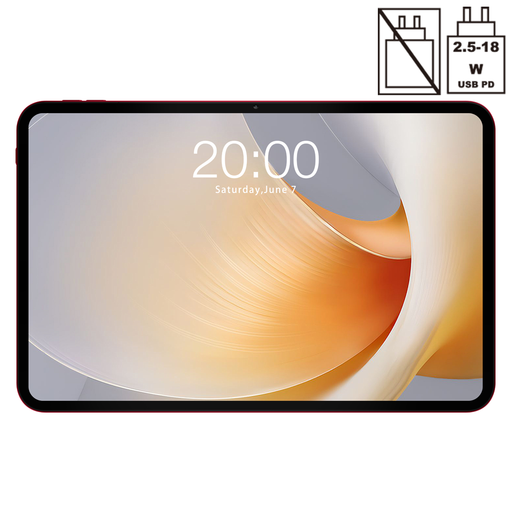 No image available
Could suit you if you want to compare a large screen and more listed storage for permitted local files.
 No image available
Could suit you if you want to view scans on a large screen and take notes.
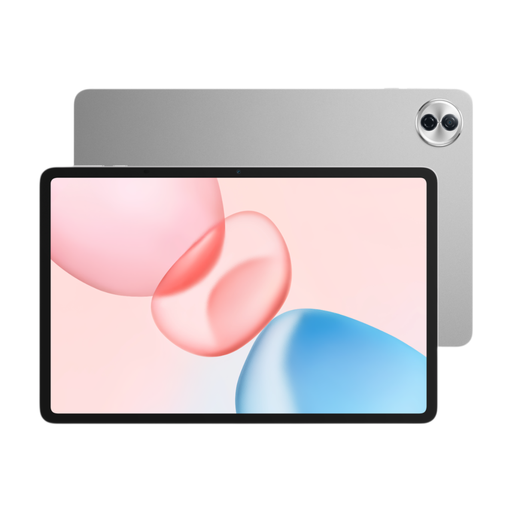 No image available
Could suit you if you’re weighing up a 12.1-inch screen and local storage for your archive files.
Not always. The National Archives says some scans don’t have a download button. Check whether you can download the specific archive item and read the usage information before choosing storage for offline use.
The National Archives viewer describes features including full-screen mode, a navigator, rotation and saving a cropped image. Try it with the tablet and browser you plan to use; the features may not work in exactly the same way on every device.
Only if they suit your files and the way you work. First check whether you’re allowed to download the scans, how much storage your files need, which annotation app you use and what’s included with the exact tablet model.
For online purchases, you generally have a 14-day cooling-off period; check the applicable terms and conditions. A seller must also offer an appropriate solution if a product doesn’t meet reasonable expectations when used normally.
Not automatically. The National Archives links free reuse to the download option and a designation such as Public Domain or CC0. Check the rights information for the specific image; a tablet doesn’t change those rights.