
Designer with a small desk
You want to edit maps and text while keeping room for your keyboard and other items. Samsung Netherlands points out that choosing a screen size depends in part on the desk space available and the type of work you do.


Start by measuring the usable width and depth of your desk, including the monitor stand. Then choose an aspect ratio and resolution to suit your maps, text and photos. A compact 24.1-inch 16:10 screen calls for a different setup from a 27-inch QHD or 4K monitor, so check the full dimensions before you decide. For a printed guide, colour management across your monitor, printer and paper also matters: a stated colour gamut does not guarantee a matching print.
You want to edit maps and text while keeping room for your keyboard and other items. Samsung Netherlands points out that choosing a screen size depends in part on the desk space available and the type of work you do.
You switch between map details, text, photos and layout panels, and want a practical balance between screen space, sharpness and physical dimensions. Compare both the stated resolution and the space the screen takes up with its stand.
You also assess photos and colours for print. Adobe describes a colour-managed printing workflow that uses an accurate monitor profile and the right information about your printer and paper. A colour gamut alone therefore cannot tell you what a particular print will look like.
First, measure the usable width and depth of your workspace, including the stand. Then consider how much of your map, text and photos you want to see at once, and finally check that the connections are compatible with your computer and any print workflow.
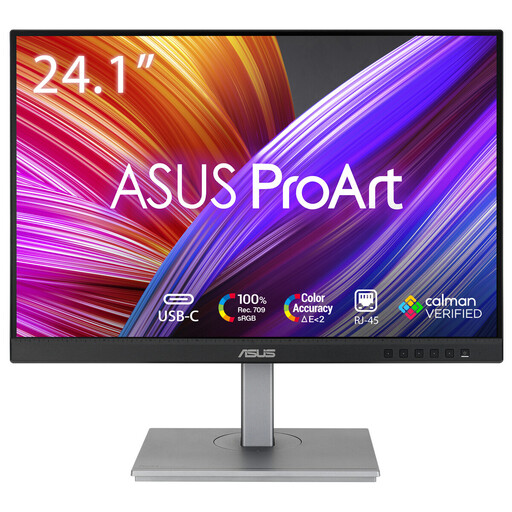
Choose this if: desk space is your main priority and you mainly edit a page or map with layout tools alongside it. ASUS lists a resolution of 1920 × 1200 and dimensions of 53,30 × 50,50 × 21,10 cm with the stand for the PA248QV.
Trade-off: this example has fewer total pixels than the 27-inch QHD and 4K models mentioned. ASUS lists HDMI and DisplayPort; check that these connections work with your computer.
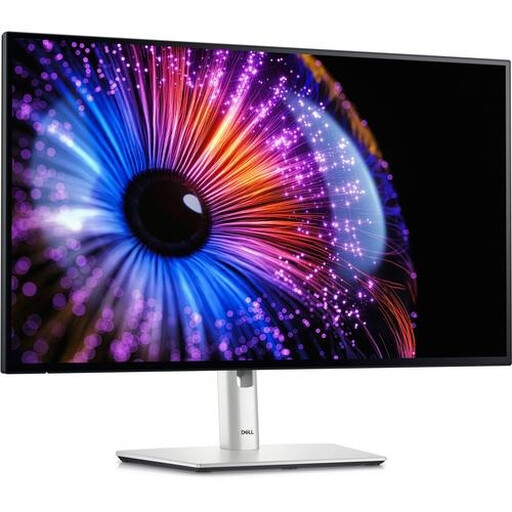
Choose this if: your desk can accommodate a larger screen and you often want to view your map, text and side panels at the same time. Dell lists 2560 × 1440 pixels and 90 W USB-C power delivery for the P2725DE.
Trade-off: a larger diagonal does not tell you whether the stand will fit on your desk. Check the full setup dimensions, and make sure your computer’s video output and charging requirements are compatible.
Choose this if: small map labels and detailed digital layouts matter, and the monitor’s footprint will fit. BenQ lists 3840 × 2160 pixels, 99% sRGB and dimensions of 614 × 256,8 mm with the stand for the PD2705U.
Trade-off: the stated sRGB coverage does not guarantee a match with a print proof. Adobe’s colour management guidance also highlights the importance of suitable monitor, printer and paper profiles. Check, too, whether 65 W USB-C power delivery is suitable for your laptop.
| What to consider | What should you check? | Who should pay particular attention? |
|---|---|---|
| Desk space | Measure the usable width and depth and compare them with the screen dimensions, including the stand. Check how much room you need to adjust it, too. | If my desk has little usable depth, I want to know how much room the stand takes up before choosing a screen. Around 36% of consumers put desk space first. |
| Layout space | Compare the aspect ratio and native resolution, and check that your usual window layout and text scaling are easy to read. | If I want to edit maps, text and photos side by side, I look for a layout that suits my work. Around 29% of consumers say having space to work on a layout with several items at once is their main consideration. |
| Colour for print | Check the colour gamut specification for the exact model and decide which monitor, printer and paper profiles suit your workflow. | When my guide is printed, I want to assess colours as part of the complete printer and paper workflow, not just on screen. Around 21% of consumers put print colour first. |
| Connections | Compare your computer’s video output and charging requirements with the inputs and USB-C features of the exact monitor model. | I want the screen to work with my computer and workspace, without finding out later that the connection is unsuitable. Around 14% of consumers say connection convenience is their main consideration. |
The stand, screen width and room needed for adjustment all affect how much usable space you will have left on a small desk.
Compare the dimensions with the stand against the free space on your desk. If you are considering a monitor arm, check the mounting pattern and whether the arm and desk are suitable for it.
Monitors vary in their video connections and stated charging power. The presence of a USB-C port alone does not confirm that video and the required power will work with your setup.
Compare your computer’s ports and charging requirements with the specifications for the exact monitor model. If the connections do not match, allow for a suitable cable, adapter or separate laptop charger.
How colours translate to paper also depends on the colour profiles and the printer and paper you use.
Plan for colour management on your monitor and for your intended output if print colour matters. Adobe describes a workflow that uses an accurate monitor profile and the right printer and paper information.
The ProArt PA248QV is a specific 24.1-inch 16:10 example for creative layout work where desk space is limited.
The Pro P2725DE is a 27-inch QHD option with a USB-C hub for anyone who wants more layout space and has room for a larger screen.
The Creative Pro PD2705U is a 27-inch 4K option for detailed digital layouts, provided it fits on your desk.
The FlexScan EV2495 shows that a 24.1-inch 16:10 office monitor can also offer USB-C docking.
The 27UP850K-W is a 27-inch 4K option to consider alongside design and office models.
This selection from Joybuy includes compact monitors for map and page layout, as well as larger QHD and 4K models for those with enough desk space.
 No image available
A compact option to consider if you want a page layout that does not take up as much space as a 27-inch screen.
The product name states 1920 × 1200 pixels. Check that your computer’s video connection is compatible with this model.
Colour management across your monitor, printer and paper still matters for print; stated colour coverage does not guarantee a matching print.
 No image available
This smaller QHD option is worth considering if you want a high stated resolution on a 24-inch screen.
The product name states 2560 × 1440 pixels. Check the connections and screen setup you want for your own computer.
 No image available
A compact QHD option to compare if you want to view map details and layouts on a smaller screen.
The product name states 2560 × 1440 pixels. Also consider whether the text display and connections suit the way you work.
Colour coverage or a calibration claim does not guarantee a matching print; suitable monitor, printer and paper profiles also matter for print.
 No image available
Consider this larger screen if detailed digital layouts matter and your desk has enough room.
The product name states 3840 × 2160 pixels and 4K Ultra HD. A 27-inch screen will generally need more room than a more compact monitor.
Stated colour coverage and factory calibration do not guarantee a matching print; colour management across your monitor, printer and paper is still important.
 No image available
This larger QHD option is worth considering if you have room for a 27-inch screen and want more layout space.
The product name states 2560 × 1440 pixels. Check the full setup dimensions and the connections your computer needs.
A stated colour gamut does not guarantee that colours will match on paper; take into account the profiles for your printer and paper type.
Not necessarily. Start by considering the desk space available and your window layout: ASUS lists 1920 × 1200 pixels for the PA248QV, while BenQ lists 3840 × 2160 pixels for the PD2705U. If you are working with small map labels, also check that the text remains readable for you with your chosen scaling settings.
Arrange your screen and input devices to create a practical workspace, adjust the display for readability and reduce reflections. Arboportaal warns that small symbols, poor contrast and reflections can make a screen harder to read. Specific rules for display screen workstations apply to relevant employee situations and are not a universal purchasing requirement for every private buyer.
No. Adobe describes a colour-managed printing workflow that uses an accurate monitor profile and the right information about the output. A stated sRGB or DCI-P3 coverage alone does not show how a particular printer and paper type will reproduce colours.
According to the Dutch government, many applicable online consumer purchases from a business come with a 14-day cooling-off period, although exceptions apply. If a product is faulty, contact the seller to resolve the issue. Before buying, check who the seller is and what returns information applies to your order; the cooling-off period and a remedy for a fault are separate matters.