
Printed guide creator
You turn route descriptions, maps and photos into pages. Before opting for extra processing power, consider which software you use and how much screen space you need.


Choose a compact laptop if you mainly make notes on the go and do the final layout on an external screen. A larger screen is more convenient if you often review pages, maps and photos on the laptop itself. Before buying, check that your design software and the connections for your shared screen, dock and power supply are compatible with the exact model configuration.
You turn route descriptions, maps and photos into pages. Before opting for extra processing power, consider which software you use and how much screen space you need.
You move between desks or users and want to connect your laptop to an existing screen. If others use the same computer, also consider who should be able to access project files.
You take your laptop with you to make notes and corrections, then finish the layout later at a larger workstation.
Start by thinking about where you’ll review the pages, maps and photos in their final form. This will help you weigh screen space against portability, while also considering the connections and software your work requires.
A good fit if: you mainly make notes and usually do detailed layout work on an external screen.
Trade-off: the built-in screen gives you less room to view pages and source material at the same time. Also check dock compatibility.
A good fit if: you regularly review text, maps and photos side by side on the laptop itself.
Trade-off: a larger model is less convenient to carry. If your guide will be printed, check the display quality of the exact configuration.
A good fit if: you also do demonstrably graphics-intensive work alongside laying out your guide.
Trade-off: don’t choose a dedicated GPU just because you’re designing a guide. Adobe recommends 16 GB RAM for InDesign, but a dedicated GPU is not a general minimum requirement for page layout.
| Consideration | What should you check? | Who should give this greater weight? |
|---|---|---|
| Layout and image editing | Check the requirements for the programmes and versions you use. For InDesign 21.3 and later, Adobe lists 8 GB RAM as the minimum and 16 GB as the recommendation; for Photoshop 27.x, 16 GB or more is recommended. If you’re printing the guide, also check the colour reproduction of the exact screen configuration. | I want to match my software requirements to the space I need to review pages, maps and photos. Around 31% of consumers give suitable layout and image editing the highest priority. |
| Shared workspace | Make a note of the screen input, dock and available power supply. Check that the ports on the exact laptop configuration support video output and charging. Agree on suitable access permissions if project files contain personal data. | If I connect my laptop at a shared desk, I want to know that the screen and peripherals will work, and that files will be appropriately protected. Around 31% of consumers prioritise connectivity and secure use in a shared workspace. |
| Taking it on the go | Compare the weight and screen size of the exact configuration. Treat the stated battery life as a manufacturer’s claim under its own test conditions, not as guaranteed working time during design work. | I want to be able to make notes and corrections while researching routes, then do the final layout later on a larger screen. Around 19% of consumers prioritise portability. |
| Suitable configuration | Check that the configuration has the software and connections you need, and whether you’ll need a cable, adapter or dock. Also read the terms of service and warranty carefully to see exactly what they cover. | I don’t want to choose features or accessories my workflow doesn’t need, but I do want to use the software and connections required for my guide. Around 19% of consumers focus primarily on finding a suitable configuration without unnecessary extras. |
Adobe’s InDesign requirements don’t make a dedicated GPU a general minimum requirement for page layout. ASUS GPU specifications also apply to certain ProArt configurations, not every model.
First, work out whether you’ll be doing graphics-intensive work in addition to working with text, maps and photos.
A laptop port alone doesn’t confirm that video output and charging will work with the connections available at your existing workspace.
Check that the monitor, dock and power supply are compatible with the ports on the exact laptop configuration.
The Dutch government distinguishes between a manufacturer’s warranty and your legal right to a product that works properly. In the Netherlands, there is no fixed statutory warranty period.
Read what any additional cover includes, and contact the seller if there’s a fault.
The MacBook Air could suit you if you want a compact laptop that you can also use with an external screen.
The ProBook range is worth comparing if a larger built-in screen is important at a shared workspace.
ProArt offers creative models worth comparing if you need more screen space or graphics capability.
The ThinkPad T14 Gen 6 is a compact business range to consider alongside an existing shared workspace.
The Dell Pro 14 Plus PB14250 is a 14-inch business range worth comparing for mobile and workspace use.
These models suit two workflows: laying out your guide on a larger built-in screen, or taking a compact laptop with you to use with a shared monitor. Check each configuration for compatibility with your software, monitor, dock and power supply.
 No image available
A 16-inch model to consider if you want to view pages and source material on the built-in screen.
WUXGA OLED screen; Snapdragon X processor; 16 GB LPDDR5X memory; 512 GB SSD; Windows 11 Home.
 No image available
A 14-inch model for anyone who wants to take notes on the go and continue working later on a larger screen at their workspace.
Full HD IPS screen; 16 GB DDR4 memory; 512 GB SSD; USB-C with DisplayPort and HDMI. Power adapter not included.
 No image available
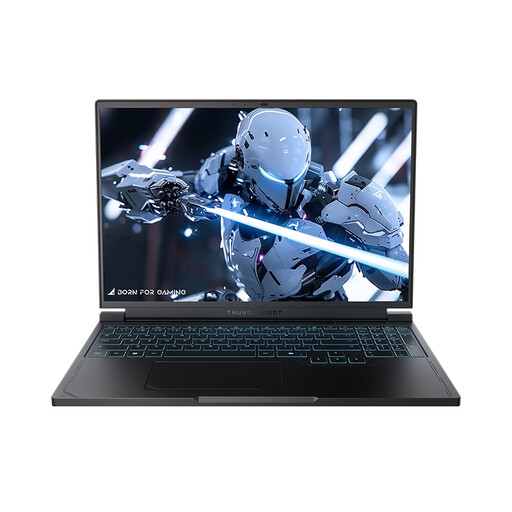
A 16-inch model to compare if you want to view maps, photos and text side by side on your laptop screen.
QHD+ screen with 240 Hz; AMD Ryzen 7 7745HX; 16 GB DDR5 memory; 1 TB SSD; NVIDIA GeForce RTX 5060. The product name also mentions USB-C and HDMI.
 No image available
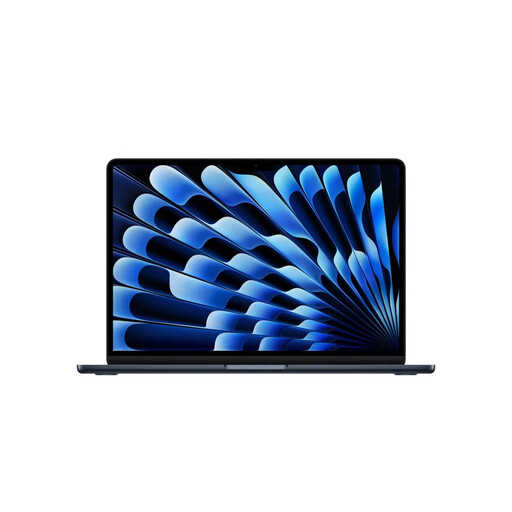
A compact configuration to consider if you work on the go and want to pick up where you left off later on an external screen.
13-inch screen; 24 GB memory; 1 TB SSD; two Thunderbolt 4 ports; external display support. The description lists a weight of 1,23 kg.
 No image available
A larger screen could suit you if you often review pages and source material on the laptop itself.
15,3-inch Liquid Retina screen; 16 GB memory; 512 GB storage; Thunderbolt 4 ports.
No, not for everyone. For InDesign 21.3 and later, Adobe lists 8 GB as the minimum and 16 GB as the recommendation; for Photoshop 27.x, Adobe recommends 16 GB or more. Check the requirements for the programmes and versions you use.
Check that the laptop’s connections are compatible with the screen, dock and power supply at your workspace. Arboportaal states that for employees who work at a screen for more than two hours a day, the screen and keyboard must not be attached to each other; this is not automatically a purchase requirement for every individual user.
Set appropriate access permissions and don’t leave personal files accessible to the next user. The Dutch Data Protection Authority stresses that organisations must prevent unauthorised access to personal data; whether this applies to your project depends on the data and context.
For a consumer purchase, the seller must provide a solution if a product is faulty. According to the Dutch government, the Netherlands has no fixed statutory warranty period; the manufacturer’s warranty and any additional warranty you buy are separate from your legal rights.
Don’t assume you can reuse them freely. According to the Dutch government, you may need permission to use copyright-protected photos. OpenStreetMap data is subject to attribution requirements, which differ for formats such as a printed map and a digital image.