Choose a USB stick for a small selection, an external HDD for a growing local archive, or a portable SSD if you often copy files between devices. First, check that your recorder, phone or computer supports the storage device and its connection; cables supplied with a product don’t guarantee compatibility with every device. Keep the original recordings until you’ve opened the copy, and keep a separate backup of important files. A single external drive won’t prevent every risk of data loss.
Who is external storage for?
Keeping recordings safe
You want to copy lesson or practice recordings locally and keep a recoverable backup without using cloud storage. VeiligInternetten and the National Cyber Security Centre describe external storage as one possible place to keep a backup.
Keeping recordings private
You store recordings with recognisable voices and want to consider who could access them if a drive goes missing. The Dutch Data Protection Authority notes that recognisable audio recordings may contain personal data.
Copying between devices
You want to transfer recordings from a recorder, phone or computer. So check more than just the connector: make sure the source device supports the storage and can read the files back.
What should you consider when choosing?
| Consideration |
What should you check? |
Who is this important for? |
| Recoverable local copy |
After copying, open a recording from the external drive. Decide whether you’ll copy files manually or set up a computer backup. |
I want to be able to restore a recording if the original is lost. Around 36% of consumers prioritise recoverability over other purchase concerns. |
| Voice privacy |
Check whether your chosen drive and device support encryption. Keep the recovery password somewhere safe. |
If recordings contain recognisable voices, I want to limit unwanted access. Confidentiality is the top priority for around 29% of consumers. |
| Connection and access |
Check your source device’s port and storage requirements, which cable you’ll need, and whether you can open the files on your chosen device. |
I want to know in advance whether my recorder, phone or computer can actually use the storage. Around 21% of consumers give device compatibility the highest priority. |
| Suitable capacity |
Add up the file sizes of your existing recordings and allow for how many new files you expect to add. |
I want enough space for my archive without buying more storage than my collection needs. This is the main concern for around 14% of consumers. |
Common pitfalls
-
Using an external drive as your only place to store files
A backup is there to help you restore files, but an external drive can also go missing or become inaccessible.
Keep the original files until you’ve tested the copy. For important recordings, also make a second local copy and store it separately.
-
Assuming every USB connection is compatible
A USB plug or supplied cable doesn’t guarantee that an audio recorder or phone will recognise the storage.
Check your source device’s storage requirements and make sure you can open the files afterwards on the device you intend to use.
Depending on your devices, you may need an extra cable or adapter.
-
Assuming local storage is automatically private
The Dutch Data Protection Authority notes that recognisable audio recordings may contain personal data. Storing files locally alone doesn’t determine who can access a drive that’s gone missing.
Check which encryption options your device and storage support, and keep the recovery password somewhere safe.
Brands to consider
Samsung
Samsung describes the Portable SSD T7 as a portable SSD for copying files between devices with supported USB connections.
- For the T7 1TB MU-PC1T0T/WW, Samsung Netherlands specifies both a USB-C to USB-C cable and a USB-C to USB-A cable.
- These connections don’t guarantee that every recorder supports the drive, so check your device’s requirements too.
Seagate
The Expansion Portable is a range of external HDDs. According to Seagate, the STKM2000400 is a 2TB model for local storage via a computer.
- Seagate specifies USB power and a USB 3.0 cable included with this model.
- Check compatibility with your recorder, and make sure you have the right cable and security features for your needs.
Kingston
Kingston offers products including the portable XS1000 SSD and the DataTraveler Exodia M USB stick. The right choice depends on the storage capacity and connection you need.
- Kingston Technology specifies 1TB and 2TB versions of the XS1000, USB 3.2 Gen 2 and a USB-A cable with a USB-C adapter. The DataTraveler Exodia M is also available in a 128GB version with USB-A.
- The product’s connection alone doesn’t confirm that a particular audio recorder supports a USB stick or SSD.
Joybuy products for local storage
These products are selected for local storage: external HDDs for archives and portable SSDs for storage and file transfers. Before buying, check that your devices support the connection and storage.
 No image available
WD Elements Portable 4TB USB-C (Graphite Black)
An external HDD option for a local archive you keep on a computer.
4TB; USB-C. The product description mentions use with Windows and Mac computers, as well as file storage and backups.
View at Joybuy
 No image available
Western Digital My Passport 2TB Black
A portable HDD option for local storage and computer backups, with a stated security feature.
2TB; USB; 256-bit AES hardware encryption with password protection. The description mentions Windows and macOS with a driver; according to the product information, a driver is required to read and write on macOS.
View at Joybuy
 No image available
Samsung Portable SSD T7 2TB Blue
A portable SSD option for transferring files locally between supported devices.
2TB; USB-C to USB-C and USB-C to USB-A cables; AES 256-bit hardware encryption. The product description mentions Windows, macOS and Android devices.
View at Joybuy
 No image available
Samsung MU-PG2T0B 2TB USB Type-C 3.2 Gen 2x2 Black
A portable SSD option for transferring files locally on devices that support this storage.
2TB; USB-C to USB-C and USB-C to USB-A cables; hardware encryption. The product description mentions Windows, macOS and Android.
View at Joybuy
 No image available
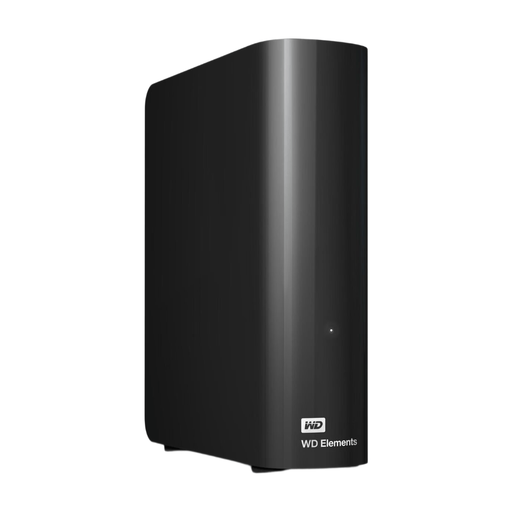
WD Elements Desktop 6TB USB 3.0
A desktop HDD option for a large local archive that stays on a computer.
6TB; USB 3.0; 3.5-inch desktop model with mains adapter. The product description doesn’t mention password protection or encryption.
View at Joybuy
Frequently asked questions
Do I need a cloud account to copy recordings to an external drive?
No, you can keep a local copy on an external HDD, SSD or USB stick without storing it in the cloud. However, check how your source device or recording app works and review its sync settings. The external drive itself tells you nothing about the app’s cloud settings.
How do I back up my voice recordings locally on a computer?
On a compatible Windows PC, File History can copy files to an external drive; check that the folder containing your recordings is included. Apple describes Time Machine as a way to back up to a connected external drive. Manually copying files and setting up a computer backup are two different approaches.
Will files on a drive be erased when I set it up for Time Machine?
Apple says you may be asked to erase the drive when setting up Time Machine. First, check whether it contains files you want to keep; if necessary, choose another drive or volume.
Does privacy law apply to audio recordings that include other people’s voices?
According to the Dutch Data Protection Authority, an audio recording in which someone is recognisable may contain personal data. The Authority describes an exception for purely personal or household use, but this doesn’t mean every lesson recording or distribution of one is exempt. Whether making or sharing a particular recording is permitted depends on the circumstances and how it will be used.
What can I do if a drive I’ve bought fails too soon?
According to ACM ConsuWijzer, statutory consumer rights apply alongside any manufacturer’s warranty. If a product doesn’t meet the expectations you could reasonably have under normal use, the seller must offer an appropriate solution. Also keep important recordings on a separate copy: a remedy for a faulty drive won’t automatically restore your files.


