If you mainly print text-based registers, start with a monochrome printer with a connection that suits your shared workspace; choose a multifunction printer if staff also need to scan or copy. Automatic double-sided printing or Wi-Fi won’t, by itself, protect visitors’ details on paper: you’ll also need to manage who can collect printouts and how they’re kept out of view. The Dutch Data Protection Authority says organisations must decide for themselves which security measures are appropriate; if you print regularly, compare consumables and any separate drum unit too.
Who is this printer guide for?
Reception desk handling personal data
You print names or other identifiable visitor details in a place where people may walk past. The Dutch Data Protection Authority stresses that organisations must decide for themselves which security measures are appropriate for their data processing.
Shared reception workspace
Several members of staff need to be able to print from their work devices. Decide which connection suits the reception desk and the devices in use; Brother Netherlands’ and Canon Netherlands’ product specifications set out the options for each model.
Reception desk that also scans
You want to scan or copy documents as well as print registers. Compare a printer that only prints with a multifunction printer that can handle these tasks.
What should you look for when buying?
The Dutch Data Protection Authority says the choice of security measures should depend on the risks associated with the data processing; this doesn’t mean every printer model needs a specific security feature. So, as well as choosing a printer, decide how staff will collect printouts and keep visitors’ details out of view.
Monochrome printer for printing only
Choose this option: when the reception desk only prints text-based registers and doesn’t need scanning or copying.
Keep in mind: scanning and copying aren’t included in this print-only setup; also check that the connection suits your workspace.
Monochrome multifunction printer
Choose this option: when staff at the reception desk need to scan or copy documents as well as print.
Keep in mind: the extra features are only useful if your team uses them; check the connection and how scanned personal data is handled for each model.
| What to consider |
What to look for when buying |
Who it matters to |
| Protecting visitors’ details |
Check where the output tray is, who can access it and how printouts are collected; check whether secure printing features are available on the exact model. |
If visitors’ details could be left in plain sight, I want to know how to prevent that; around 36% of consumers give data protection their top priority. |
| Printing from a shared workspace |
Check which devices can print and whether the chosen connection meets your network policy and suits the specific model variant. |
If several members of staff need to print from their own work devices, I want to know whether access will be practical; around 29% of consumers prioritise shared access. |
| Ongoing printing costs |
Compare compatible consumables and any separate drum unit, using the same expected page volume for each. |
If I print regularly, I want to factor in the cost of replacement parts; around 21% of consumers say ongoing printing costs are their main buying priority. |
| Scanning and copying |
Decide whether the reception desk really needs these features and what procedures apply to scanned personal data. |
If I need to handle documents as well as registers, I want to choose features that suit the work; around 14% of consumers prioritise scanning and copying. |
Common buying mistakes
-
Assuming Wi-Fi or general security claims protect printouts
A printer that’s accessible over a network can still leave paper in a visible place. Network access doesn’t control who can pick up a visitor register from the output tray.
Consider the printer’s location, access to the reception desk and whether printouts are collected promptly, separately from the network specifications. Check that any secure printing feature you want is available on the exact model and in your setup.
-
Comparing only the purchase price
With regular use, consumables and replacement parts can change the overall cost. The Dutch Consumers’ Association warns that a low purchase price can come with higher-than-expected printing costs.
Compare compatible consumables using the same expected print volume. Allow for any separate drum unit too, and check the terms for the exact model if you’re considering third-party cartridges.
Toner or ink will need replacing, and some models also use a separate drum unit.
-
Choosing a multifunction printer when the reception desk only prints registers
Scanning and copying features add little if staff don’t use them.
First, establish whether the reception desk scans or copies documents. Then compare a print-only model with a multifunction printer.
Printer brands to compare
Brother
Brother offers monochrome models for printing only as well as multifunction printers. According to Brother Netherlands, the HL-L2445DW features automatic double-sided printing and separate toner and drum units.
- The HL-L2400DWE is a monochrome model for printing only.
- The HL-L2400DWE doesn’t scan or copy. Make separate arrangements for collecting and keeping visitor registers out of view.
Canon
The Canon i-SENSYS MF275dw is a monochrome multifunction printer with printing, scanning and copying features, according to Canon Netherlands’ product specifications.
- A multifunction printer may suit a reception desk that handles documents as well as printing.
- These features don’t prove that confidential printouts are kept secure without additional measures.
HP
The HP LaserJet Pro MFP 3102fdw combines monochrome printing with scanning and copying, according to HP Netherlands.
- The model series includes features beyond printing alone.
- HP states that the 3102fdw has dynamic cartridge protection: cartridges without a new or reused HP chip may be blocked, including after firmware updates.
Epson
According to Epson Netherlands, the WorkForce Pro WF-M5899DWF is a business monochrome inkjet multifunction printer with scanning capabilities.
- Epson lists double-sided printing and offers user authentication through Epson Print Admin.
- Check which user authentication solution you need, and work out Epson’s cost claims based on your own usage.
Printer options at Joybuy
These printer options range from portable document printers to office printers, including colour, dot-matrix and monochrome laser models. Check that the printer type, register format, connection and any scanning requirements suit the specific model.
 No image available
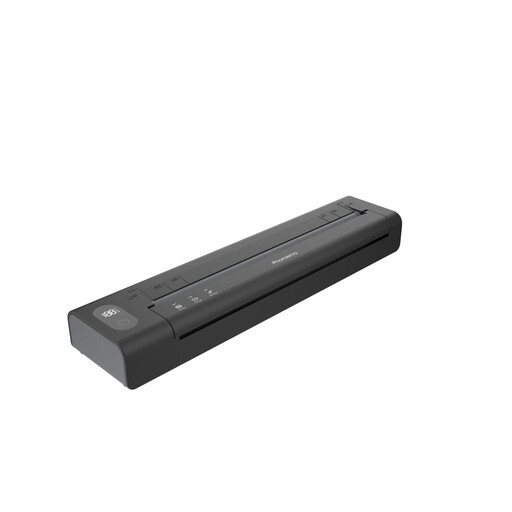
Phomemo A282U portable wireless printer, black, 1 piece
May suit you if you want to print documents on the move via Bluetooth; the Phomemo app is required for the connection described.
View at Joybuy
 No image available
HP Smart Tank 7305 wireless colour all-in-one printer
A colour all-in-one printer with double-sided printing, copying and scanning; consider this model if your reception desk needs those extra features.
View at Joybuy
 No image available
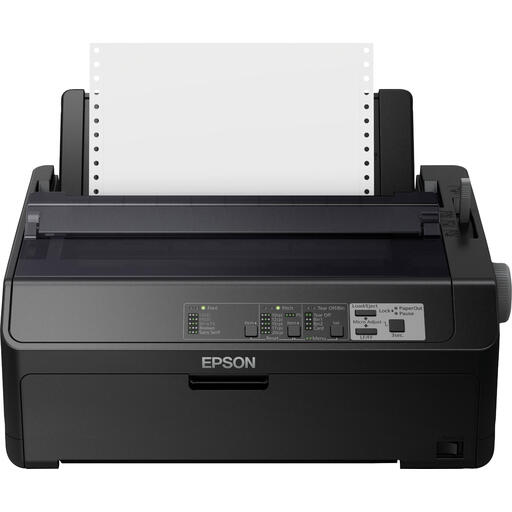
Epson FX-890IIN dot-matrix printer
The product name identifies this model as a dot-matrix printer; check that the printer type and paper suit your register.
240 x 144 DPI; 612 cps.
View at Joybuy
 No image available
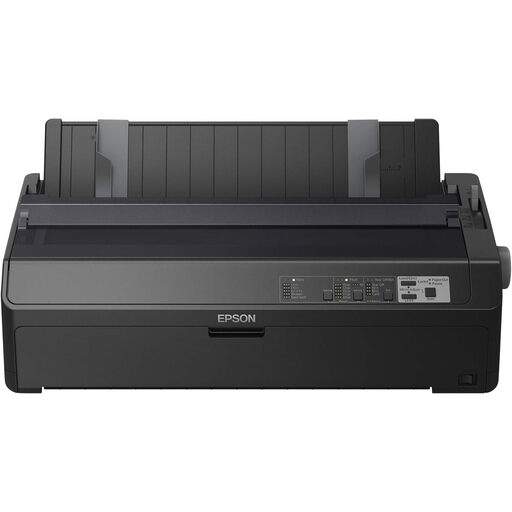
Epson FX-2190IIN dot-matrix printer
Check that a dot-matrix printer suits the way your reception desk prints and handles visitor registers.
240 x 144 DPI; 738 cps.
View at Joybuy
 No image available
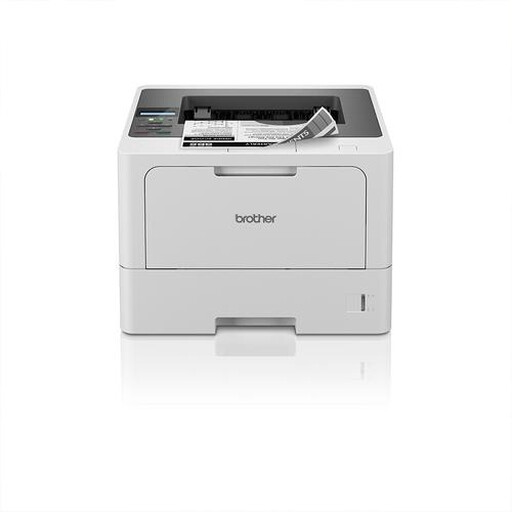
Brother HL-L5210DW wireless A4 monochrome laser printer
An A4 monochrome laser printer to consider if your reception desk prints registers in this format; check which connection your shared workspace requires.
View at Joybuy
Frequently asked questions
Does a printer for visitor registers have to include a PIN feature?
No. The information consulted from the Dutch Data Protection Authority doesn’t specify a particular printer feature, such as a PIN. Organisations decide which measures are appropriate based on the risks, so also consider the print location, access and procedures.
How long should paper visitor registers be kept?
According to the Dutch Data Protection Authority, the GDPR doesn’t set a specific general retention period for personal data. The organisation decides on a period that suits the purpose and takes into account any other applicable legal time limits.
What should you check when setting up a shared printer?
Check which devices will use the printer, which connection is specified for your chosen model variant, and who can see or collect printouts. The Brother HL-L2400DWE lists Wi-Fi and USB; don’t assume it has a wired network connection without checking the model specifications.
Are the only costs after purchase paper and toner?
Not always: depending on the model, ink or toner and a separate drum unit may also add to the cost. Compare compatible consumables for your own print volume; the Dutch Consumers’ Association points out that a low purchase price can come with higher-than-expected printing costs.
Do visitors need to know what happens to their details in the register?
Yes. The Dutch Data Protection Authority says organisations must inform visitors about how their personal data is processed, including the purpose and retention period. This information is the organisation’s responsibility and isn’t determined by the choice of printer.


