Choose multiple separate monitors if your simulation supports individual side views or instrument windows; choose one ultrawide screen if a continuous image matters more than independently positioned screens. Microsoft specifically describes additional render windows for Microsoft Flight Simulator 2020, while NVIDIA describes options for a combined display layout. So before choosing a setup, also check your simulation’s features, your PC’s outputs and performance, and the space available.
Who is this guide for?
Building a wide cockpit
You want to place side views alongside the main image. First check that your simulation supports this view, then look at your PC’s connections and the space available for positioning the screens. NVIDIA describes settings for a combined display layout.
Learning to operate a cockpit
You want to keep the outside view and instruments or controls on screen at the same time. Check whether your simulation offers separate windows or instrument displays; Microsoft describes additional render windows for Microsoft Flight Simulator 2020.
Gaming with limited desk space
You’re comparing the space needed for separate screens with that needed for one wide panel. Samsung describes its 49-inch 32:9 model as being as wide as two 16:9 monitors side by side; however, the wide display depends on the software.
What should you consider when choosing?
Multiple separate monitors
Choose this option: if you want to position supported side views independently.
The trade-off: you’ll need to account for screen bezels, extra cables and more space for your setup.
Main screen with a separate instrument display
Choose this option: if you want to see the controls and outside view at the same time, and your simulation supports separate windows.
The trade-off: an extra screen won’t automatically give you a wider outside view.
Ultrawide screen
Choose this option: if one continuous image without a central bezel matters more than independently positioned screens.
The trade-off: support for the aspect ratio and separate instrument windows still depends on the simulation.
| What to consider |
What should you check? |
Who is this important for? |
| Cockpit view and control layout |
Check whether the simulation supports side views, additional windows or separate instruments; then work out how many screens you’ll need. |
I want to decide where the outside view and controls appear. For around 36% of consumers, this cockpit layout is the most important factor. |
| Instrument legibility |
Compare the model’s native resolution and screen size; take into account your viewing distance and the position of the control screen. |
I want to be able to distinguish instruments and text clearly, even on a screen beside me. Readable cockpit details are the top priority for around 29% of consumers. |
| Smooth visuals with your PC |
Check the supported resolution and refresh rate for each input, and make sure your PC can handle your preferred screen layout. |
I want the image to remain smooth across my whole setup. For around 21% of consumers, smooth visuals matter more than the other factors. |
| Space and positioning |
Measure the desk space available and check the VESA size, weight without the stand, and what’s included with the model. |
I need my setup to fit the space available and want to know what the screens and mounting will require. For around 14% of consumers, space and the overall setup are the main priority. |
Common pitfalls
-
Assuming one screen’s maximum refresh rate applies to the whole cockpit
The available display mode also depends on the input you use, and multiple screens change the rendering workload for your PC.
Check the supported mode for the exact model and input you’ll be using. Also make sure your PC can handle your chosen simulation setup.
An extra screen may need a spare video output or a suitable cable, so check which connections your PC has first.
-
Assuming a superwide screen can replace three separate simulator views
A wide panel removes the central bezel, but support for a wide aspect ratio and separate windows varies between simulations.
Check your simulation’s aspect ratio and window features before choosing between a superwide screen and separate monitors.
-
Focusing only on the screens and forgetting about mounting
To align separate screens, their size and mounting need to suit the available space and your chosen stand or arm.
Check the VESA size, weight without the stand, included cables and your desk dimensions before choosing a model.
Brands to compare
AOC
The Q27G4XF is a 27-inch QHD model to consider when comparing separate screens.
- AOC lists Fast IPS, 2560 × 1440, up to 180 Hz and a height-adjustable stand for this model.
- These listed specifications don’t tell you how the model performs in a multi-screen simulation.
ASUS
The TUF Gaming VG27AQ3A and VG32AQL1A let you compare QHD models in different sizes.
- ASUS lists up to 180 Hz for the VG27AQ3A and up to 170 Hz for the VG32AQL1A; for the latter, ASUS lists a VESA size of 100 × 100 mm.
- A larger screen at the same resolution involves a trade-off between positioning and legibility; the listed figures don’t prove that the models perform equally.
Dell
The S2725DSM is a 27-inch QHD model to compare if you’re also looking for an adjustable stand and built-in speakers.
- Dell lists 144 Hz and height adjustment for this model.
- These product specifications don’t confirm support for separate simulator windows.
Samsung
The Odyssey G9 G91F is a 49-inch 32:9 alternative for anyone comparing one wide panel with multiple separate screens.
- Samsung lists Dual QHD and 144 Hz for this model. The panel gives you a continuous wide image without a central bezel.
- Support for a wide aspect ratio or separate instrument windows depends on the software you use.
LG
The UltraGear 27GS75Q-B is a 27-inch QHD IPS model that can serve as a specification example.
- LG lists up to 180 Hz and height adjustment.
- LG marks the model as discontinued; this doesn’t confirm current availability. LG also doesn’t list a daisy-chain feature for this model.
Gaming monitors at Joybuy
These are separate gaming monitors to compare for a multi-screen setup. Check separately whether your preferred display layout works with your simulation.
 No image available
Samsung Odyssey G5 G50F 32-inch IPS 180Hz LS32FG502EUXEN
A 32-inch IPS model to compare when looking at QHD monitors for a multi-screen setup.
QHD 2560 × 1440; 16:9; 180 Hz; height, swivel, tilt and pivot adjustment.
View at Joybuy
 No image available
MSI MAG 272QPF E20 27-inch WQHD 200Hz Rapid IPS
A 27-inch model to assess alongside other separate screens for a QHD cockpit setup.
WQHD 2560 × 1440; 16:9; Rapid IPS; 200 Hz; the product description lists a response time of 0.5 ms.
View at Joybuy
 No image available
AOC Gaming Q27G42XNE 27-inch QHD 180 Hz
This 27-inch QHD model offers specifications to consider when comparing screens for a cockpit setup.
2560 × 1440; 180 Hz; two HDMI 2.0 ports and one DisplayPort 1.4.
View at Joybuy
 No image available
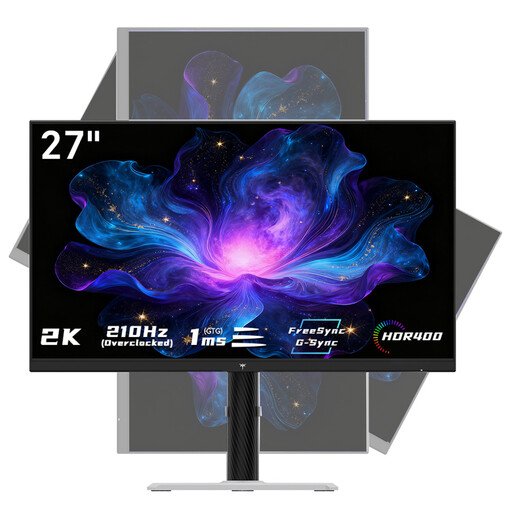
KTC H27T6 27-inch Fast IPS QHD
A 27-inch QHD model to compare when looking at separate screens for a gaming setup.
2560 × 1440; 200 Hz, with overdrive up to 210 Hz; the product description lists two HDMI and two DisplayPort connections.
View at Joybuy
 No image available
Philips Evnia 27M2N3500NF 27-inch QHD IPS 144Hz
A 27-inch QHD IPS model to consider when comparing separate screens for a cockpit setup.
2560 × 1440; 16:9; 144 Hz; 178°/178° viewing angles; VESA mount; HDMI 2.0 and DisplayPort 1.4.
View at Joybuy
Frequently asked questions
Can I connect three monitors and expect every spaceflight simulator to show separate side views?
No, the number of monitors alone doesn’t guarantee that. NVIDIA describes settings for a combined Surround display; Microsoft describes additional render windows for Microsoft Flight Simulator 2020. Check the features of your spaceflight simulator and the capabilities of your graphics card separately.
What should I do first when setting up multiple screens?
First decide whether you want one wide image or separate windows. Then check your PC’s video outputs and the display modes supported by each monitor. Arrange the screens in the order you want, then use the relevant software to set up the windows or combined resolution.
How do I compare the power consumption of multiple monitors?
Compare the EU energy labels for the exact models and take into account how many screens you use at once. The European Commission states that computer monitors are covered by the energy labelling rules for electronic displays; also compare the information for the specific model in EPREL.
What warranty and cooling-off period apply to an online purchase in the Netherlands?
When you buy as a consumer, you’re entitled to receive a product that works properly, and the retailer is your point of contact if there’s a problem. According to the Dutch government, distance purchases often come with a 14-day cooling-off period. An additional manufacturer’s warranty doesn’t replace your statutory rights.


