Who is this choice relevant to?

Editor with a narrow desk

This user wants to see text, the timeline and the video preview without the monitor dominating the workspace. Compare the overall dimensions and the position of the stand. The dimensions for the models discussed are provided by ASUS and BenQ.

Creator colour-grading hiking footage

This user wants to assess the lighting and colour in their footage as well as edit it. The relevant colour mode depends on the intended SDR or HDR output; Adobe describes separate colour settings for each Premiere sequence.

Laptop editor with limited space for cables

This user may want to combine video, data and laptop power through a suitable connection, without losing sight of the screen space required. BenQ and Philips describe USB-C capabilities for the models mentioned; check compatibility with your own computer.

What should you look for when choosing?

Consideration What should you check? Who is this important for?
Desk space Measure the available width and depth, including room for the stand and cables; compare these with the dimensions of the exact model. If my desk has limited space, I want to know whether the screen and stand will fit before anything else. Around 36% of consumers put available desk space first.
Colour for video output Decide whether you are delivering SDR/Rec.709 or HDR, then check the model's available colour modes and settings. When I assess the colour in my hiking footage, I want settings that match the intended output. Around 29% of consumers give colour grading top priority.
Space for the preview and timeline Compare the screen size and native resolution; also check how your editing software and image scaling work on your computer. If I want to see the preview, timeline and comments all at once, the on-screen layout is crucial. Around 21% of consumers prioritise editing space.
Laptop connection Check video support, the power required for charging and whether the right cable will work with your computer and the exact monitor. With limited space for cables, I want to know whether my laptop will receive a video signal and enough power through the connection I want to use. Around 14% of consumers put this connection first.

Common mistakes

  • Comparing screen size alone

    A 27-inch screen with its stand may take up more desk depth than you expect from the diagonal measurement. According to BenQ, the BenQ PD2705U is 256.8 mm deep, including the stand.

    Measure the available desk depth and compare it with the monitor's dimensions, including the stand, rather than looking only at the number of inches.

    You may need to reposition it or use a suitable monitor arm.

  • Assuming USB-C always means you can use a single cable

    The BenQ PD2705U lists DisplayPort Alt Mode and 65 W Power Delivery. Whether video and enough power will work through a single cable also depends on your computer.

    Compare your laptop's video support, charging requirements and cable with the specifications of the exact monitor.

    Depending on the combination, you may need a separate power connection or a suitable cable.

  • Assuming a wide colour gamut or HDR label guarantees accurate video colour

    A stated colour coverage does not automatically mean the screen settings will match your editing project.

    Choose and check the monitor mode in line with your intended SDR/Rec.709 or HDR output.

Brands and models to consider

ASUS

The ProArt PA248QFV is a compact 24.1-inch option with a 16:10 aspect ratio. ASUS lists a resolution of 1920 × 1200 pixels, 100% sRGB and height adjustment for this model.

  • The stated width, including the stand, is 53.18 cm.
  • This model has fewer pixels than the 27-inch 4K screens discussed here; manufacturer specifications are not independent measurements.

BenQ

The Creative Pro PD2705U is a 27-inch 4K model for which BenQ lists a Rec.709 mode and 99% Rec.709 coverage.

  • BenQ lists USB-C with 65 W Power Delivery and DisplayPort Alt Mode.
  • The stated width and depth, including the stand, are 614 × 256.8 mm; measure your desk to check that it will fit.

Dell

The S2725QC is a 27-inch 4K USB-C model. Dell lists a resolution of 3840 × 2160 pixels, an IPS panel, height adjustment and a maximum refresh rate of 120 Hz.

  • The resolution and height adjustment are useful points to compare with your screen layout.
  • Check separately which colour mode suits your video output; these specifications do not automatically make the model suitable for colour-critical work.

Philips

The 24E1N1300AE/00 is a compact 23.8-inch Full HD option with USB-C. Philips lists a resolution of 1920 × 1080 pixels and power delivery via USB-C.

  • Its size may be worth considering if desk width is a key constraint.
  • Check the refresh rate of the exact model before taking this feature into account.

LG

The UltraFine 27UP850K-W is a 27-inch 4K model. LG lists USB-C, an adjustable stand and typical DCI-P3 coverage of 95% for this model.

  • The stated coverage may be relevant to a workflow that requires DCI-P3.
  • A DCI-P3 specification does not prove that SDR/Rec.709 video will be displayed accurately without suitable colour settings.

Monitors at Joybuy

This selection includes compact screens for a smaller workspace, a portable 16-inch option and 27-inch 4K models for those who want more pixels. For each model, check that the dimensions, colour settings and connections suit your editing setup.
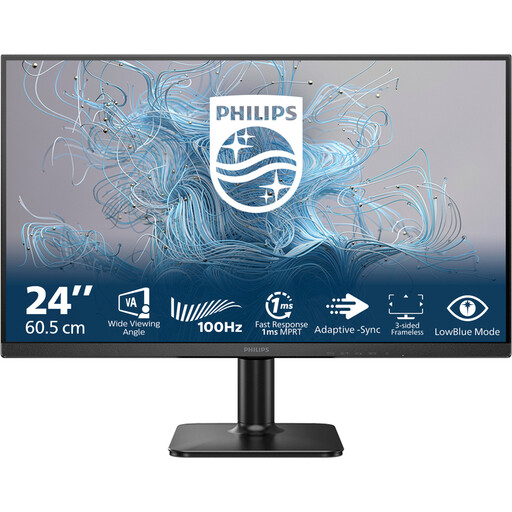
Philips 1000 Series 24E2N1100LB/00, 24-inch Full HD monitor

Philips 1000 Series 24E2N1100LB/00 24-inch monitor

An option to compare if you are looking for a 24-inch desk monitor.

The product information lists Full HD, 1920 × 1080 pixels, HDMI and VGA.

View at Joybuy

MSI Modern MD272UPHG 27-inch 4K monitor

MSI Modern MD272UPHG

Ideal if you are looking for a 27-inch 4K screen for checking footage and viewing editing panels.

The product information lists a resolution of 3840 × 2160 pixels and USB-C with up to 98 W Power Delivery.

Also listed: 97% DCI-P3, 94% Adobe RGB and an adjustable stand. Match the colour settings to your intended output.

View at Joybuy

ARZOPA Z1RC portable 16-inch monitor

ARZOPA Z1RC 16-inch portable monitor

A portable option to compare if a standard desk monitor takes up too much space.

The product information lists a resolution of 2560 × 1600 pixels, an IPS panel, USB-C, HDMI and a built-in stand.

View at Joybuy

Dell Plus S2725QC 27-inch 4K monitor

Dell Plus S2725QC

Ideal if you want to compare a 27-inch 4K screen with USB-C for viewing footage and editing panels.

The product information lists a resolution of 3840 × 2160 pixels, USB-C with up to 65 W Power Delivery and a height-adjustable stand.

View at Joybuy

Dell UltraSharp U2725QE 27-inch 4K monitor

Dell UltraSharp U2725QE

A model to compare if you are looking for a 27-inch 4K screen and its stated colour coverage is relevant to your workflow.

The product information lists a resolution of 3840 × 2160 pixels, 99% DCI-P3 and Display P3 coverage, HDMI and DisplayPort.

Check that the available colour settings suit your SDR/Rec.709 or HDR output.

View at Joybuy

Frequently asked questions

Do you definitely need to buy a 4K monitor for this editing work?

No, not necessarily. If desk space is your priority, you could also compare a 24-inch screen; a 27-inch 4K model offers more pixels for footage and editing panels. The best layout and image scaling depend on your computer and editing software.

How should you set up your monitor when assessing the colour in your hiking footage?

Match the colour settings to your project's output format. Adobe describes separate SDR/Rec.709 and HDR settings in Premiere; these instructions do not prove that a particular screen is calibrated.

What should you consider when positioning your monitor and working for long periods?

Measure the screen width and stand depth, and leave room for your keyboard and cables. Arboportaal outlines requirements for employees who work at a screen for more than two hours a day, including requirements for a height-adjustable screen. These workplace rules are not automatically a uniform product requirement for every individual buyer.

What are your rights when buying online in the Netherlands?

For an eligible distance purchase from a business, the Dutch government generally provides a 14-day cooling-off period, with some exceptions. If a product is faulty, the seller is your point of contact for the legal guarantee. According to the Dutch government, the Netherlands does not have a fixed statutory guarantee period that applies to all products.
