Start by choosing a monitor to suit your delivery format. For Rec.709/SDR, the right colour mode and a controlled colour workflow matter more than an HDR label alone. If you often switch between computers or want to view your preview, timeline and panels at the same time, consider the connections, KVM and screen size too. Manufacturer information describes features and stated specifications, but it is not an independent measurement of the screen you receive.
Who is this guide for?
Editor working on different projects
You regularly switch between projects or editing computers and want to keep settings, inputs and workspaces manageable. Adobe explains how to set colour settings for each sequence in Premiere; some monitors also offer features such as KVM or multi-source viewing.
Editor assessing SDR colour
You want to assess the sky, water and grass for Rec.709/SDR delivery. So you look for a suitable screen mode and a colour management workflow, rather than relying on the stated colour gamut alone.
Editor who needs room for the timeline
You want to arrange the preview, timeline and editing panels clearly, so you compare screen size and resolution with the space available on your desk.
What should you look for when choosing?
First decide whether you’re editing and assessing in SDR or HDR. Then compare the screen mode, the workspace you need and the connections that suit your computer setup.
| What to consider |
What should you check? |
Who is this most relevant to? |
| Switching between projects and sources |
Check your software settings, the number of computers and the video and USB connections you need separately. |
If I often switch between projects or computers, I want to know which settings I need to adjust for each sequence and whether I can switch peripherals between devices. Around 36% of consumers prioritise switching between projects and sources. |
| Colour for SDR delivery |
Decide whether you’re delivering in Rec.709/SDR, then compare screen modes and the calibration and checking options available. |
When I want to assess the colour and tone of my film for SDR, I look at both the output mode and how I can adjust and check the screen. Around 29% of consumers give SDR colour assessment the most attention. |
| Room for the preview and timeline |
Compare the screen’s diagonal size and resolution with your preferred layout, scaling settings and available desk space. |
If I want to see the preview, timeline and panels at the same time, I weigh up the physical screen space against what will fit on my desk. Around 21% of consumers prioritise timeline space. |
| Connecting and powering a laptop |
Check your laptop’s video output and power requirements, the monitor port and the cable you’ll use. |
For my editing laptop, I want to know whether one connection can carry the picture and provide enough power; the stated wattage alone doesn’t prove compatibility. Around 14% of consumers give the laptop connection the most attention. |
Common buying mistakes
-
Assuming an HDR logo proves the screen is right for your HDR master
HDR support and a performance label don’t automatically tell you whether a monitor is suitable for assessing the output format you’re targeting.
First, establish whether you’re delivering in SDR or HDR. For HDR, then assess the required display performance and the entire signal chain.
-
Treating factory calibration as ongoing colour control
A factory specification isn’t a measurement of the screen you’ll use, and it doesn’t tell you how the screen is set up over time.
Choose a calibration workflow that suits your output format, and check in advance which equipment and software you’ll need.
-
Assuming USB-C charging power guarantees laptop compatibility
The stated charging power doesn’t guarantee that it will be enough for your laptop or that the port supports video.
Compare the exact specifications for your laptop, cable and monitor before relying on a one-cable setup.
Brands to compare
BenQ
The PD3225U is a 31.5-inch 4K model with a Rec.709 mode, aimed at editors who also want to switch between connected computers.
- BenQ lists KVM, DualView and Thunderbolt 3 with 85 W power delivery for this model.
- Check that the features suit your computer and that the screen will fit on your desk; the specifications aren’t an independent performance measurement.
ASUS
The ProArt PA279CRV is a 27-inch 4K model with, among other features, a Rec.709 preset for those looking for a more compact screen.
- ASUS lists 96 W USB-C Power Delivery and a factory-rated colour accuracy specification.
- Check your laptop’s requirements; the factory specification isn’t a measurement of the individual screen you receive.
EIZO
The ColorEdge CS2740 is a 26.9-inch 4K model worth comparing if hardware calibration is an important part of your workflow.
- EIZO lists hardware calibration and up to 60 W power delivery via USB-C.
- Check which calibration equipment you use and whether the charging power suits your laptop.
LG
According to LG, the UltraFine 27UP850K-W combines a 27-inch 4K screen with an adjustable stand and USB-C.
- LG lists 96 W power delivery and support for hardware calibration.
- LG states that the software for the hardware calibration feature is not included.
Dell
The UltraSharp U2725QE is a 27-inch 4K hub monitor worth comparing if you’re also looking for a stated refresh rate of 120 Hz.
- Dell lists IPS Black and a 3000:1 contrast ratio for this model.
- This manufacturer information alone doesn’t prove that the screen is right for your colour assessment workflow.
Joybuy monitors for 4K editing
These models offer a 4K editing preview. Also compare screen size, connections and features for switching between computers. For colour assessment, check which screen mode and workflow suit your output format.
 Image unavailable
MSI MAG 322UP QD-OLED E16 31.5-inch 4K UHD monitor
An option if you’re looking for a large 4K preview and want to consider colour gamut; colour gamut alone doesn’t tell you how accurately colours are displayed.
31.5 inches, 3840 × 2160, QD-OLED and 165 Hz.
The product information lists 99% DCI-P3 and 98% Adobe RGB, two HDMI 2.1 ports and USB-C. USB-C power delivery is limited to 15 W and, according to the product information, won’t replace most laptop chargers.
View at Joybuy
 Image unavailable
Philips 27E1N1800AE/00 27-inch 4K UHD IPS monitor
A 27-inch option for anyone who wants a detailed 4K preview on a more compact screen.
3840 × 2160 resolution, IPS panel, 60 Hz and 4 ms.
The product information lists two HDMI ports, DisplayPort and a height-adjustable stand.
View at Joybuy
 Image unavailable
INNOCN CB27U1 27-inch 4K UHD monitor
A more compact 4K option with USB-C. Check whether your laptop outputs video via this connection and whether the power delivery suits your computer.
27 inches, 3840 × 2160, IPS and 120 Hz.
The product information lists USB-C with 90 W Power Delivery, PIP/PBP viewing and a stand with height, swivel and tilt adjustment.
View at Joybuy
 Image unavailable
KTC M27P6 27-inch 4K MiniLED monitor
A 27-inch 4K option worth comparing if you also want to switch between computers; check that the connections and power delivery suit your setup.
The product information lists 4K UHD, a MiniLED screen and a dual mode of 4K at 160 Hz or FHD at 320 Hz.
It also lists KVM, USB-C with 65 W Power Delivery and a stand with height, swivel and tilt adjustment.
View at Joybuy
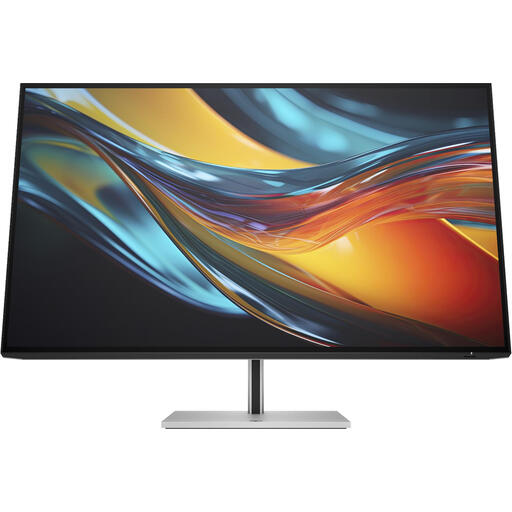 Image unavailable
HP Series 7 Pro 732pk 31.5-inch 4K Thunderbolt 4 monitor
A larger screen with KVM to compare if you want to combine preview space with switching between computers.
31.5 inches, 4K and Thunderbolt 4. The product information lists IPS Black and 98% Display P3.
The product information lists KVM and up to 100 W laptop power delivery via one cable. The charger isn’t included as standard.
View at Joybuy
Frequently asked questions
Do I always need to choose an HDR monitor for this film?
No. First decide whether you want to assess an SDR or HDR version. Adobe describes separate colour settings for each sequence in Premiere; an HDR label on a monitor doesn’t, by itself, show whether its display performance is right for your HDR target.
How can I keep colour settings consistent when switching projects?
For each relevant sequence, check the output colour space and choose a screen setting to match. Adobe describes colour settings for each sequence and monitor calibration; a Rec.709 preset doesn’t replace those checks.
Can any editing laptop work with these monitors using a single USB-C cable?
Not without checking compatibility. Compare your laptop’s video output and power requirements, and those of your cable, with the exact monitor port and stated charging power.
In the Netherlands, am I always entitled to just two years’ legal guarantee on a monitor?
No. ACM ConsuWijzer explains that the legal guarantee doesn’t have a fixed two-year period; it depends on what you could reasonably expect from the product under normal use. The retailer is your point of contact. A manufacturer’s guarantee is different.
Can I return a monitor after it’s delivered if I bought it online?
For an online purchase by a consumer in the Netherlands, ACM ConsuWijzer says you’ll generally have a statutory 14-day cooling-off period after delivery. Check the applicable exceptions and conditions; this doesn’t automatically apply to business purchases.


