
Editor with a small desk
You want to edit footage and a timeline without your laptop taking over your limited desk space. Compare the dimensions and screen size of the exact configuration; ASUS and Lenovo offer examples with different screen sizes.


Start with your footage, editing software and available workspace: a compact laptop is not automatically suitable for every 4K timeline. A smaller screen takes up less space, but also leaves less room for your timeline and preview; compare the exact configuration for memory, graphics, screen and ports. For 4K and higher resolutions in Premiere on Windows, Adobe recommends 32 GB RAM or more, while the right configuration for other workflows depends on factors such as software and codec.
You want to edit footage and a timeline without your laptop taking over your limited desk space. Compare the dimensions and screen size of the exact configuration; ASUS and Lenovo offer examples with different screen sizes.
You may work with 4K footage, multiple layers or effects. First check the memory and graphics requirements of your software and codec; Adobe recommends 32 GB RAM or more for 4K and higher resolutions in Premiere on Windows.
You assess bright skies, dark details and colours, and want to connect camera files easily. Compare the screen specifications, card reader and ports on the specific configuration; Apple, Lenovo and Acer offer different options.
First, pin down your workflow and available workspace. Then you can compare models based on their screen, memory, graphics capabilities and file management.
A good fit if: you value the smallest footprint and a touchscreen; the ASUS ProArt PX13 configuration reviewed has a 13.3-inch OLED screen, 64 GB memory and a 1 TB SSD.
Bear in mind: the smaller, reflective screen and built-in memory, according to ASUS.
A good fit if: you use macOS or want to weigh the hardware acceleration for H.264, HEVC and ProRes described by Apple against your software and codec.
Bear in mind: the 14-inch MacBook Pro range includes different chip and memory configurations; check the configuration, not just the range name.
A good fit if: you want more room for your timeline than a smaller model offers; the Lenovo Yoga Pro 7 83HN0034MH configuration reviewed has a 14.5-inch OLED screen, 32 GB memory and a 1 TB SSD.
Bear in mind: this Lenovo configuration has integrated Radeon 880M graphics and soldered memory, according to Lenovo.
A good fit if: your workflow requires a discrete graphics card; according to Acer, the Acer Swift X 14 NX.KR8EH.004 has an RTX 4060 with 8 GB of dedicated video memory.
Bear in mind: a GPU specification alone does not predict how your codec, effects or export will perform; Adobe notes that hardware acceleration depends on the system configuration.
| Concern | What to look for when buying | Who is this most relevant to? |
|---|---|---|
| Editing performance | Make a note of the resolution, codec, effects and software version. Then compare the memory, GPU and storage with the software requirements; Adobe recommends 32 GB RAM or more for 4K and higher in Premiere on Windows. | If I work with 4K footage or several effects, I want to know whether my chosen configuration suits my workflow. Around 31% of consumers put editing performance first. |
| Desk footprint | Measure the available width and depth, then compare them with the laptop’s dimensions. Also consider whether the built-in screen gives you enough room for your timeline without an external display. | When desk space is limited, I want a laptop that fits without its built-in screen making editing impractical. Around 25% of consumers prioritise desk space. |
| Assessing image quality | Compare the screen size, stated colour gamut and finish of the exact configuration. Match the export colour space to the intended result; Adobe cites Rec. 709 as the standard for most Premiere presets. | When editing a film with bright skies and dark details, I want to assess the image properly and check the output. Around 25% of consumers choose image assessment as their top priority. |
| Connecting and storing files | Check that the card reader and ports suit your camera, drive and cables. Set aside SSD space for source files, cache, any proxies and exports. | If I want to transfer camera files and keep project assets close at hand, I look for suitable connections and enough storage. Around 19% of consumers prioritise file transfer and storage. |
Performance also depends on resolution, codec, effects and software. Adobe also notes that hardware acceleration during export depends on the system configuration.
Check the system requirements for your software version and compare them with the exact memory and GPU configuration. For demanding source footage, consider using a suitable proxy workflow.
Configurations within a range can differ in chip, memory and storage. Dell notes that choices in the XPS 14 configurator can change the specifications; Apple also offers several chip and memory configurations.
Before buying, check the full model and the selected memory, storage and GPU configuration, not just the range name.
As well as source files, applications, cache, proxies and exports can all take up storage space.
Plan separately where to keep your originals, project files, cache, any proxies and exported files.
According to Apple, the 14-inch MacBook Pro range offers a macOS option with a choice of chips and memory configurations.
According to ASUS, the ProArt PX13 HN7306 configuration reviewed is a compact convertible for creators.
According to Lenovo, the Yoga Pro 7 83HN0034MH combines a 14.5-inch OLED screen with 32 GB memory and a 1 TB SSD.
The Swift X 14 SFX14-72G NX.KR8EH.004 is a 14.5-inch Windows configuration with a discrete graphics card.
The XPS 14 DA14260 is a configurable compact Windows option.
This Joybuy selection features compact laptops with different screen sizes, memory configurations and connections to consider for video editing at a small desk.
 No image available
A 14-inch configuration to consider if you want a compact laptop with a generous stated amount of working memory.
The product name lists 128 GB RAM and a 1 TB SSD.
The product information lists an OLED screen with 100% DCI-P3, an SD card reader and notes that the power adapter is not included.
 No image available
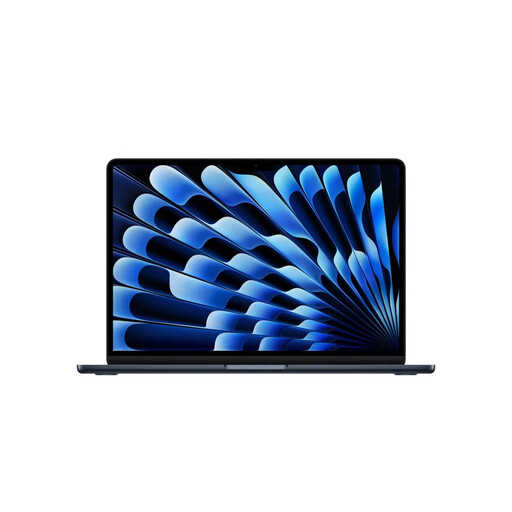
A compact MacBook configuration to consider if screen size and working memory matter for your workspace.
The product information lists a 13.6-inch screen, a weight of 1.23 kg, 24 GB unified memory and a 1 TB SSD.
The listed connections are two Thunderbolt 4 ports.
 No image available
A 14-inch MacBook Pro configuration to consider if a compact screen and direct connections for peripherals matter to you.
The product name lists 24 GB memory and a 1 TB SSD; the product information mentions a Liquid Retina XDR screen.
The listed connections are SDXC, HDMI and three Thunderbolt 4 ports.
 No image available
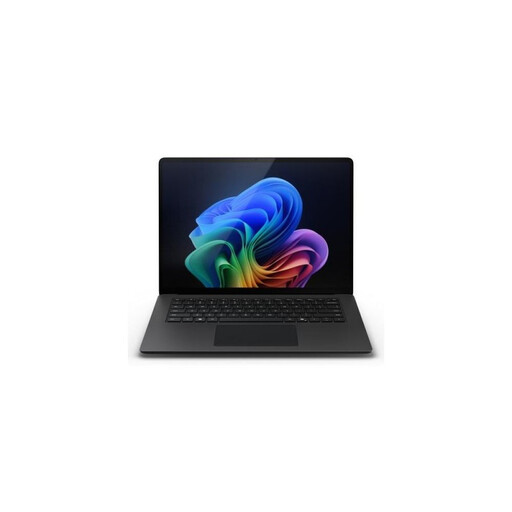
A 13.8-inch configuration to consider if a compact screen and USB4 connection suit your editing setup.
The product name lists Snapdragon X Elite, 16 GB memory and a 512 GB SSD.
The product information mentions a 2304 × 1536 PixelSense Flow touchscreen and USB4 connectivity.
 No image available
A 14-inch configuration with a MicroSD card reader to consider if you transfer camera files using this card type.
The product name lists a 10-core Core 7 150U, 16 GB DDR4 memory and a 512 GB SSD.
The product information mentions a MicroSD card reader, HDMI and USB-C with DisplayPort.
Not without knowing your footage and software. Adobe recommends 32 GB RAM or more for 4K and higher resolutions in Premiere on Windows; that advice doesn’t automatically apply to every editor, resolution or macOS laptop.
Adobe Premiere can create proxies for compatible video clips: lower-resolution copies that can make demanding source footage easier to edit. Check that this workflow suits your project, and keep the original media files too.
Before installing, check the system requirements for your software version and set aside space for the application, cache and media files. If you use a proxy workflow, also plan where to store the proxy files.
For a consumer purchase, the seller must provide an appropriate solution. According to the Dutch government, the Netherlands has no fixed statutory warranty period; what you can expect from a product depends, among other things, on the product and the purchase information. A manufacturer’s warranty is in addition to your statutory rights.
According to the Dutch government, in many cases you have a 14-day cooling-off period when buying online at a distance from a business. Check the terms that apply to your purchase; an online purchase from a private seller is not covered by this explanation of distance selling.