Start with your editing app, the resolution and codec of your footage, and the requirements for showing your portfolio. Then choose a laptop configuration. For Premiere, Adobe recommends 32 GB of RAM and, on Windows, 8 GB of GPU memory for 4K and above. Proxy files can make editing demanding video clips easier. The screen, ports, portability and storage all matter, so there’s no single laptop that’s right for every workflow.
Who is this guide for?
Editor working to a 4K deadline
You want to edit smoothly on the timeline and finish your export before your review. Start by identifying your editing app, codec and resolution. Then check the RAM, GPU and whether you can create proxy files. For Premiere at 4K and above, Adobe recommends 32 GB of RAM or more.
Creator whose work is judged on colour
You want to assess the sea, sky and village on a suitable screen. Compare the screen specifications of the exact configuration, and consider the format in which your portfolio will be shown. ASUS Netherlands lists different screen configurations in the ProArt P16 range.
Creator who edits on location
You move your laptop and source files between filming and review. Size, card reader, storage and a secure file workflow may matter more to you than having the most powerful GPU. Apple Support Netherlands describes the ports and codec support of the 14-inch MacBook Pro with M5 Pro.
What should you look for when choosing?
Compact MacBook Pro
Best for: anyone who regularly travels between filming locations, their editing desk and review sessions, and uses macOS editing apps. Apple Support Netherlands lists hardware acceleration for H.264, HEVC and ProRes on the 14-inch M5 Pro.
Trade-off: a 14-inch screen gives you less built-in workspace than a 16-inch laptop. Also check the chip, memory and ports in your chosen configuration.
Windows creator laptop with a discrete GPU
Best for: anyone who needs Windows and wants to compare a larger OLED screen with a discrete NVIDIA GPU for editing and reviewing footage. ASUS Netherlands lists several ProArt P16 configurations.
Trade-off: the screen, GPU and SSD vary by configuration. Check the full configuration code rather than relying on the series name.
Windows laptop with more workspace
Best for: anyone who values a large built-in workspace for longer sessions involving multiple layers or effects. Lenovo Netherlands lists 32 GB of RAM, 12 GB of GPU memory and a 1 TB SSD in one Legion Pro 7i Gen 10 configuration.
Trade-off: Lenovo positions this series as a gaming laptop. Consider the weight, power supply and screen as well as the configuration. The specifications don’t tell you how quickly your film will export.
| What to consider |
What should you check? |
Who is this relevant to? |
| Editing and exporting |
Check your app, codec and resolution. For Premiere at 4K and above, Adobe recommends 32 GB of RAM or more and, on Windows, lists 8 GB of GPU memory. These recommendations apply to the relevant Premiere versions. |
If I’m editing in 4K before my portfolio review, I want to know whether my timeline and export can be completed in the time available. Around 33% of consumers give smooth editing and on-time exports top priority. |
| Screen and colour |
Compare the screen size, resolution and stated colour coverage of the exact configuration. Match your review to the format in which your portfolio will be shown. |
I want to assess the colours of the sea and sky on the screen I have with me. Around 27% of consumers therefore prioritise screen quality and colour assessment. |
| Working on the move |
Compare the size and ports with your card, camera, external drive and presentation screen. |
If I’m travelling between filming locations, my editing desk and review sessions, I want to take my equipment with me and connect it easily. Around 20% of consumers prioritise working on the move and connectivity. |
| Files and storage |
Check the SSD in the exact configuration, how much space your source footage needs and how you’ll manage backups. Also check which editing app and ports your workflow requires. |
I want to keep my source clips, projects and exports organised. Around 20% of consumers give storage and their overall editing setup top priority. |
Common pitfalls
-
Using an HD guideline for 4K editing
For the relevant Premiere versions, Adobe gives different memory recommendations for HD and for 4K and above. An HD guideline therefore won’t necessarily tell you what’s right for your source footage.
Check the recommendations for your version of Premiere, resolution and GPU before choosing a configuration. Also consider whether a proxy workflow would suit your editing.
-
Assuming a laptop series has one fixed configuration
Screen, GPU and SSD specifications vary between configurations in ranges such as the ASUS ProArt P16. A series name doesn’t tell you which components are in the laptop you’re choosing.
Compare the full configuration code with the screen, GPU, RAM and SSD specifications before ordering.
-
Assuming the laptop alone is your complete editing setup
Your workflow may also require editing software, external storage and ports for card readers or a presentation screen.
Beforehand, make a list of your editing software, storage needs, backup plan, card reader and screen connections. Then check which of these are supported by the laptop you’ve chosen.
Brands to compare
Apple
The 14- and 16-inch MacBook Pro are options worth considering for an editing workflow on macOS. For the 14-inch M5 Pro, Apple Support Netherlands lists hardware acceleration for H.264, HEVC and ProRes.
- Documented codec support may be a factor if your source footage uses one of these formats.
- The chip and memory vary by configuration. RTINGS’ positive test findings relate to the 16-inch MacBook Pro they tested and don’t automatically apply to the 14-inch model.
ASUS
The ProArt P16 is a Windows option with a 16-inch OLED screen and a discrete NVIDIA GPU in the configurations reviewed.
- ASUS Netherlands lists a range of screen resolutions, GPUs and SSD capacities across the series, letting you compare configurations by their specifications.
- ASUS positions it as a creator laptop; performance with your film hasn’t been established. Check the RAM and exact configuration code too.
Lenovo
The Legion Pro 7i Gen 10 is a Windows option to compare if GPU memory and a large screen are important to you.
- Lenovo Netherlands lists a configuration with 32 GB of RAM and an RTX 5070 Ti laptop GPU with 12 GB of memory.
- Lenovo positions the series as a gaming laptop. Consider portability, screen and power supply as well as the full configuration.
MSI
The Vector 17 HX AI A2XW is a 17-inch series worth exploring if you’re looking for a large built-in screen and a discrete GPU.
- MSI lists several GPU and screen options in the model series.
- The series information doesn’t confirm which configuration is available in the Netherlands or how it performs with your editing app. Check the full model code.
Joybuy laptops for video editing
These Joybuy products offer a range of laptop configurations to compare for video editing, reviewing footage and working with project files. Check the specifications of each configuration to see how they match your app, footage and workflow.
 Image unavailable
ASUS ProArt P16 H7607BA-SE181X, 128 GB RAM, 1 TB SSD
An option to consider if a large built-in screen and project storage are important to your editing setup.
The product information lists a 16-inch 4K OLED screen with 100% DCI-P3, an SD card reader, 128 GB of RAM and a 1 TB SSD.
View at Joybuy
 Image unavailable
Lenovo Yoga 9 16N1X11 83N70020MH, 32 GB RAM, 1 TB SSD
A configuration to compare if you’re looking for 32 GB of RAM and an OLED touchscreen in the same laptop.
The product information lists a 16-inch OLED touchscreen with a resolution of 2880 × 1800 and a 2-in-1 hinge. For Premiere at 4K and above, Adobe recommends 32 GB of RAM or more in the relevant versions.
View at Joybuy
 Image unavailable
Apple MacBook Pro 14-inch M5 Pro, 24 GB, 1 TB, Space Black (2026), QWERTY
A compact MacBook Pro to compare if you edit on macOS and travel between different workspaces.
This configuration lists 24 GB of memory and a 1 TB SSD. Apple Support Netherlands lists hardware acceleration for H.264, HEVC and ProRes on the 14-inch M5 Pro. For Premiere at 4K and above, Adobe recommends 32 GB of RAM or more in the relevant versions; this configuration has 24 GB.
View at Joybuy
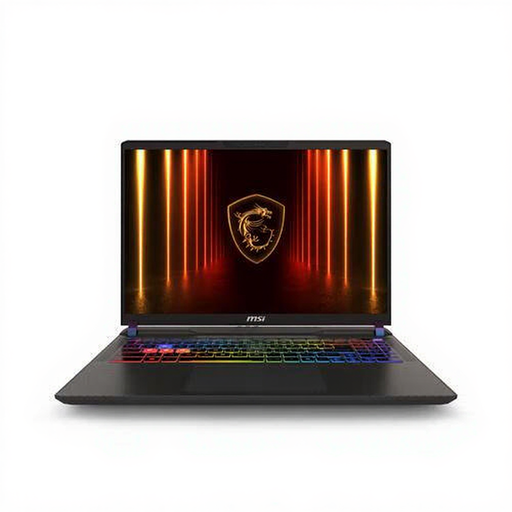 Image unavailable
MSI Vector A16 HX A8WIG-025NL, Ryzen 9 8940HX, RTX 5080
An option to compare if you’re considering a discrete GPU and storage for project files.
The product information lists 16 GB of RAM, a 1 TB SSD, an RTX 5080 with 16 GB of video memory and a 16-inch screen with 2560 × 1600 pixels. For Premiere at 4K and above, Adobe recommends 32 GB of RAM or more in the relevant versions. According to the product information, the charger must be purchased separately.
View at Joybuy
 Image unavailable
ASUS ROG Strix G18 G814PM-S9012W, RTX 5060, 16 GB RAM, 1 TB SSD
An option to consider if a large built-in screen matters to you, provided its size and weight suit your journeys.
The product information lists an 18-inch WQXGA IPS screen with 100% DCI-P3, an RTX 5060 with 8 GB of GPU memory and a 1 TB SSD. It has 16 GB of RAM; for Premiere at 4K and above, Adobe recommends 32 GB or more in the relevant versions. The product information gives an approximate weight of 3 kg and says the charger is sold separately.
View at Joybuy
Frequently asked questions
Does my editing laptop have to have 32 GB of RAM?
Not as a general rule. For the Premiere versions mentioned, Adobe recommends 32 GB of RAM or more for 4K and above, and 16 GB for HD. Start by considering your editing app and source footage; the Premiere recommendation isn’t a universal requirement for every editing app.
Can I edit demanding footage using lighter files first?
Yes, if your workflow supports it. In Premiere, you can create proxies for compatible video clips – lower-resolution copies that are easier to work with. Keep and manage the original files carefully; Adobe notes, for example, that clips with captions have limitations.
How should I prepare my export for the portfolio review?
Check which format the portfolio or presentation system accepts, then set the format, resolution, frame rate and codec accordingly. Adobe says hardware acceleration for H.264 or HEVC exports in Premiere depends on your system configuration and export settings. Test the final export on the system you plan to use for playback.
What should I consider about software and warranties in the Netherlands?
Check which features your editing project requires. As well as DaVinci Resolve Studio, Blackmagic Design offers a free version of DaVinci Resolve. According to ACM ConsuWijzer, the seller is responsible for the statutory guarantee on faulty consumer products; a manufacturer’s warranty does not replace this right.
Can I return a laptop bought online in the Netherlands?
For most online consumer purchases, there is generally a statutory cooling-off period of up to 14 days after the product is delivered. ACM ConsuWijzer explains the conditions and exceptions for trying out and returning a product; check which apply to your order.


