When you make lots of revisions, prioritise fast storage and a separate way to keep project versions and source footage. For demanding 4K editing, more memory and suitable graphics hardware can be important, while a larger screen and more ports can make your setup harder to carry. Adobe’s memory advice applies only to Premiere, so choose a laptop that suits your own software and source footage.
Who is this laptop guide for?
Editor making lots of revisions
If you regularly tweak your edit, you’ll want to be able to find earlier project versions and keep your source footage. Adobe recommends fast SSD storage for video editing and describes auto-save and archiving features in Premiere.
Creator working with demanding source footage
With 4K footage or demanding effects, for example, it’s important to choose a laptop that suits your codec and editing software. Adobe’s Premiere guidance links its memory recommendations to resolution; check the requirements for your own software too.
Editor who works in different locations
If you import footage from a camera and edit or show your work in different locations, compare screen size, ports and the weight of your complete setup. Apple lists hardware acceleration for formats including H.264, HEVC and ProRes on MacBook Pro; check that your software and camera formats are compatible with the configuration you choose.
What should you prioritise?
Start with your editing software, source footage and revision workflow. Then choose memory, storage, screen and ports to suit what you actually use.
| What to consider |
What to look for |
For which consumers |
| Project versions and storage |
Check the SSD capacity and ports. Decide where you’ll keep originals, cache, project files and separate backups. |
If I make frequent changes, I want to be able to find older edits without losing the originals. Around 36% of consumers prioritise version control and storage. |
| Editing workload and software |
Note down your software, version, codec and resolution, then compare them with the requirements for the exact laptop configuration. For Premiere on Windows, Adobe recommends 16 GB RAM for HD and 32 GB or more for 4K and higher. |
When working with demanding source footage or complex effects, I want to know whether my software can handle those files. Around 29% of consumers give editing workload and software compatibility top priority. |
| Assessing image quality and colour |
Compare the screen size, resolution, stated colour gamut and glossy or matte finish of the exact configuration. Also consider the screen the film will ultimately be shown on. |
If I want to assess the sky, water and greenery while editing, I pay attention to the screen and viewing environment. Around 21% of consumers prioritise image assessment. |
| Portability and connections |
Check that the ports suit your camera, external storage and any screens you’ll use for showing your work. Compare the screen size and the weight of your complete setup too. |
When importing or editing in different locations, I want to connect my equipment without having to carry more than necessary. Around 14% of consumers prioritise working on the move and connectivity. |
Which buying mistakes can you avoid?
-
Looking only at the internal SSD capacity
Source footage, cache, proxies and project versions all need space. A fast internal drive isn’t a substitute for a separate copy of important files.
Plan in advance which files you’ll store internally, externally and as backups, and check that the ports suit your external storage.
An external SSD, suitable adapter or separate backup drive also needs a place in your workflow.
-
Assuming a gaming GPU or creator label means the screen is suitable for editing
Graphics specifications and screen features tell you different things. Configurations can also vary within the same product range.
Compare the exact GPU as well as the screen resolution, finish and other display specifications of the configuration you want to buy.
An external screen or extra connectivity accessories also mean more things to carry.
-
Confusing auto-save with a full backup
Automatically saved project versions are stored on the drive; they don’t replace keeping separate copies of your project files and source footage.
Use version control in your editing software and keep a separate copy of important files as well.
You’ll also need to allow for enough external or other separate storage in your workflow to keep a separate copy.
Brands to compare as a guide
Apple
MacBook Pro is an option if you’re looking for an editing setup that runs macOS. Apple lists media engines for formats including H.264, HEVC and ProRes.
- The Netherlands specifications include different combinations of memory, chip and storage; compare the exact configuration with your editing workload.
- A smaller screen gives you less room for your timeline and other windows. The media engines listed don’t guarantee performance for every project.
Lenovo
The Yoga Pro 9i Gen 11 is a Windows creator range to compare if you’re looking for a larger built-in editing screen.
- For model 83SF003UMH, Lenovo lists 32 GB RAM, a 1 TB SSD and an RTX 5060 Laptop GPU with 8 GB of graphics memory.
- This configuration has soldered memory and a glossy screen. These features don’t necessarily apply to other configurations.
ASUS
The ProArt P16 is a Windows creator range with OLED screens and dedicated graphics; compare the full model code.
- For H7606WX-SE003X, ASUS lists an RTX 5070 Laptop GPU, a 3K OLED screen and a 1 TB SSD.
- Don’t assume specifications based on the range name alone: compare the model code and features of the specific configuration.
HP
The ZBook X G1i is a mobile workstation worth comparing if support for your workflow is a consideration.
- For C4DB9EA#ABH, HP lists 32 GB RAM, a 1 TB SSD, an RTX PRO 1000 with 8 GB of graphics memory and three years of on-site support.
- These specifications and support details don’t indicate how quickly this configuration will edit your specific footage.
MSI
Katana 15 HX is a gaming-focused Windows range that MSI also offers for creative tasks.
- MSI describes configurations in the range with processors up to the stated maximum configurations and RTX 50 Series laptop graphics.
- The maximum specifications don’t tell you which memory, screen or GPU a specific configuration has; check the Netherlands model code.
Joybuy laptops to compare
These Joybuy laptops can be compared by screen, storage, stated memory and graphics features. Check the requirements of your editing software and source footage for each exact configuration.
 No image available
ASUS Vivobook S16 S3607QA-SH109W
Include this configuration in your comparison if you’re looking for a 16-inch OLED screen and storage for project files.
16-inch WUXGA OLED screen; Snapdragon X processor; 16 GB LPDDR5X; 512 GB SSD; Windows 11 Home.
View at Joybuy
 No image available
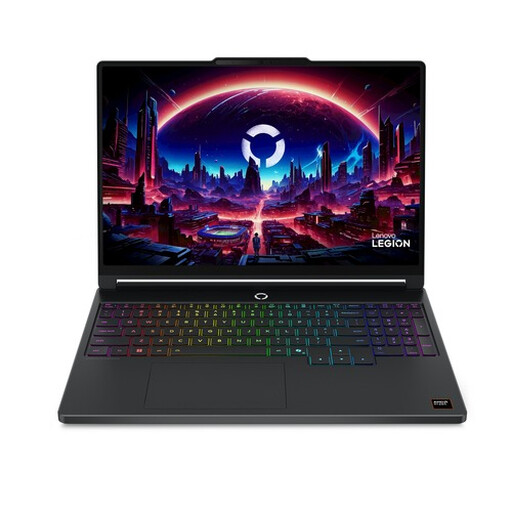
Lenovo Legion 5 15AHP11, Belgium AZERTY
Compare this Windows configuration if you want to factor an OLED screen and a dedicated GPU into your choice of editing laptop.
15.3-inch WQXGA OLED screen, 165 Hz; AMD Ryzen 7 250; 16 GB DDR5; 512 GB SSD; GeForce RTX 5060; Windows 11 Home.
View at Joybuy
 No image available
ASUS ProArt P16 H7607BA-SE030X
Compare this configuration if a 16-inch OLED screen and the stated generous storage and memory capacity suit your editing work.
64 GB RAM; 1 TB SSD; 16-inch 4K OLED screen; Windows 11 Pro; QWERTY keyboard.
View at Joybuy
 No image available
MSI Prestige 16 AI+ C3MG-236NL Copilot+ PC
Include this configuration if you want to compare a large OLED screen and stated storage capacity for your editing setup.
Intel Core Ultra X7 358H; 32 GB LPDDR5x; 1 TB SSD; 16-inch 2.8K OLED screen, 120 Hz; Intel Arc Graphics; Windows 11 Home.
View at Joybuy
 No image available
ASUS ProArt P14 H7407BA-SM078X
Compare this 14-inch configuration if portability, the screen and importing footage from memory cards are considerations.
128 GB RAM; 1 TB SSD; 14-inch 3K OLED screen; Windows 11 Pro; QWERTY keyboard. According to the product information, the power adapter is not included.
View at Joybuy
Frequently asked questions
Do you always need to choose 32 GB RAM for this film?
No, it depends on your software and source footage. For Premiere on Windows, Adobe recommends 16 GB for HD and 32 GB or more for 4K and higher; this isn’t a universal requirement for every film or editing programme. Check the requirements for your software.
How can you keep track of lots of editing versions?
Set up auto-save and the number of versions you want to keep in your editing software. Adobe says Premiere automatically saves every five minutes by default and keeps the last twenty project versions on the drive. You can use Project Manager to gather projects with relevant media for archiving; also keep a separate copy of important source footage.
Do proxies replace a powerful laptop or the original files?
No, proxies don’t replace the originals and they don’t guarantee that any laptop will be suitable. Adobe describes proxies as part of an ingest and editing workflow for high-quality or complex footage. Check how your software links proxies, how much storage they need and how you’ll keep the originals.
Who should you contact about a faulty laptop bought online in the Netherlands?
According to the Dutch government, the seller—not the manufacturer—must resolve a problem with a faulty product. The Netherlands has no fixed statutory guarantee period for all products; any additional manufacturer’s or paid-for warranty comes on top of your statutory rights.
Can you return a laptop bought online in the Netherlands?
For eligible distance purchases from a business, the Dutch government says you’ll often have a 14-day cooling-off period. Not every online purchase is covered—for example, a purchase from a private individual—so check which terms and conditions apply to your purchase.


