
Creator making a simple cooking video
You mainly edit footage and spoken commentary. First, check whether a compact desktop, your editing software and your existing monitor work well together.


Choose a desktop based on your editing software, the resolution and codec of your footage, and the effects you use. A more compact setup may be enough for basic editing, while Adobe recommends 32 GB RAM or more for 4K editing in Premiere on Windows. Also check the exact configuration and factor in your monitor, storage and software: the name ‘workstation’ alone doesn’t tell you whether a computer is right for your project.
You mainly edit footage and spoken commentary. First, check whether a compact desktop, your editing software and your existing monitor work well together.
You work with higher resolutions or a more demanding timeline. The requirements of your chosen software, along with the exact memory and graphics specifications, are important points to compare.
You need enough fast storage and suitable connections for your footage, editing files and exports. So look beyond the internal storage capacity alone.
Start with your editing software and the files you work with. Then compare the full configuration and the equipment you already own with what your project needs.
| What to consider | What should you look for? | Who is this important for? |
|---|---|---|
| Enough for basic editing | Check that your software runs on the operating system, then compare the CPU and RAM with the requirements for your footage and software version. | If I mainly edit a cooking video with footage and spoken commentary, I don’t want to choose a more powerful setup than my project needs. Around 37% of consumers prioritise basic editing. |
| 4K and effects | Check the exact RAM and GPU configuration. For Premiere on Windows, Adobe recommends 32 GB RAM or more for 4K and higher; Adobe lists 8 GB of GPU memory as a recommended specification. | If you work with 4K footage or effects, you’ll want to match the configuration to that more demanding timeline. Around 27% of consumers prioritise 4K or effects. |
| Storage for media and cache | Check the internal SSD, available connections and where your source files and cache will be stored. Adobe recommends fast storage for media and cache. | If I store lots of footage and project files, I want to know in advance where they’ll go while I’m editing. Around 18% of consumers give storage their highest priority. |
| Complete editing setup | Check what’s included with the desktop and whether your existing monitor, keyboard, mouse, cables, storage and software will work. | If you want to put together a complete workstation, it’s important to factor in equipment and software when making your choice. Around 18% of consumers prioritise a complete setup and additional costs. |
A product range can include configurations with very different amounts of memory and graphics capability. The model name alone won’t tell you whether the computer you choose is right for your editing software.
Compare the full configuration with your software requirements and the files you want to edit.
Footage, temporary editing files and exports all take up storage space, in addition to the operating system and software.
Decide where your source files and cache will be stored, and check which connections are available for any external storage you may need.
A monitor and peripherals may not be included; what comes in the box can vary by configuration.
Check what’s included with the specific offer and make a list in advance of the equipment and software you already own.
According to the Dutch government, making a private copy for personal use is not the same as having permission to distribute or make copyrighted material available to the public.
Use your own material, or check what permission you need before showing someone else’s music, photos or other work.
The Mac mini could be a good fit if you’re looking for a compact macOS desktop and choose the memory, storage and monitor equipment to suit the way you work.
The ThinkStation P3 Tower Gen 2 is a Windows tower worth comparing, but specifications vary by configuration.
The Z2 workstations are an option if you’re looking for a Windows desktop with a choice of configurations.
The Pro Max Tower T2 is a configurable Windows desktop you can compare with your editing software’s requirements.
These desktop options for editing a cooking tutorial include Windows desktops and Mac mini configurations. Compare each setup with your editing software, the resolution of your footage and your storage needs.
 No image available
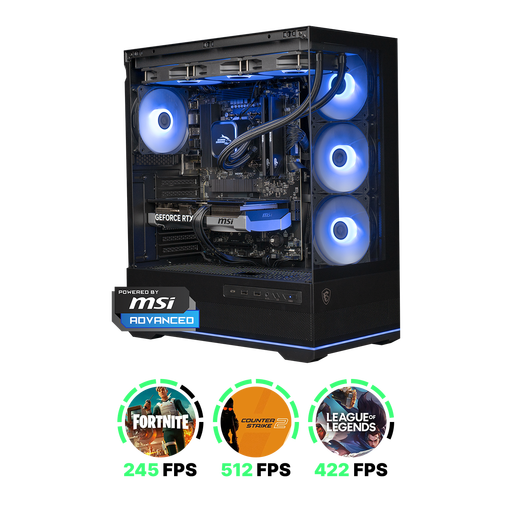
A Windows desktop option to compare if your editing software and project suit the listed configuration.
Ryzen 7 7800X3D; RTX 5070 with 12 GB; 16 GB DDR5; 1 TB NVMe storage. For Premiere on Windows, Adobe recommends 32 GB RAM or more for 4K.
 No image available
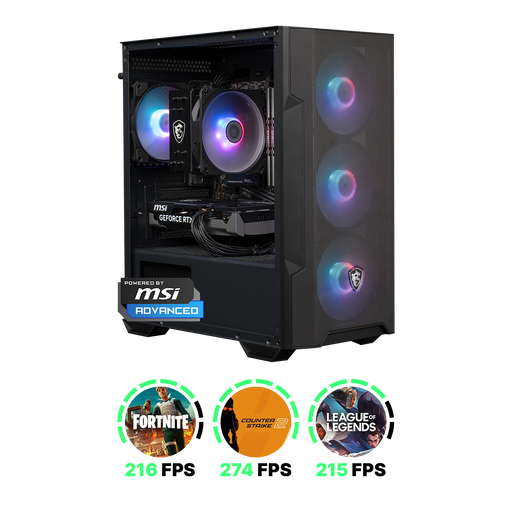
A Windows desktop option to compare if your editing software and project suit the listed configuration.
Ryzen 5 5500; RTX 5060 with 8 GB; 16 GB DDR4; 1 TB NVMe storage. For Premiere on Windows, Adobe recommends 32 GB RAM or more for 4K.
 No image available
A Windows desktop option with a dedicated graphics card; check whether the configuration suits your editing software and files.
RTX 5060 Ti with 8 GB; 16 GB DDR4; 480 GB NVMe SSD. The product title states that Windows 11 Home is pre-installed, but not activated. For Premiere on Windows, Adobe recommends 32 GB RAM or more for 4K.
 No image available
A compact macOS desktop option if your editing software runs on macOS and you choose enough storage for your project.
12-core CPU; 12-core GPU; 16 GB memory; 256 GB SSD. For the M6 Mac mini, Apple specifies hardware-accelerated processing for formats including H.264 and HEVC. Bear the available storage in mind when planning for source files and cache.
No image available
A compact macOS desktop option if your editing software runs on macOS and the configuration suits your project files.
12-core CPU; 12-core GPU; 16 GB memory; 512 GB SSD. For the M6 Mac mini, Apple specifies hardware-accelerated processing for formats including H.264 and HEVC. Also allow for storage space for source files and cache.
No, not if your project doesn’t require 4K or demanding effects. First, check the resolution and codec of your footage and your editing software’s requirements; Adobe sets out different requirements for HD and recommendations for 4K. For Premiere on Windows, Adobe recommends 32 GB RAM or more for 4K.
Adobe recommends fast SSD or NVMe storage for media and cache in Premiere. If the internal storage doesn’t offer enough space, you could consider fast external storage; check that your desktop has suitable connections first.
According to ACM ConsuWijzer, regular online consumer purchases generally come with a statutory 14-day cooling-off period after delivery, although exceptions apply to certain purchases. The statutory guarantee is separate from a manufacturer’s warranty: if a product doesn’t meet what you could reasonably expect under normal use, the seller is responsible for providing an appropriate solution.
Not necessarily. According to the Dutch government, you may use copyrighted music, films and photos only with the creator’s permission; the exception for a private copy for personal use doesn’t give you permission to distribute or make material available to the public. So check the rights for any material you didn’t create yourself, and how the video will be shown.