Who are these options for?

Home worker behind concrete walls

You make video calls from a room where thick walls or floors may obstruct the signal, and may be able to run a cable to your workspace. The Consumentenbond discusses coverage across multiple rooms and floors; NETGEAR identifies walls as a factor that can limit Wi-Fi range.

Home worker with no cable route

You need coverage in several rooms and want to place Wi-Fi nodes without installing new network cables. The Consumentenbond’s guide covers Wi-Fi coverage across multiple floors and in different rooms.

User with an existing provider network

You want to find out whether you can keep your existing modem and how an additional node or your own router would connect to it. ACM ConsuWijzer explains the choice of using your own modem or router; FRITZ! explains how to extend a mesh network with a FRITZ!Box.

What should you consider when choosing?

Wired connection to your workspace

Choose this if: you can run a network cable past the thick walls and a reliable connection during calls is your priority.

Bear in mind: you’ll need to plan the cable route and may need an additional access point. With an access point, the final connection to your laptop is still wireless.

Mesh with multiple nodes

Choose this if: you need coverage in several rooms and can position the nodes so they can still reach one another.

Bear in mind: a wireless mesh node needs a usable connection of its own; wired backhaul requires a network cable.

Add a FRITZ!Repeater

Choose this if: you already use a compatible FRITZ!Box and need better coverage in one workspace.

Bear in mind: a repeater doesn’t replace your internet router. Automatic transfer of mesh settings is linked to use with a FRITZ!Box.

Move or replace your existing router

Choose this if: your router is, for example, in a cupboard under the stairs and you want to see whether moving it would help.

Bear in mind: a single central router may still struggle to provide enough coverage behind thick walls.

Factor to consider What should you check? Who is this important to?
Connection behind thick walls See whether you can run a cable past the walls and where an access point could go. If I make video calls from a room behind thick walls, I mainly want the connection to reach my workspace. Around 36% of consumers give this priority.
Coverage in several rooms Check how many nodes you need, where they can go and whether the system supports Ethernet backhaul. If I want to cover several rooms without running new cables, I look for a suitable spot for each wireless node. Around 29% of consumers prioritise this coverage.
Compatibility with your existing network Check which router or access point mode you need and whether features such as mesh are compatible with your existing equipment. If I want to keep my provider’s modem, I want to know how the new device will work with it. Around 21% of consumers prioritise keeping their existing network.
How much you need to change initially First compare moving the router, adding one node or buying a multi-node system. Don’t choose based only on the Wi-Fi version or the stated combined speed. If I want to keep the cost down, I first look at where the router is and what’s causing the problem in my workspace. Around 14% of consumers are mainly looking for a small initial change.

Common buying mistakes

  • Assuming the stated speed or range guarantees coverage in your home office

    A product specification doesn’t tell you how walls and placement in your home will affect the connection.

    Consider the route between your router, any mesh nodes and your workspace. Where possible, favour a cable if the wireless connection is unreliable.

    You may still need an additional node or network cable.

  • Putting a wireless mesh node in the room with the weakest signal

    The node itself still needs a usable connection to the existing network or another node.

    Place it somewhere in between where the signal is still usable, or use a LAN connection if you can run a cable.

    An extra node won’t help much if its own connection is inadequate.

  • Assuming a standalone mesh node will take over all your modem’s functions

    Automatic transfer of mesh settings for a FRITZ!Repeater is described for use with a FRITZ!Box; requirements may differ with other routers.

    Before buying, check your modem model, the mode you need and the features supported by the exact combination of devices.

    A different combination may require extra set-up or compatibility checks.

Brands to consider

TP-Link

TP-Link Netherlands describes the Deco X55 as a mesh Wi-Fi system with optional Ethernet backhaul and three gigabit ports per node.

  • Could be a good option if you want to use multiple nodes and may add a wired connection later.
  • A manufacturer’s stated coverage isn’t a measurement of the range behind the walls in your home.

ASUS

ASUS’s Dutch product specifications describe ZenWiFi BD4 as featuring dual-band Wi-Fi 7, AiMesh, wired backhaul and two 2.5G Ethernet ports.

  • Could suit you if you want wired connections and the option to expand your network with compatible ASUS devices.
  • Wi-Fi 7 alone doesn’t show that your video call will improve behind a wall; check the specifications of the exact system, too.

FRITZ!

FRITZ! describes the FRITZ!Repeater 1200 AX as an extension node with a gigabit LAN port.

  • According to FRITZ!, the repeater can connect to a FRITZ!Box via LAN as a mesh node.
  • Automatic transfer of mesh settings doesn’t necessarily apply to other routers, and the repeater doesn’t replace an internet router.

NETGEAR

The Orbi RBK763S is an example of a tri-band system with a router and two satellites; NETGEAR describes a dedicated connection for communication between the router and satellites.

  • A dedicated wireless connection between the router and satellites may be useful if you can’t run cables.
  • Claims about coverage or uninterrupted video calls aren’t an independent assessment of performance behind thick walls.

Joybuy products for wired access and extra Wi-Fi coverage

This selection includes mesh systems, an access point and a repeater for extra Wi-Fi coverage or a wired connection between network nodes. Before buying, check that the product connects to your network and consult the documentation for the exact model.

TP-Link Deco BE68 2-pack mesh Wi-Fi system

TP-Link Deco BE68 2-Pack

A mesh system that spreads Wi-Fi across two nodes, which can be connected wirelessly or by cable.

The product description lists tri-band Wi-Fi and multiple WAN/LAN ports per node. With wireless backhaul, the nodes need to be within reliable reach of one another; wired backhaul requires a network cable.

View at Joybuy
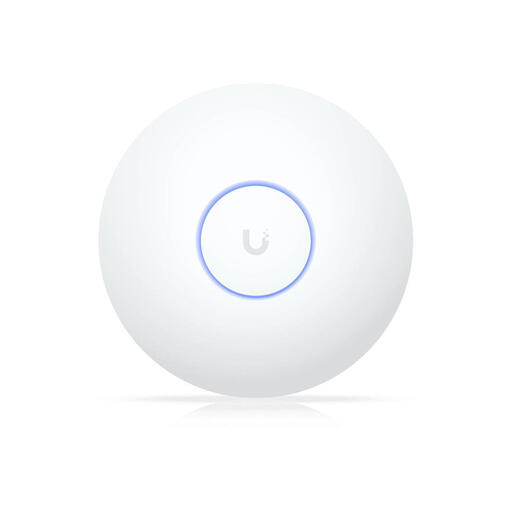
Ubiquiti UniFi AP U7 Long-Range access point

Ubiquiti UniFi AP U7 Long-Range

An access point that can provide Wi-Fi closer to your workspace where an Ethernet uplink is available.

The product description lists Wi-Fi 7, a 2.5 GbE uplink and PoE+ power (802.3at). You’ll need compatible PoE+ equipment to power it; the description says it’s managed via the UniFi Network platform.

View at Joybuy

TP-Link AX1800 Whole Home Mesh Wi-Fi 6 System, 2-Pack

TP-Link AX1800 Whole Home Mesh Wi-Fi 6 System, 2-Pack

A two-node mesh system for spreading Wi-Fi across several areas of your home.

The description lists Wi-Fi 6 and support for Ethernet backhaul. With wireless backhaul, the nodes need to be within reliable reach of one another; Ethernet backhaul requires a network cable.

View at Joybuy
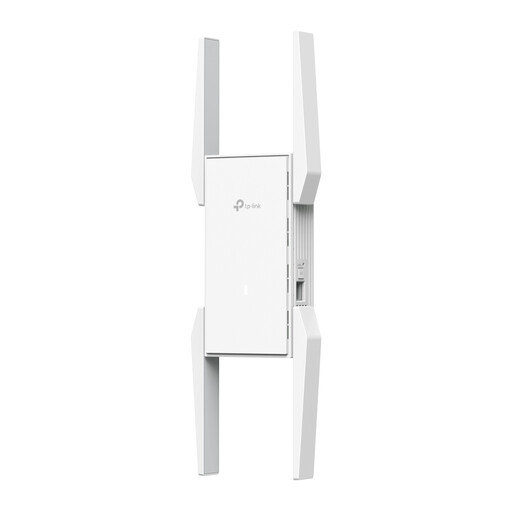
TP-Link Omada EAP673-Extender network repeater

TP-Link Omada EAP673-Extender

A repeater option if you want to add a network node and the existing network is still reachable where you plan to place it.

The product information lists dual-band Wi-Fi, an Ethernet LAN port supporting 10, 100 and 1000 Mbit/s, and web interface management. Don’t place a repeater where the existing signal is already unavailable.

View at Joybuy

TP-Link Deco X50 dual-band Wi-Fi 6 mesh system, 2-pack

TP-Link Deco X50 (2-pack)

A two-node mesh system for coverage in several areas, with the option of a wired connection between the nodes.

The product description lists dual-band Wi-Fi on 2.4 GHz and 5 GHz, Wi-Fi 6 (802.11ax) and three gigabit ports per node. Ethernet backhaul requires a network cable; with wireless backhaul, the nodes need to be within reliable reach of one another.

View at Joybuy

Frequently asked questions

Do I need a Wi-Fi 7 router straight away if my video calls keep dropping?

No. First check where your router is and how good the connection is in your workspace. The Consumentenbond says Wi-Fi 6 is generally better value for money for most people; the Wi-Fi version alone doesn’t determine how well the signal travels through your walls.

Where should I place a wireless mesh node?

Put it somewhere it still has a good connection to another node, rather than automatically placing it in the room with the weakest signal. If you can run a network cable, check whether the system you’re considering supports Ethernet backhaul.

Can I use my own router with an internet connection in the Netherlands?

According to ACM ConsuWijzer, you can choose your own modem or router, but a provider may refuse an unsafe device. Before replacing your existing modem, check which connection and settings your provider requires.

How much internet speed do I need for a video call?

It depends on the meeting service, video quality and how much else is using the connection. For a 720p HD group call, Zoom recommends bandwidth of 2,6 Mbps upload and 1,8 Mbps download; this doesn’t guarantee that Wi-Fi will remain stable behind walls.

What should I look for in an imported Wi-Fi router?

Check the CE marking and documentation for the exact model. The Rijksinspectie Digitale Infrastructuur states that manufacturers apply the CE marking when all requirements have been met; since 1 August 2025, stricter digital security requirements have applied to radio equipment placed on the European market.
