You don’t automatically need a new router. First, test Wi-Fi against a wired connection where you take your meetings, and check that your internet connection offers enough upload and download speed. A standalone router may be suitable if one well-positioned Wi-Fi point can reach your meeting space. If you’ve confirmed that coverage is weak in other rooms, you could consider an additional access point or a mesh system. Neither will solve a lack of bandwidth from your internet connection.
Who is this relevant for?
Households with simultaneous video calls
You want to be able to join meetings while other members of your household use their devices. Microsoft Support points out that a poor internet connection can affect call quality, so check your internet connection as well as your Wi-Fi.
People taking meetings in a room with weak coverage
If calls mainly stutter in one particular spot, you’ll want to know whether a different router position will help or whether you need an additional access point. The Consumers’ Association points out that you can sometimes improve your Wi-Fi without buying new equipment straight away.
People using both older and newer devices
You want to keep using your existing devices while connecting a new router to your provider’s equipment. Check the Wi-Fi standards and settings supported by your devices and chosen set-up; ACM ConsuWijzer provides information about choosing your own equipment.
What should you look for when choosing?
First, test the connection where you take your meetings. Then work out whether the bottleneck is your internet connection, Wi-Fi coverage or device compatibility.
| What to consider |
What should you look for? |
Who is this important for? |
| Simultaneous use |
Compare Wi-Fi with a wired connection and check the upload and download speeds of your internet connection. |
If other members of my household are online while I’m in a meeting, I want to know whether the problem is with the connection or the Wi-Fi. Around 33% of consumers prioritise reliable meetings when devices are being used simultaneously. |
| Coverage where you take meetings |
Test the connection where you make calls and see whether moving the router helps. Consider multiple points if the signal is weak in several places. |
If calls mainly stutter in one room, I want to know whether a single Wi-Fi point can be positioned there effectively. Around 27% of consumers prioritise coverage where they take meetings. |
| Device compatibility |
Note the Wi-Fi standard and frequency band used by your devices, then compare them with the specifications for the exact model. |
If I use both older and newer devices, I want them to be able to connect to the router I choose. Around 20% of consumers prioritise compatibility with their existing devices. |
| Connection and management |
Check whether your provider’s device is a modem, a router or both, and what connections and settings your chosen router requires. |
If I want to keep my provider’s existing set-up, I want to know what role the new router will play in it. Around 20% of consumers focus on connection and management alongside their provider’s equipment. |
Common pitfalls
-
Assuming a high Wi-Fi speed guarantees smooth video calls
Wi-Fi speed and the capacity of your internet connection are two different things. A new router won’t make up for a lack of upload or download speed from your provider.
Before choosing a model based on its advertised Wi-Fi speed, test both Wi-Fi and, if possible, Ethernet in the same location.
-
Choosing a single router for a space with weak coverage
Distance, obstacles and the position of the Wi-Fi point can all affect the connection in a particular room. A different router won’t automatically guarantee good coverage there.
Test the connection where you take meetings and first try moving the router. Then consider whether an additional access point or mesh system is right for your space and the positions available.
-
Confusing a Wi-Fi router with a replacement for any provider modem
A router and a modem don’t necessarily do the same job. The right way to connect them depends on your existing equipment and your provider’s settings.
Check in advance which connections and configuration details you’ll need. A router connected behind a separate modem, as FRITZ! describes for the FRITZ!Box 4060, won’t automatically suit every set-up.
Choosing the wrong option could mean extra configuration work or leave you needing a separate modem after all.
Brands to consider
TP-Link
The Archer AX55 is a standalone dual-band Wi-Fi 6 router; Deco X50 is a mesh range designed for set-ups with multiple points.
- TP-Link specifies OFDMA for simultaneous transmission on the Archer AX55 and optional Ethernet backhaul for the Deco X50.
- These are model specifications and manufacturer claims, not a guarantee of uninterrupted video calls or coverage in every home.
ASUS
The RT-AX58U is a dual-band Wi-Fi 6 router whose access point and AiMesh modes are also worth comparing.
- ASUS lists support for Wi-Fi 4, 5 and 6, four gigabit LAN ports and several operating modes for this model.
- The specifications distinguish between hardware versions V1 and V2. Check which version is being offered; the features listed don’t guarantee call quality.
FRITZ!
The FRITZ!Box 4060 is a tri-band Wi-Fi 6 router designed for use behind a separate modem, with additional mesh and phone features.
- FRITZ! specifies a 2.5-gigabit WAN port and three gigabit LAN ports, and mentions regular updates.
- The extra features aren’t essential if you only need to make video calls. Check that the connection suits your existing equipment.
Joybuy products
This selection includes mesh systems and routers for a range of home set-ups, including a mobile router. For each model, check that the connection type suits your internet service and the areas where you need Wi-Fi.
 No image available
TP-Link Deco BE68 (2-pack)
A mesh set with two points to provide Wi-Fi in several areas of your home. Check where the points can be positioned and how they connect.
View at Joybuy
 No image available
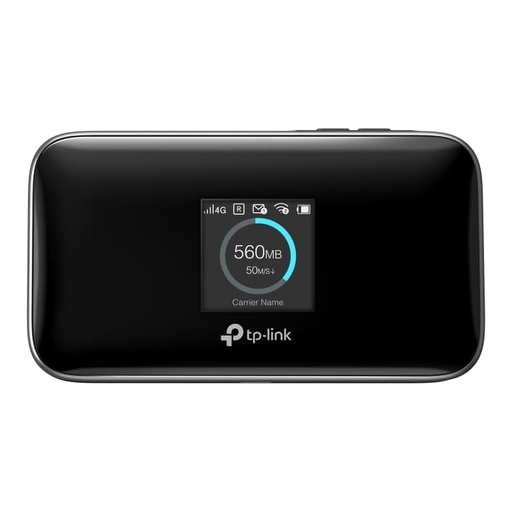
TP-Link M7750 mobile router
This model is designed for internet access via mobile networks. Before considering it as a router for video calls, check that this type of connection suits your home internet service.
The product name describes a mobile router; the product information lists Wi-Fi on 2.4 and 5 GHz.
View at Joybuy
 No image available
TP-Link Deco E4 (3-pack)
A mesh set with three points for coverage across several areas. Check that you can position the units where you need them for meetings.
The product name lists dual-band Wi-Fi on 2.4 and 5 GHz and Wi-Fi 5.
View at Joybuy
 No image available
TP-Link Deco M4 (3-pack)
This mesh set with three units is an option if you want Wi-Fi in several areas of your home. Check that the set-up suits your home.
The product name lists dual-band Wi-Fi on 2.4 and 5 GHz and Wi-Fi 5.
View at Joybuy
 No image available
ASUS RT-AX52 AX1800 AiMesh dual-band router
A standalone dual-band router to consider if you might expand your network later with AiMesh-compatible points. Check which Wi-Fi standards your devices use and what expansion options you need.
The product name lists AX1800 and AiMesh; check the connections and settings of the version on offer to make sure it suits your set-up.
View at Joybuy
Frequently asked questions
How can you check whether the router is causing calls to stutter before you buy?
Where possible, compare Wi-Fi with Ethernet in the same location and check your upload and download speeds. Microsoft Support points out that a poor internet connection can affect audio and video quality; a new router won’t make up for a lack of capacity from your internet service.
Do older devices also need to support Wi-Fi 6?
No, as long as the router you choose supports the Wi-Fi standard used by those devices. For example, the ASUS RT-AX58U specifies support for Wi-Fi 4, 5 and 6. Also check which frequency band each device can use.
When is a mesh system worth considering for video calls?
Consider mesh if you find weak Wi-Fi coverage in several places and can position the extra points effectively. TP-Link lists optional Ethernet backhaul for the Deco X50; a mesh system won’t fix a problem with your internet connection.
What should you check when connecting to your provider’s equipment?
First, find out whether your current device is a modem, a router or both, and check which connections and settings the new router requires. If necessary, ask your provider for the connection details you need.
Can you choose your own router in the Netherlands?
Yes. ACM ConsuWijzer states that you can choose your own router. It still needs to be compatible with your network and may require specific settings; this doesn’t in itself tell you whether a particular model is suitable.


