What should you look for when choosing?
First, measure the space left when your report is on the desk. Then choose a suitable size and hand orientation, check the connection and only then compare the scrolling and navigation controls.
| What to consider |
What to look for |
Who is this most relevant to? |
| Desk space |
Measure the free space beside your report and check the mouse’s dimensions and how much room it needs to move. Also consider where the cable will run or whether you need space for a wrist rest. |
I want to keep my report beside the mouse without the mouse or cable getting in the way. Around 33% of consumers prioritise clear desk space. |
| Hand size and orientation |
Check the sizing advice and whether the model is for left- or right-handed use. Also consider how easy it is to reach the scroll wheel and buttons. |
If I try a vertical grip, I want the size and hand orientation to suit me. Around 27% of consumers give hand fit top priority. |
| Scrolling and navigation |
Check which scroll wheel and side buttons the model has, and whether any customisation software works with your operating system. |
When marking work, I want to move smoothly through text and documents and reach the buttons comfortably. Around 20% of consumers focus mainly on document navigation. |
| Connection and power |
Check whether your computer supports USB-A, Bluetooth or a receiver, and how the specific model is powered or charged. |
I want a connection and power option that works with my computer, without a cable running across my report. Around 20% of consumers prioritise connection and power. |
Vertical mice at Joybuy
These product picks are aimed at wireless marking on a small desk, with hand orientation, navigation and connection options in mind.
 No image available
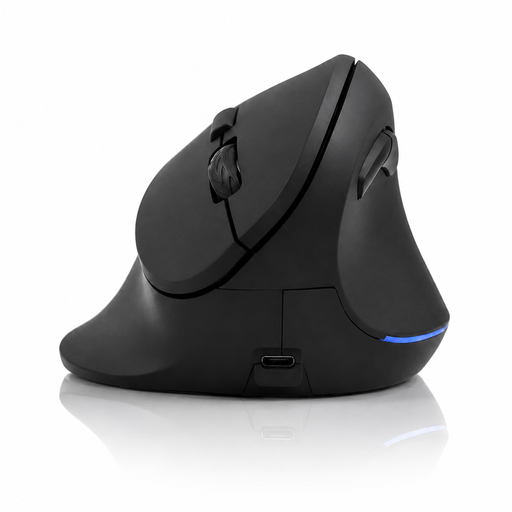
Vertical wireless mouse with USB-C charging
An option to consider if you want to keep cables off your work surface and are looking for wireless connection options.
Bluetooth and 2.4 GHz; USB-C charging; three DPI settings: 800, 1200 and 1600.
View at Joybuy
 No image available
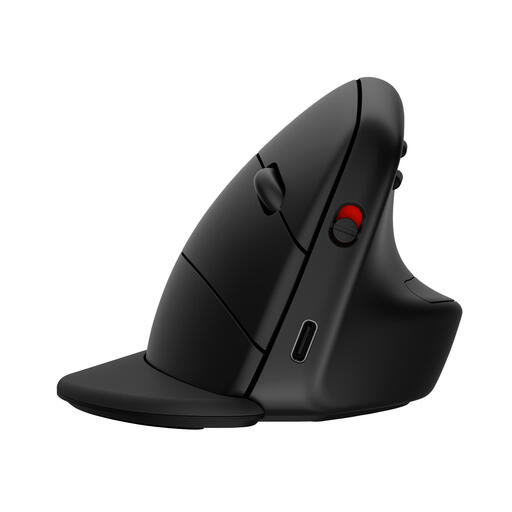
Vertical wireless mouse with six buttons
This could suit anyone who wants to work wirelessly while marking and compare the navigation controls listed.
The product name lists six buttons, 2.4 GHz, USB-C and a DPI range of 800–1600. Wireless use is via a USB receiver.
View at Joybuy
 No image available
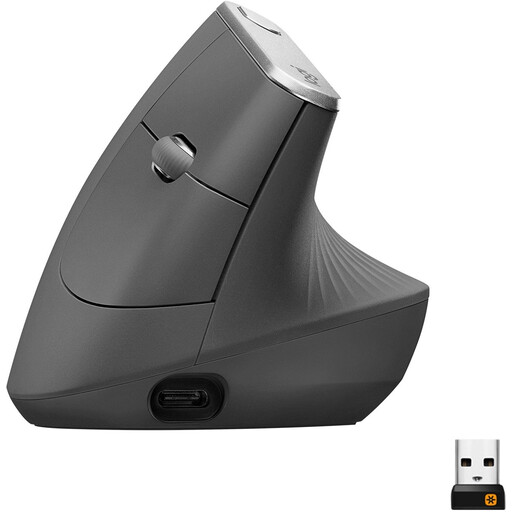
HP 925 ergonomic vertical mouse
A possible choice if you want to work wirelessly and have room for the detachable wrist rest on your desk.
HP lists Bluetooth or a dongle and connections to up to three devices. The model listed is right-handed; the wrist rest may take up extra space.
View at Joybuy
 No image available
Logitech MX Vertical
Worth considering if you’d like to compare the listed wireless connections and controls for your document work.
The product name lists Bluetooth and 2.4 GHz, 4000 DPI, a rechargeable battery, four buttons and use with multiple devices. The model listed is right-handed.
View at Joybuy
 No image available
Logitech Lift Vertical Ergonomic Mouse Graphite
An option to compare if you’re looking for a wireless mouse and have a small to medium-sized hand.
Logitech lists a SmartWheel for the Lift. The model listed is right-handed, so check that it suits your preferred hand.
View at Joybuy
Frequently asked questions
Is there clear evidence that a vertical mouse helps with arm or wrist problems?
No. A vertical mouse isn’t a proven guarantee against aches and pains. The Cochrane Database of Systematic Reviews describes the evidence for alternative mouse designs to prevent work-related problems as inconsistent. Consider the fit and alternate screen work with other tasks; if you’re starting to experience problems, seek appropriate help if needed.
What should I check before connecting the mouse?
Check the connection required by the specific model and any software requirements. For example, the Evoluent VM4S uses USB-A; Evoluent says computers with only USB-C need an adapter or hub, which isn’t included. Evoluent says its button customisation software isn’t compatible with Mac OS.
How should I use the mouse during long marking sessions?
Alternate screen work with other tasks and take short breaks. Arboportaal recommends, among other things, taking microbreaks and alternating with other work. A new vertical grip may take some getting used to; there’s no legal daily limit on how long you can use a mouse.
What are my rights if the mouse doesn’t fit or develops a fault?
For eligible online consumer purchases, you generally have a 14-day cooling-off period; check the terms that apply to your purchase. In the Netherlands, products are also covered by a statutory guarantee of conformity, but there’s no single fixed statutory guarantee period for all products. If a product is faulty, contact the seller.
Are vertical mice a legal requirement for screen work?
No. Dutch regulations don’t specify a vertical mouse as a required product. Arboportaal explains that screen work must be alternated at regular intervals with other work or a break; any additional workplace requirements depend, among other things, on how long you work at a screen.


