What should you look for when choosing?
First, check that the middle click works in your CAD software and feels comfortable to use. Then consider the fit, how the pointer moves between screens and which connection suits your workspace.
| What to consider |
What should you check? |
Who is this important for? |
| Panning in CAD |
Test the middle click and pressing the scroll wheel in your CAD software. If you use AutoCAD, check the button assignment and the MBUTTONPAN setting if needed. |
If I often pan around a drawing, I want to use the middle click without an awkward grip. Consumers who prioritise CAD controls make up around 33% of consumers in this choice context. |
| Fit |
Check whether the mouse suits your handedness and whether the hand size, thumb rest and button reach work for you. Try the middle click before choosing a model, too. |
If I spend long periods drawing, I want a mouse that suits my hand and has buttons I can reach easily. Consumers who prioritise fit make up around 27% of consumers in this choice context. |
| Two screens |
Arrange the screens in Windows to match their positions on your desk, then test how the pointer moves between them. Adjust the pointer speed to balance moving between screens with precise pointing. |
If I view my drawing and references on separate screens, I want the pointer to move between them in a logical way. Consumers who prioritise moving between screens make up around 20% of consumers in this choice context. |
| Connectivity |
Check whether you need a wired connection, Bluetooth or a USB receiver, and whether your computer has the required port. Also check the cable length and what’s included with the version you choose. |
If I prefer using a cable at my workstation, or would rather work wirelessly, I want a connection that suits my computer. Consumers who prioritise connectivity and practicality make up around 20% of consumers in this choice context. |
Vertical mice at Joybuy
The Joybuy selection below includes vertical mice you can compare for CAD controls, fit, pointer speed and connectivity.
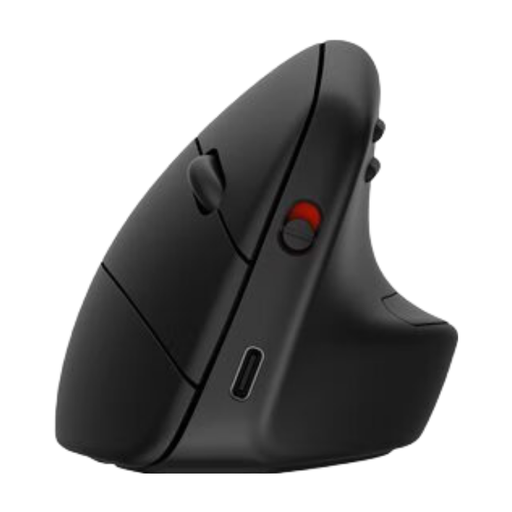 Image unavailable
HP 925 Ergonomic Vertical Mouse
Consider this model if you’re looking for a vertical mouse for a right-handed setup and want a wireless connection.
The product information specifies 4000 DPI, six buttons and Bluetooth/RF wireless connectivity.
Joybuy
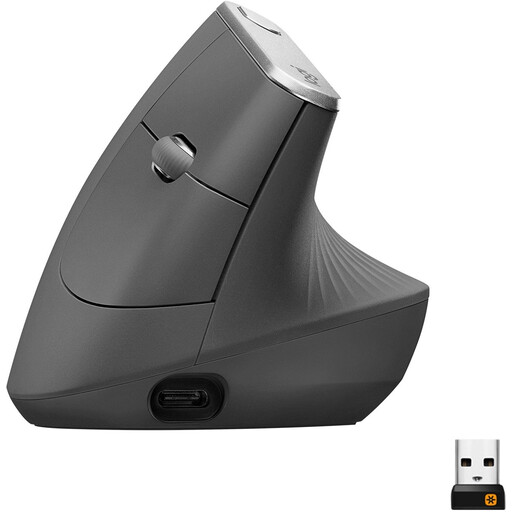 Image unavailable
Logitech MX Vertical
Consider this model if you want to adjust the pointer speed and connect wirelessly.
The product information specifies a 4000 DPI sensor, a pointer speed switch and a scroll wheel. You can connect via Bluetooth or the included USB receiver.
Joybuy
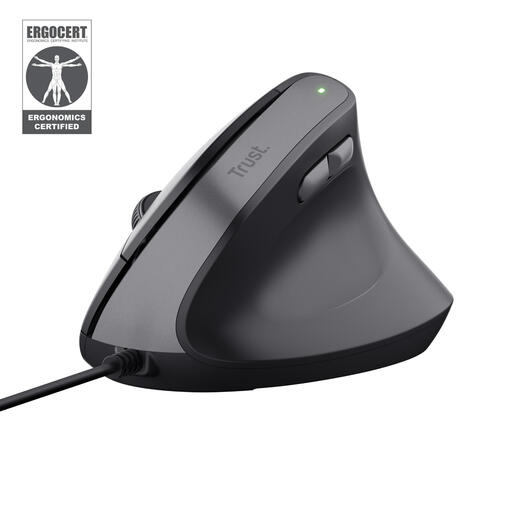 Image unavailable
Trust Bayo II, wired
Consider this wired version if you want to use a USB connection at a fixed workstation.
The product information specifies a right-handed design, a DPI button with settings from 800–2400 DPI and a wired USB connection.
Joybuy
 Image unavailable
Logitech Lift Vertical Ergonomic Mouse Graphite
This version is described as right-handed and designed for small to medium-sized hands; check that it’s the right fit for you.
The product information specifies a 57-degree angle, four customisable buttons and Bluetooth or USB receiver connectivity.
Joybuy
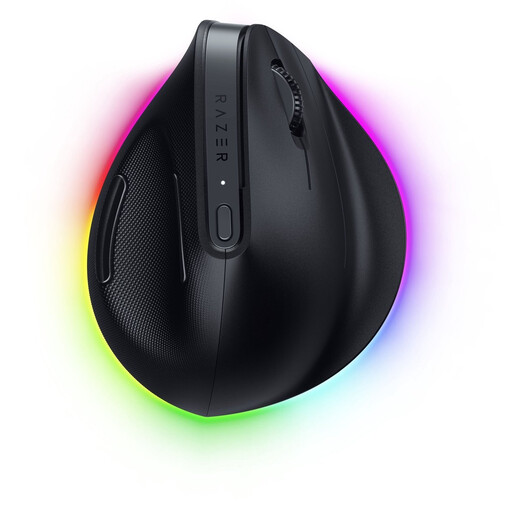 Image unavailable
Razer Pro Click V2 Vertical Edition
Compare this model’s stated wireless connection options and programmable buttons if those features suit the way you work.
The product information specifies a 30,000 DPI sensor and connectivity via Bluetooth or Razer HyperSpeed.
Joybuy
Frequently asked questions
Do I need a special mouse for two screens?
Not just because you use two screens. If Windows controls both screens, arrange them in the display settings to match their positions on your desk, then test how the pointer moves between them. Choose your mouse based on fit and the controls your CAD software requires.
Why doesn’t panning with the scroll wheel button work in AutoCAD?
Autodesk Support lists a changed button assignment, mouse software and the MBUTTONPAN setting being set to 0 as possible causes. Check the middle button’s function and set MBUTTONPAN to 1 for the panning method described. These steps apply specifically to AutoCAD.
Can I adjust the mouse wheel zoom increment in AutoCAD?
Yes. Autodesk Support describes ZOOMFACTOR as a setting with a whole number from 3 to 100; a higher number gives a larger zoom change. This is an AutoCAD setting, not a stated feature of a vertical mouse.
What else should I consider during long periods of screen work?
Arboportaal describes repetitive hand movements and static strain when working at a screen. According to Arboportaal, employees should regularly break up screen work with other tasks or a break; a vertical mouse is no substitute for doing so.
Do I need an extended warranty for a mouse bought in the Netherlands?
You don’t need one to be entitled to a product that meets the terms of your purchase. The Dutch government explains that there is no fixed statutory warranty period in the Netherlands and that you can contact the seller for a solution if a product is faulty. When considering paid extended cover, check what the terms actually offer beyond your statutory rights.


