
CAD user who navigates frequently
If you often pan and zoom around drawings, easy-to-reach controls that work with your CAD software are especially useful. Autodesk describes zooming and panning as regular tasks when working on drawings.


Start by checking which mouse controls your CAD programme uses for zooming and panning, and make sure the scroll wheel and middle-click are easy for everyone to reach. Then choose the right size and hand version. At a shared desk, an adjustable grip or easy-to-change controls may matter more than extra buttons. In AutoCAD, the middle mouse button is used for panning, but check the settings in other CAD programmes too.
If you often pan and zoom around drawings, easy-to-reach controls that work with your CAD software are especially useful. Autodesk describes zooming and panning as regular tasks when working on drawings.
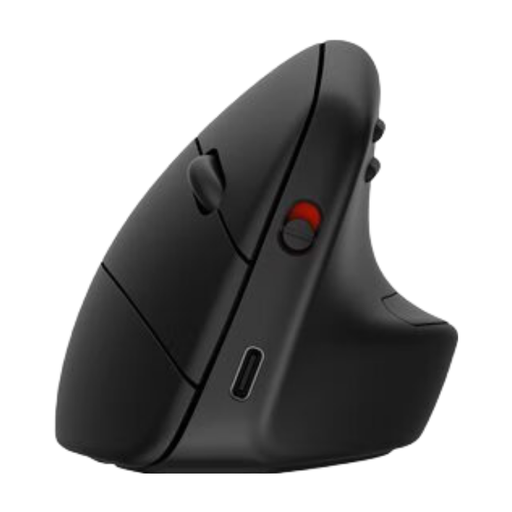
When choosing a vertical mouse, it’s worth matching the size and left- or right-handed version to your own hand. Logitech, Contour Design and R-Go Tools offer different versions or adjustment options.
If you share your workstation, you’ll need to consider different hand sizes, connections and personal button settings. Before choosing, check who will use the mouse and whether the required settings are available on the computer.
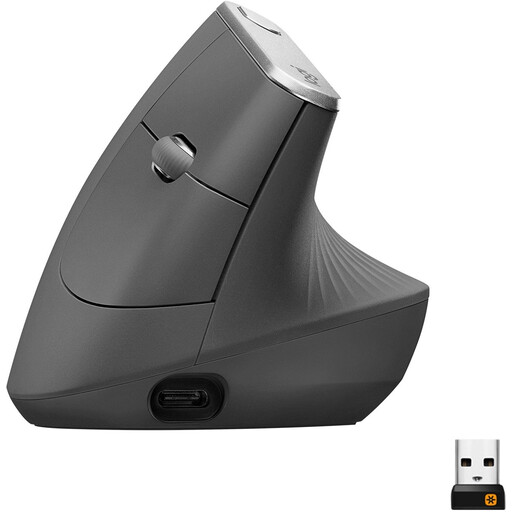
A good choice if: the fixed shape fits your hand and the scroll wheel and middle-click work comfortably in your CAD software. Logitech says the Lift is suitable for small to medium-sized hands.
The trade-off: left- and right-handed versions are not interchangeable, and a fixed shape won’t necessarily suit every colleague.
A good choice if: users have different grip preferences and are happy to readjust the angle, thumb rest or buttons. Contour Design states that the UniMouse angle can be adjusted from 35° to 70°.
The trade-off: an adjustable model still comes in a specific hand version, and changing the settings takes time when users swap over.
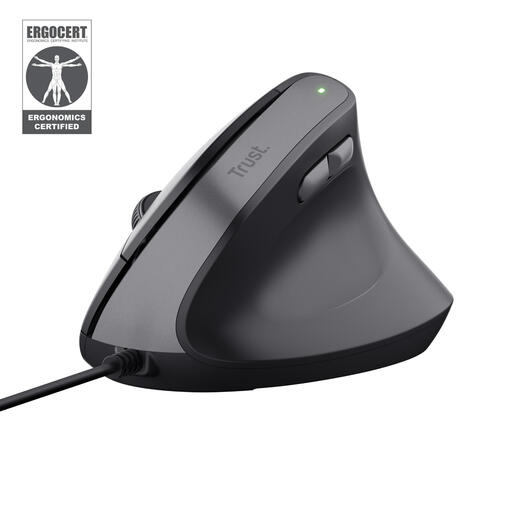
A good choice if: a fixed USB connection is all you need and the grip fits your hand. Trust lists sensor settings of 1000 and 1600 DPI for the Verto.
The trade-off: a cable takes up room to move, and sensor settings alone don’t prove that CAD navigation will be more precise.
| What to consider | What should you check? | Who is this important for? |
|---|---|---|
| Zooming and panning in CAD | Test the scroll wheel and middle-click in the programme you use. For AutoCAD, Autodesk also recommends checking the wheel assignment and MBUTTONPAN. | If I often pan and zoom around drawings, I want those controls to work straight away. Around 36% of consumers prioritise CAD navigation. |
| Hand size and grip | Check the exact size and hand version, and let the intended user try the mouse. | If one or more people with different-sized hands will use the mouse, I want to know whether its shape fits. Around 29% of consumers give hand fit top priority. |
| Sharing between users | Find out users’ hand preferences and check that the button software and settings are available on the shared computer. | If colleagues share the same workstation, I want the mouse to suit their hand and settings. Around 21% of consumers prioritise shared use. |
| Connection and ease of use | Check that the computer has the connection you need and whether the features you want require extra software. | If I have a fixed workstation, I want a connection that works there without any fuss. Around 14% of consumers prioritise a simple connection and set-up. |
In AutoCAD, panning with the middle button may not work if the mouse software has assigned a different function to the scroll wheel.
Test the mouse on the shared CAD computer. In AutoCAD, also check the wheel assignment and MBUTTONPAN.
Manufacturers offer different sizes and separate left- and right-handed versions. A model that suits one user may not suit another.
Find out who will use the mouse and their hand preferences, then try the grip. Only choose an adjustable model if the hand version is right too.
A different mouse is no substitute for setting up your workstation properly or varying your tasks and posture.
Set up the workstation for the user and keep varying your tasks and posture. Don’t expect one mouse to guarantee that discomfort will be prevented.
The Lift range is worth considering if you’re looking for a vertical mouse for small to medium-sized hands.
The UniMouse range may suit you if you want to adjust the grip or thumb rest.
The HE Break range offers options in different hand sizes and versions.
The wired Verto is a straightforward vertical option for a workstation with a suitable USB connection.
The VerticalMouse 4 Small Right Hand Wired is a specific option for a small right hand.
This selection includes vertical mice for shared use and a fixed USB workstation. Check the hand version for each model and make sure its controls work well in your CAD programme.
 No image available
Worth considering if a right-handed user wants to use the mouse with several devices.
The product details state that it can connect to up to three devices via Bluetooth or a dongle, and has a detachable wrist rest. The listed version is right-handed.
 No image available
A fixed vertical grip to consider if the hand version suits you and the connection works with your shared workstation.
The product details list a scroll wheel and a 57° vertical angle. The title mentions Bluetooth, a 2.4GHz connection via a Unifying USB receiver and a 4000 DPI sensor. The listed version is right-handed.
 No image available
A wired option for a fixed USB workstation, if the right-handed shape suits you and you don’t mind a cable.
The product details list a USB cable, use without installing software and adjustable sensor settings from 800 to 2400 DPI. The listed version is right-handed.
 No image available
A fixed vertical mouse to consider if the hand version suits you and you can configure the controls for your shared workstation.
The product details list a SmartWheel, Bluetooth, a USB receiver and four customisable buttons. The listed version is right-handed.
The cause may be a different wheel assignment in the mouse software or MBUTTONPAN=0. Autodesk recommends checking that the scroll wheel is set as the middle button and that MBUTTONPAN is set to 1. This applies to AutoCAD; check the settings in other CAD programmes separately.
It depends on the model and the features you want to use. Evoluent describes button customisation for the VerticalMouse 4 Small Right Hand Wired through Mouse Manager on Windows, but according to Evoluent, the software is not compatible with macOS. Check whether the necessary software can be used on the shared computer, and test middle-click separately in your CAD application.
Official Dutch guidance does not specify a vertical mouse as a required product type. However, there are recommendations for healthy computer work, including varying your tasks or taking a break. Arboportaal advises setting up the workstation to suit the user; a mouse does not replace these recommendations.
In the Netherlands, products must be of satisfactory quality, and the seller is your point of contact if something is faulty. According to the Dutch government, there is no fixed statutory guarantee period. For online purchases from a business, you’ll usually also have a 14-day cooling-off period; check the applicable terms and exceptions.
Set up the workstation to suit the user, and after each changeover, check hand position, cursor speed and CAD buttons again. Arboportaal recommends varying your working posture and taking breaks; a different mouse does not replace these measures.