Start with a vertical mouse whose middle click you can use comfortably while navigating your CAD drawing. Then check its fit, handedness and connectivity. In AutoCAD, Autodesk Support describes panning with the middle mouse button; for other CAD programmes, check their own settings. A vertical mouse may reduce forearm rotation, but it doesn’t guarantee better precision or fewer problems. Research by Paulo R. V. Quemelo and Edgar Ramos Vieira, published in Ergonomics, also points to a possible adjustment period.
Who is a vertical CAD mouse for?
CAD user who pans frequently
You often move the view and want the middle mouse button to work well and feel comfortable to use. AutoCAD uses this control for panning; Autodesk Support also explains that mouse software or settings can change how it works.
Home worker looking for a different grip
You use a mouse for long periods and want a grip that suits the way you work. A vertical shape doesn’t guarantee fewer problems or instantly familiar precision; research published in Ergonomics suggests that an adjustment period may be needed.
CAD user with specific fit requirements
You’re looking specifically for a left- or right-handed version, or a mouse that suits your hand size. Logitech, Contour Design and Evoluent describe differences in handedness and fit between their models.
What should you look for when choosing?
First, check which controls your CAD software uses for navigation. Then compare fit and connectivity, and consider whether the grip feels comfortable during precise work.
| What to consider |
What should you check? |
Who is this for? |
| Panning and zooming |
Check the middle click and try panning while holding it down in your own CAD programme. Autodesk Support describes this control for AutoCAD; mouse software can change the button’s function. |
If I often pan around a CAD drawing, I want the middle click to work in my programme. Around 33% of consumers put panning and zooming first. |
| Posture and control |
Compare repeated movements with small, precise selections, and see whether the grip feels familiar to you. |
If I work at a desk for long periods, I want a grip that lets me keep making precise selections. Around 27% of consumers give posture and control top priority. |
| Hand size and handedness |
Check the exact left- or right-handed version and the hand size it’s designed for. Logitech positions Lift for small to medium-sized hands; Evoluent targets VM4R at medium to large right hands. |
If I have a specific hand size or handedness, I want a version that suits me. Around 20% of consumers put fit first. |
| Connectivity and desk space |
Check USB-A, Bluetooth or receiver compatibility for the specific version. Evoluent specifies USB-A for VM4R; Logitech specifies Logi Bolt and Bluetooth for the left-handed Lift. |
If my desk or computer has limited connectivity options, I want to know in advance how the mouse connects. Around 13% of consumers choose mainly on connectivity and workspace. |
| Cost and upkeep |
Check the battery type and any recurring supplies you may need. Also compare the terms that apply to the specific purchase. |
If I’m considering upkeep and aftercare, I want to know what the version I choose will require over time. Around 7% of consumers put cost and aftercare first. |
Common pitfalls
-
Assuming a scroll wheel makes panning comfortable
A product listing that mentions a scroll wheel doesn’t confirm whether holding it down for panning feels comfortable, or whether the button performs the right action in your CAD programme. Autodesk Support describes panning with the middle button in AutoCAD, but settings and mouse software can change how it works.
Check what the middle click does and try panning in your own CAD programme.
-
Assuming a vertical shape prevents problems or loss of precision
Research published in Ergonomics describes differences in forearm posture and notes that an adjustment period may be needed. The shape alone doesn’t prove that you’ll work more precisely or avoid problems.
Try both panning and precise selections, and break up long periods of screen work.
-
Choosing based on the brand name alone
Handedness and connectivity vary between models. A mouse designed for the wrong hand, or with a connection that doesn’t suit your computer, may not work for your setup.
Check the full model name, handedness and connectivity before choosing a version.
Brands to consider
The features below apply to the specified models and versions, not to the brand as a whole.
Evoluent
The wired VerticalMouse 4 Right Hand Wired, model VM4R, is worth considering if you’re looking for a clearly specified middle click.
- According to Evoluent, VM4R has a separate middle click, USB-A and Windows software for customising button functions.
- Evoluent targets this model at medium to large right hands. The manufacturer says Mouse Manager isn’t compatible with macOS; the specified button doesn’t prove that extended panning will feel comfortable for everyone.
Logitech
Lift and MX Vertical have different stated features; check the exact handedness and connectivity of the version you’re considering.
- Logitech positions Lift for small to medium-sized hands and also offers a left-handed version. Its specifications list a middle wheel click, Logi Bolt and Bluetooth.
- According to Logitech, Lift has a fixed 57° angle. The manufacturer lists a 4000-DPI sensor and several connection options for MX Vertical; this doesn’t prove that the mouse is more precise or comfortable for CAD.
Contour Design
UniMouse is worth considering if you want to adjust the angle and thumb support.
- Contour specifies an adjustable angle of 35° to 70°, an adjustable thumb support and separate left- and right-handed versions.
- Adjustability doesn’t prove that CAD performance will improve. Check the exact version and try whether you can reach the buttons comfortably.
Trust
The Verto 22885 is a wired vertical option to consider for a fixed home-working setup.
- Trust specifies a 60° angle, a 1.5-metre USB cable, a scroll wheel and an adjustable sensor of 1000 or 1600 DPI.
- A scroll wheel listing doesn’t, by itself, tell you whether holding it down for panning will feel comfortable in your CAD workflow.
CHERRY
According to CHERRY, MW 4500 and MW 4500 LEFT are wireless versions with a 45° tilt, for right- and left-handed users respectively.
- CHERRY specifies an adjustable sensor of up to 1200 dpi and a nano receiver.
- A 45° tilt feels different from a more upright grip. CHERRY’s claims about reduced strain aren’t independent medical findings.
Vertical mice on Joybuy
This selection includes vertical mice you can compare for CAD navigation at a home-working setup. For each version, check that the middle click, handedness and connectivity suit your software and computer.
 No image available
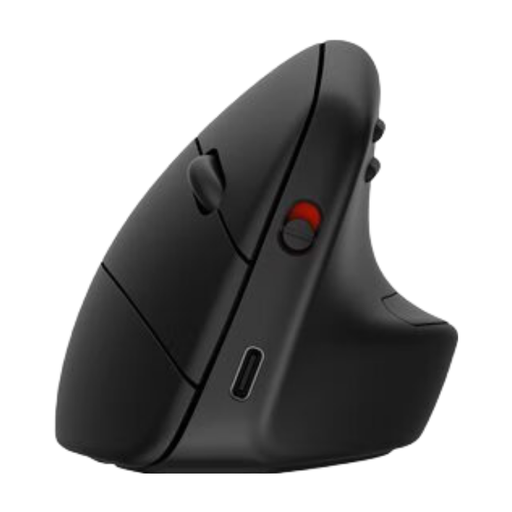
HP 925 Ergonomic Vertical Mouse
A right-handed vertical mouse to compare if you’re looking for a different grip for your home-working setup.
The product description lists a detachable wrist rest, a multi-surface sensor and support for several operating systems. The middle click isn’t explicitly specified here, so check that it works for CAD navigation.
Joybuy
 No image available
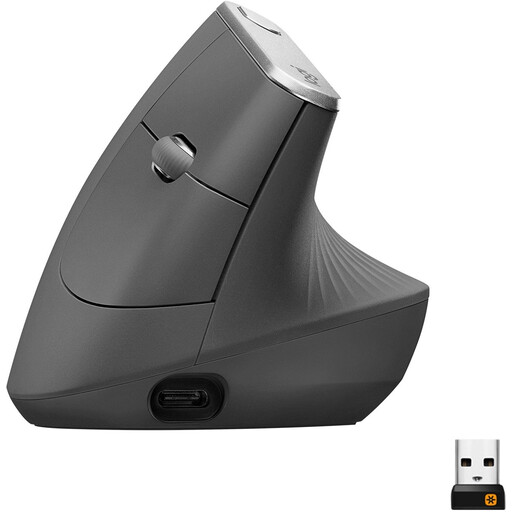
Logitech MX Vertical Ergonomic Wireless Mouse
This right-handed vertical mouse is worth comparing if you’re looking for a wireless version. Check that its button controls suit your CAD programme.
The product name lists a 57° angle, a 4000-DPI sensor, four buttons, Bluetooth and 2.4 GHz via a Unifying USB receiver. It also mentions a rechargeable battery, multi-device support, and compatibility with PC, Mac and iPadOS.
Joybuy
 No image available
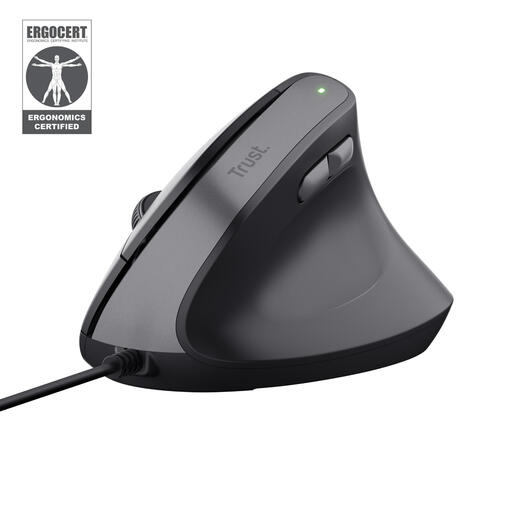
Trust Bayo II wired vertical mouse
A wired, right-handed vertical mouse to compare for a fixed home-working setup. Make sure you have enough desk space for the cable.
The product description lists adjustable DPI and two thumb buttons for forward and back navigation. The middle click isn’t explicitly described; try your preferred panning controls in your own CAD programme.
Joybuy
 No image available
Logitech Lift Vertical Ergonomic Mouse Graphite
This right-handed Lift is worth comparing if the stated fit for small to medium-sized hands suits you.
The product description lists a thumb rest, rubber grip and customisable buttons. Logitech specifies a fixed 57° angle for Lift. Check the middle click on this exact version before relying on it for CAD panning.
Joybuy
 No image available
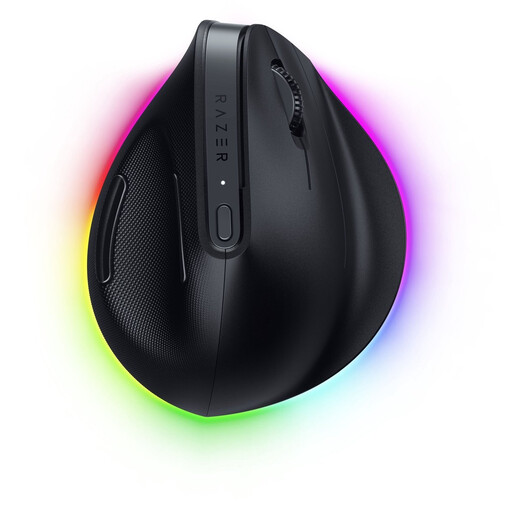
Razer Pro Click V2 Vertical Edition
A right-handed vertical version to compare if you’re looking for programmable buttons for work.
The product description lists programmable buttons and an optical sensor. Check which button functions are available and whether the middle click remains available for CAD navigation.
Joybuy
Frequently asked questions
Why doesn’t the middle mouse button pan in AutoCAD?
Autodesk Support lists settings, a changed button profile, mouse software, drivers or faulty hardware as possible causes. Check whether the wheel clicks elsewhere and whether your mouse software passes the button through as a middle click. Then check the settings that apply to your AutoCAD configuration.
Can I assign other CAD commands to extra mouse buttons?
For AutoCAD, Autodesk Support describes assigning commands through compatible mouse drivers. Whether this works depends on the driver, operating system and CAD programme; if necessary, keep the middle click available for navigation.
What if a vertical mouse feels less precise at first?
Give yourself time to get used to the controls, but don’t assume that practice will resolve every difference. Research by Paulo R. V. Quemelo and Edgar Ramos Vieira, published in Ergonomics, suggests that an adjustment period may be needed. Try both panning and small selections before deciding whether the grip suits your work.
Which breaks and workspace adjustments are useful during long CAD sessions?
The Arboportaal recommends varying your activities, taking microbreaks and adjusting your workspace, particularly when software requires you to move the mouse precisely or frequently. Employers also have specific obligations for employees who work with display screen equipment; these don’t automatically apply to someone who only uses CAD at home for personal purposes.


