Choose a vertical mouse for CAD by checking how the scroll wheel and middle click work in your software, then make sure its shape suits your working hand. Adjustable cursor speed can be useful if you switch between covering larger distances and pointing precisely. Whether you choose a wired or wireless model depends on your desk and connection. A vertical shape alone does not guarantee that the controls will suit every hand or CAD workflow.
Who is this for?
CAD users who pan and zoom frequently
If you navigate around drawings a lot, you’ll want to use the wheel and middle click repeatedly, so check how the buttons are assigned in your CAD software. Autodesk describes these controls for AutoCAD products.
Designers looking for a comfortable grip
If you want to try a vertical shape, consider your hand size and which hand you use, and check that the wheel and buttons are easy to reach. The shape alone does not prove that a mouse will prevent discomfort.
Users of an adjustable desk
If you use your mouse at different desk heights, consider the cable route or the wireless connection and power supply for the model you choose.
What should you look for when choosing?
For AutoCAD, Autodesk describes panning by holding down the middle button and zooming with the mouse wheel. Check the settings and controls in your own CAD software; they do not automatically apply to all programmes.
| What to consider |
What should you look for? |
Who is this important for? |
| Panning and zooming |
Check whether the wheel works as a middle button, and try click-and-drag panning in your CAD software. |
If I navigate around drawings frequently, I want to pan and zoom without interruption. Around 36% of consumers give CAD navigation their highest priority. |
| Fit and dominant hand |
Check the hand size the mouse is designed for and whether it is for left- or right-handed use; try reaching the wheel and middle click. |
If I spend a long time drawing, I want a shape that suits my hand and dominant hand, with buttons I can reach easily. Around 29% of consumers prioritise fit and dominant hand. |
| Cursor speed |
Check which speed settings the exact model offers and whether they are easy to switch between. |
When I switch between covering larger distances and selecting small targets, I want to be able to adjust the pointer speed. Around 21% of consumers prioritise switching between fast movement and precise pointing. |
| Connection and cable routing |
For wired use, check there is enough room for the cable at different desk heights; for wireless use, check the connection and power supply. |
If my desk goes up and down, I want the mouse to remain usable at every height. Around 14% of consumers prioritise connectivity at different desk heights. |
Common mistakes when choosing
-
Choosing based on the vertical design alone
A mouse may feel awkward if its shape does not suit your hand or the middle click is hard to reach. A stated vertical angle does not prove that it will fit you personally.
First, check that you have the right-handed or left-handed version. Then try the wheel and middle click using the navigation actions you use in CAD.
-
Confusing a high DPI with proven drawing precision
Adjustable pointer speed does not prove that a mouse lets you draw more accurately.
Check that you can easily switch between useful speeds, then assess the setting in your own software.
-
Not considering desk adjustment when choosing
Trust states that the Verto has a 1.5-metre USB cable; whether that length is suitable depends on how it needs to run around your workspace.
Check the cable route with the desk both low and raised, or consider a wireless model if a cable gets in the way of your workspace.
Brands to compare
Logitech
Logitech’s vertical mice include the Lift and MX Vertical. Logitech says the Lift is designed for small to medium-sized hands and is available in separate left- and right-handed versions.
- For the MX Vertical, Logitech describes adjustable cursor speed through Logi Options+.
- Check the exact version and whether the middle click works well in your CAD application; an ergonomic claim is not an independent CAD test.
Evoluent
The VerticalMouse C Right Wired is a wired right-handed model; the VerticalMouse 4 Left is a separate left-handed model.
- Evoluent says the C Right Wired has a button behind the wheel for changing pointer speed.
- According to Evoluent, Mouse Manager is not compatible with macOS for the VerticalMouse 4 Left; its button functions are fixed.
Trust
The wired Verto and wireless Bayo II are different ranges of vertical mice, so take care not to confuse their features.
- Trust specifies 1000 or 1600 DPI and a 1.5-metre USB cable for the Verto. For the Bayo II, Trust lists a USB receiver and a rechargeable battery.
- For the Verto, check that the cable route works with your adjustable desk.
Kensington
Kensington says the Pro Fit Ergo K75501EU is designed for medium to large hands.
- Kensington lists a nano receiver, an AA battery and several DPI settings.
- The comfort rating on the product page refers to research cited by Kensington from 2019; this does not prove it will benefit your hand or CAD software.
Vertical mice at Joybuy
This selection includes wireless vertical mice and a wired Trust Bayo II. Check that each model’s connection and controls suit your desk and CAD workflow.
 No image available
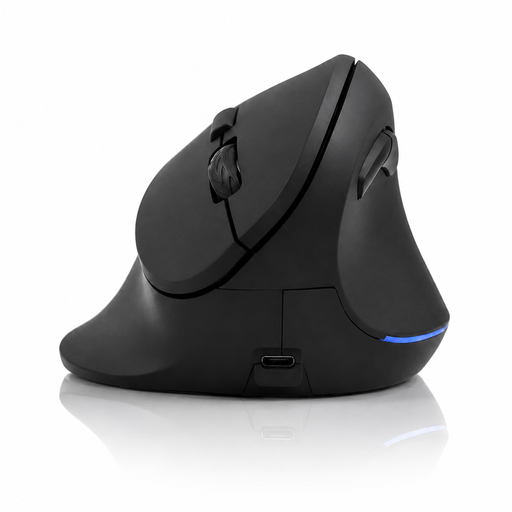
Vertical wireless mouse with Bluetooth and 2.4 GHz
The three listed DPI levels are 800, 1200 and 1600; check which pointer speed feels comfortable for your work in your CAD software.
USB-C charging.
View at Joybuy
 No image available
Wireless vertical mouse with 6 buttons
The title lists 2.4 GHz and a DPI range of 800–1600; check that the settings suit the way you use CAD.
The title lists USB-C.
View at Joybuy
 No image available
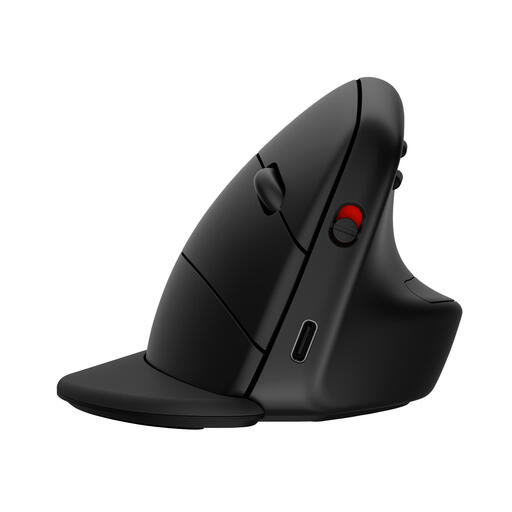
HP 925 Ergonomic Vertical Mouse
The vertical shape may suit anyone wanting to try this type of grip; check the middle click and wheel in your own CAD software.
View at Joybuy
 No image available
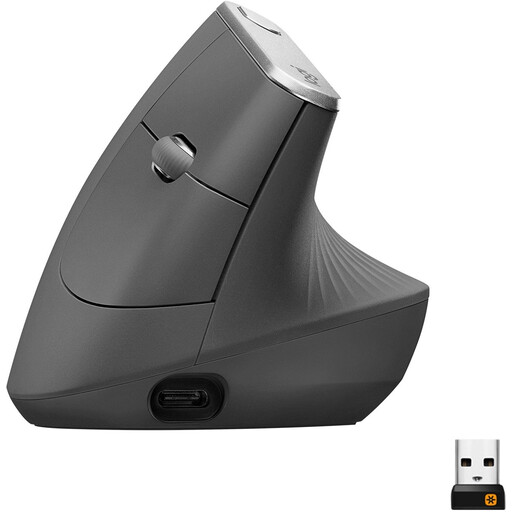
Logitech MX Vertical
Logitech lists adjustable cursor speed for this model. This could be useful if you switch between covering larger distances and pointing precisely in CAD.
The product name specifies a 4000 DPI sensor, Bluetooth, a USB receiver and a rechargeable battery.
View at Joybuy
 No image available
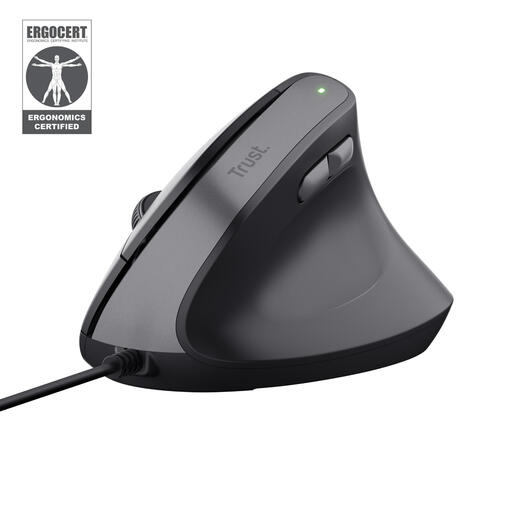
Trust Bayo II, vertical and wired
This wired model may suit a fixed connection; check that the cable stays clear when you adjust your desk.
Colour: black.
View at Joybuy
Frequently asked questions
How can I check whether panning with the mouse works in AutoCAD?
Check whether the wheel is set up as the middle button. For panning that does not work, Autodesk also mentions mouse software and the AutoCAD system variable MBUTTONPAN; check these settings before deciding that the mouse is unsuitable. This applies to the AutoCAD products described by Autodesk, not automatically to other CAD software.
Does a vertical mouse on its own reduce strain at a sit–stand desk?
No, don’t assume that it does. Dutch government guidance on display screen work also covers workplace set-up and varying screen-based tasks. Employment regulations apply where there is a relevant employment relationship, and do not specify a particular vertical mouse model.
What ongoing costs and warranty rights should I consider?
Check whether the model uses a replaceable battery or a rechargeable one, and whether you have the connection it needs. For a consumer purchase in the Netherlands, statutory warranty applies with no fixed statutory warranty period; if a product is faulty, the retailer is your point of contact. A manufacturer’s warranty is separate.
Can I try a mouse bought online and return it?
For eligible distance sales to consumers, the Dutch government generally provides a 14-day cooling-off period. Check the conditions for trying and returning the product beforehand. This rule does not apply to every transaction, for example, the online purchase mentioned here from a private seller.


