First, choose a mouse whose middle-click and scroll wheel work the way you need them to in your CAD software. Then check the fit and connection options. Bluetooth can free up a USB port, but a rechargeable mouse will eventually need a cable and power source. A CAD-focused mouse with a dedicated middle button could also suit you, but it won’t necessarily be vertical.
Who is this guide for?
CAD user who pans and zooms a lot
You want to know whether the middle-click and scroll wheel work in your drawing software before weighing up extra buttons or a high sensor resolution. Autodesk Support describes the middle mouse button as a setting to check in AutoCAD.
Laptop user with few ports
You want to distinguish between a free USB port and a free mains socket. Bluetooth can remove the need for a USB receiver; the power type determines whether you’ll need to recharge the mouse or replace a battery later.
Designer who prioritises hand fit
You’re looking for a vertical grip that suits your hand size and the hand you use. Arboportaal describes the strain associated with working at a screen; a vertical mouse alone is no guarantee against discomfort.
What should you look for?
Start by checking how the controls work in your CAD app, then consider the connections, fit and power options.
| What to consider |
What should you check? |
Who is this important for? |
| Panning and zooming |
Test the middle-click, scroll wheel and any button assignments in your CAD app. In AutoCAD, check the MBUTTONPAN setting if needed. |
If you often move around a drawing, you’ll want clicks and scrolling to perform the intended actions; CAD controls are the main purchasing concern for around 36% of consumers. |
| Connections |
Check for Bluetooth support and count your available USB ports. Also work out whether you’re short of computer ports, mains sockets or both. |
If you want to keep a port free or don’t have a suitable port, the connection options matter; connectivity is the top priority for around 29% of consumers. |
| Hand fit |
Check the size guidance and whether the model is designed for left- or right-handed use. Also make sure you can reach the wheel and buttons with your grip. |
If your hand size or preferred hand determines your choice, finding a suitable shape is key; hand fit is the main concern for around 21% of consumers. |
| Battery or rechargeable battery |
Check whether the battery is replaceable, which cable you need to recharge the mouse and whether you can use it as a wired mouse while it charges. |
If charging at your desk is difficult to plan around, it matters whether you can replace a battery or need to recharge one; power is the deciding factor for around 14% of consumers. |
What to watch out for
-
Assuming ‘wireless’ means ‘doesn’t need a USB port’
A wireless mouse with a USB receiver still uses a computer port, even if there’s no cable between the mouse and computer.
Choose Bluetooth if your computer supports it and you want to keep a port free. Otherwise, check which type of free USB port you’ll need.
-
Assuming extra buttons or DPI prove it will work for CAD
Mouse software or settings can assign a different function to the middle-click. Extra buttons don’t confirm that panning will work in your CAD app.
Test the middle-click and zoom function in your own software. In AutoCAD, check whether MBUTTONPAN is set to 1 if needed.
-
Assuming a CAD mouse is a vertical mouse
A dedicated middle button can be useful for CAD, but it doesn’t mean the mouse has a vertical shape. The 3Dconnexion CadMouse is described as tilted, not vertical.
Decide which requirement matters most to you and check the shape of the exact model.
-
Choosing a rechargeable mouse without planning how to charge it
Bluetooth can remove the need for a USB receiver, but a rechargeable mouse will still need a cable and power source eventually.
Check which charging cable you need and whether you can charge the mouse at your desk. If that’s difficult, consider a model with a replaceable battery.
Brands to consider
Logitech
The Lift is a vertical mouse for small to medium-sized hands, and there’s also a left-handed version. The MX Vertical offers Bluetooth, a USB receiver and wired use as separate connection options.
- According to Logitech, the Lift has a replaceable battery; the MX Vertical is rechargeable.
- Check that the middle-click works in your CAD software. Claims about ergonomic benefits are no guarantee against discomfort.
Trust
The Voxx is a vertical, rechargeable mouse with Bluetooth or a USB receiver and customisable buttons.
- Having a choice between Bluetooth and a receiver can help you work with different available connections.
- It still needs charging. The stated number of programmable buttons doesn’t confirm that CAD profiles or panning will work.
Evoluent
VerticalMouse models have an upright grip; connection options and software support vary by version.
- The range includes models with Bluetooth and USB connections.
- Evoluent states that the VerticalMouse 4 Right Bluetooth is for Mac only. So don’t assume that every Bluetooth version works with Windows.
3Dconnexion
The CadMouse is a CAD-focused option that isn’t necessarily vertical, for anyone who values a dedicated middle button.
- 3Dconnexion describes the CadMouse range as having a dedicated middle button and QuickZoom.
- The manufacturer describes the shape as tilted, not vertical. Check the connections and features of the model you choose.
Vertical mice at Joybuy
These product picks focus on vertical mice that offer Bluetooth as a connection option. For each model, check that the controls and connection suit your CAD app and computer.
 Image unavailable
Logitech Lift Vertical Ergonomic Mouse Graphite
An option if you want to use Bluetooth and charging at your desk is inconvenient. Logitech positions the Lift for small to medium-sized hands and also offers a left-handed version.
Bluetooth or USB receiver; replaceable battery. Check that the middle-click works in your CAD app.
View at Joybuy
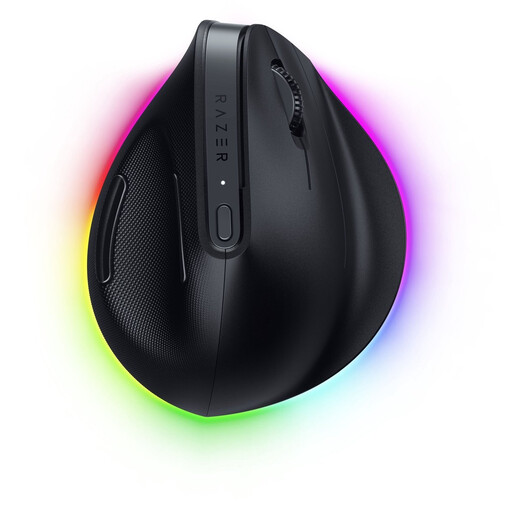 Image unavailable
Razer Pro Click V2 Vertical Edition
An option if you’re looking for a vertical mouse with Bluetooth and your computer supports the connection.
Bluetooth, wireless radio connection and USB-C are listed as connection options. Test the middle-click and controls in your own CAD app.
View at Joybuy
 Image unavailable
Vertical wireless mouse with USB-C
An option if you want to use Bluetooth and can plan to charge via USB-C.
The product name lists Bluetooth, 2.4 GHz and USB-C charging, plus three DPI levels: 800, 1200 and 1600. The rechargeable battery will eventually need charging; check that the middle-click works in your CAD app.
View at Joybuy
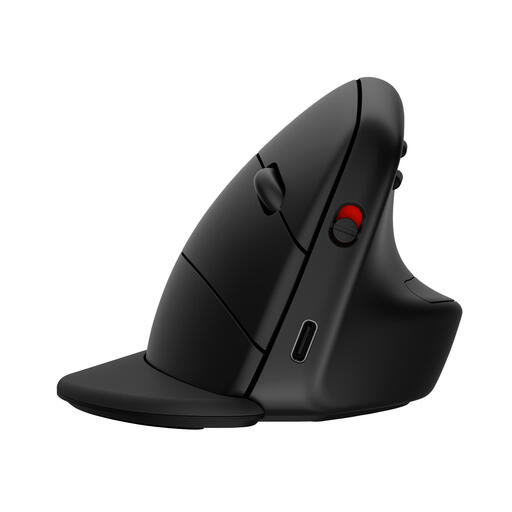 Image unavailable
HP 925 Ergonomic Vertical Mouse
An option if you want Bluetooth alongside a rechargeable battery.
Bluetooth and a USB receiver are listed as connection options; the built-in battery charges via USB-C. Check the controls in your own CAD app.
View at Joybuy
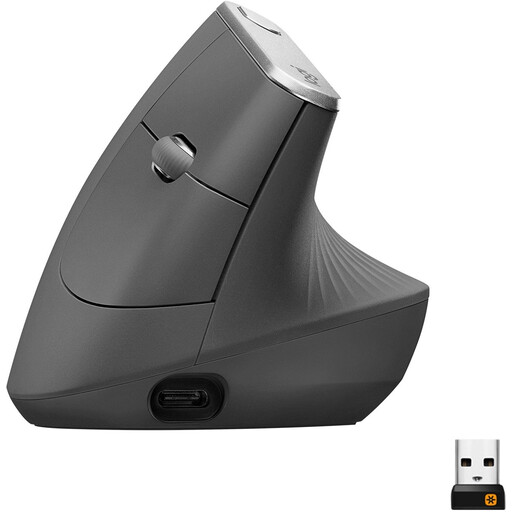 Image unavailable
Logitech MX Vertical Graphite
An option if you want Bluetooth and a rechargeable mouse; Logitech also describes the MX Vertical as suitable for wired use.
Bluetooth, USB receiver and wired connection are separate options. Check that the middle-click and any button settings suit your CAD app.
View at Joybuy
Frequently asked questions
Why doesn’t my vertical mouse pan when I press the wheel in AutoCAD?
The cause could be a different wheel assignment or the MBUTTONPAN setting. First test the middle-click and check your mouse software; in AutoCAD, specifically check that MBUTTONPAN is set to 1. Other CAD apps may use different settings.
Does a Bluetooth mouse need a free USB port or a mains socket?
With a compatible computer, Bluetooth doesn’t need a USB receiver. Power is a separate matter: the Lift uses a replaceable battery, while rechargeable models such as the MX Vertical and Voxx will need charging eventually.
Do Dutch regulations require you to use a vertical mouse for screen work?
The information consulted from Arboportaal doesn’t specify a particular vertical mouse model. The obligations described for employers apply to employees working at a screen and aren’t general product specifications for every buyer.
What are my rights if I don’t like the mouse or it breaks too soon?
For an applicable online consumer purchase, ACM ConsuWijzer says you’ll generally have a statutory cooling-off period of up to 14 days after delivery, with some exceptions. You’re also entitled to a product that, under normal use, does what you could reasonably expect; the retailer is your point of contact. This doesn’t mean that every mouse has a fixed statutory guarantee of exactly two years.


