
Vector reviewer with limited desk space
Wants to position the monitor alongside input devices and should check its dimensions, including the stand. ASUS Netherlands and BenQ Netherlands publish dimensions for individual models.


First, measure the available width and depth, including the stand, and consider where you can comfortably use the screen. A 24.1-inch monitor is a better fit for a cramped workspace; choose 27-inch 4K if extra detail matters and you have room for the larger screen. For colour-critical print work, colour management and calibration matter too: a stated sRGB coverage is not the same as a complete, managed print workflow.
Wants to position the monitor alongside input devices and should check its dimensions, including the stand. ASUS Netherlands and BenQ Netherlands publish dimensions for individual models.
Prioritises extra detail and workspace, as long as a 27-inch 4K setup physically fits and the chosen screen scaling is comfortable to read. ASUS Netherlands and BenQ Netherlands publish models with this screen size and resolution.
Needs more than a screen for assessing shapes when doing colour-critical work, so looks at colour space, profiles and calibration. EIZO Netherlands explains these aspects of colour management.
First, measure the space taken up by the monitor and stand. Then compare the resolution and colour features with the type of vector work and output you need to assess.
| Consideration | What should you check? | Who is this important for? |
|---|---|---|
| Desk space | Measure the available width and depth, then compare them with the dimensions of the exact model, including the stand. Also check whether the stand offers enough adjustment. | If my desk is cramped, I want the screen and stand to fit without crowding my input devices. That’s why around 31% of consumers give desk space their highest priority. |
| Detail and readability | Compare the screen size and native resolution with the scaling setting you want to use. ASUS Netherlands and EIZO Netherlands list 1920 × 1200 for the 24.1-inch models reviewed; ASUS Netherlands and BenQ Netherlands list 3840 × 2160 for the 27-inch models reviewed. | If I want to examine fine lines accurately, extra detail is my first priority, provided the larger screen fits and is comfortable to read. Around 25% of consumers give detail their highest priority. |
| Colour and output | Decide whether you’re assessing screen-based work or print output. For a colour-critical workflow, look at colour space, calibration options and the profiles you use; EIZO Netherlands explains the importance of settings and colour management. | If I check colours for print, I want to know how the screen fits into my colour workflow and which profiles I use. Around 25% of consumers give colour management their highest priority. |
| Connections and setup | Check that your computer, monitor and cable support the required video connection and, if needed, charging via USB-C. Compare the required charging power with the model’s specific Power Delivery specification. | If I want to connect my existing computer and position the screen properly, I check the ports and adjustment options on both devices first. Around 19% of consumers give connectivity and posture their highest priority. |
The casing and stand determine how much space a monitor actually takes up. For a 27-inch model in particular, the diagonal alone won’t tell you how much desk space you need.
Measure the available width and depth, then compare them with the dimensions of the exact model, including the stand.
You may need a different setup or mounting option if the stand won’t fit in the space available.
A gamut or manufacturer claim alone doesn’t guarantee a match between the screen and a print. Settings and other parts of your colour workflow also play a role.
First decide on your final output, then check which profiles and calibration options suit your workflow.
Colour management may require extra time and resources.
USB-C features and stated charging power vary by model. Your computer, monitor and cable must all support the features you need.
Check your computer’s video output, the capabilities of the specific monitor port and the charging power required.
Depending on the connection, you may need a different cable, port or separate power supply.
According to the Dutch government, statutory guarantees in the Netherlands have no fixed time limit. A manufacturer’s warranty is separate from your rights against the seller if a product is faulty.
Keep your proof of purchase and distinguish between the manufacturer’s warranty terms and your statutory rights against the seller.
ASUS lists the ProArt PA248CRV as a 24.1-inch 16:10 screen with 1920 × 1200 pixels, and the PA279CRV as a 27-inch 4K screen. ASUS Netherlands lists sRGB modes and USB-C features for these models.
BenQ describes the Creative Pro PD2705U as a 27-inch 4K design monitor with an sRGB mode, calibration report and USB-C video connection.
According to its product specifications, EIZO designed the ColorEdge CS2400S for graphic work. It has a 24.1-inch 16:10 screen with 1920 × 1200 pixels.
LG describes the UltraFine 27UP850K-W as a 27-inch 4K IPS monitor with USB-C and a stand that can be adjusted for height, tilt and pivot.
Dell describes the UltraSharp U2725QE as a 27-inch 4K hub monitor with Thunderbolt features.
This selection includes portable 16-inch screens and more compact 24.1-inch models, as well as 27-inch 4K monitors for anyone looking for more detail. Check that each model’s dimensions, connections and features suit your workspace.
 No image available
Its portable size may suit a small workspace; remember to measure the space taken up by the stand too.
The product title lists 16:10, 2560 × 1600, 100% sRGB, two USB-C ports and mini-HDMI.
 No image available
A 27-inch 4K model to consider if extra detail matters and you have room for the larger casing.
The product title lists 3840 × 2160 pixels.
 No image available
Its compact size may be appealing if desk space is limited; check how the built-in stand will work in your workspace.
The product title lists 16:10, 2560 × 1600 pixels, 2.5K, 123% sRGB gamut, USB-C and HDMI.
 No image available
Consider this larger screen if extra detail and the stated hub features suit your needs; measure the available space first.
The product title lists 3840 × 2160 pixels. The product description mentions Thunderbolt connections.
 No image available
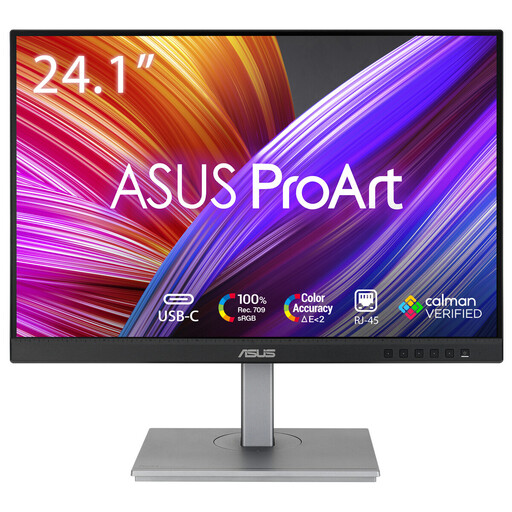
The more compact size is an option if desk space is your main constraint; bear in mind that the resolution isn’t 4K.
The product title lists 1920 × 1200 pixels. The product description mentions 100% sRGB, factory calibration and USB-C with 90 W Power Delivery.
Not for every review. The 24.1-inch models reviewed have 1920 × 1200 pixels; the 27-inch design models reviewed offer 3840 × 2160. Choose 4K if extra detail matters and the screen size and readability work with your preferred scaling setting.
Check that your computer’s video output matches the input on your chosen model. To use one USB-C connection for both video and charging, your computer, monitor and cable must support the required features; stated Power Delivery power varies by model. Also measure the monitor, including its stand.
Choose colour modes and profiles that suit the output you’re assessing. For colour-critical print work, include calibration and the output’s ICC profile in your workflow too; a wide colour gamut alone doesn’t describe the whole process.
According to the Dutch government, consumers who buy at a distance are often entitled to a 14-day cooling-off period. Statutory guarantees in the Netherlands have no fixed time limit; if there’s a fault you’re not responsible for, contact the seller. A manufacturer’s warranty is separate from this statutory right.