
Vandaag of morgen in huis

Kwaliteit gegarandeerd

Welkomstaanbiedingen ontgrendelen: GRATIS bezorging | Tot 80% korting | Gratis 30 dagen JoyPlus-proefperiode
Download de app
A 34-inch UWQHD curved monitor with a USB-C docking station can help keep your desk tidy. One screen gives you room for multiple windows, while a single USB-C cable can combine video, data transfer and laptop charging. However, not every ultrawide monitor with USB-C is a fully featured docking monitor.
Many buyers focus mainly on screen size and resolution. As a result, important details such as Power Delivery, KVM functionality and stand adjustability can be overlooked. Here are the key pitfalls and specifications to check before you buy.
A USB-C port may only be designed to carry a video signal. When choosing a genuine USB-C docking monitor, check whether the connection also transfers data and how much power is available through Power Delivery.
For a laptop used at a fixed workstation, a higher charging capacity is useful. A connection with 95W Power Delivery may suit many business laptops, but always check how much power your laptop actually needs. The supplied cable and your laptop’s specifications also matter.
A 34-inch monitor takes up quite a bit of space. A fixed stand without height adjustment could leave the screen positioned too high or too low. Check:
A monitor with a height-adjustable stand gives you more flexibility to set the viewing position to suit your desk. It won’t replace good posture, but it does make your setup more adaptable.
A monitor with several HDMI and DisplayPort connections can display images from two computers, but that doesn’t automatically let you control them with one keyboard and mouse. For that, you need a built-in KVM switch.
Also check how USB devices connect to the monitor. On some models, the KVM function only works when a USB upstream cable or USB-C connection is plugged in alongside the video cable.
A UWQHD monitor with a resolution of 3440 x 1440 gives you a wide 21:9 workspace. It’s useful for spreadsheets, dashboards, timelines and viewing two documents side by side. Compared with a standard Full HD monitor, you get more horizontal workspace and more vertical pixels.
A 34-inch monitor with 110 ppi can display text and interface elements in detail. Make sure your computer supports this resolution at your chosen refresh rate through the connection you plan to use.
The product information for the iiyama ProLite XCB3497WQSNP-B1 lists a VA panel as its LCD panel type. The monitor has a fixed 1500R curvature. This may suit users who regularly sit directly in front of the screen and want a consistent viewing angle across its width.
The stated 120Hz refresh rate offers a higher refresh frequency than 60Hz, provided your source, cable and settings support it. It isn’t essential for office work, but scrolling and moving windows can look smoother. FreeSync is listed; according to the product specifications, G-Sync is not officially certified.
The following connections are useful for a business workspace:
A monitor with a LAN connection can be useful when you need to connect your laptop to the company network using a single USB-C cable. Check in advance whether your IT environment allows the use of the integrated network adapter.
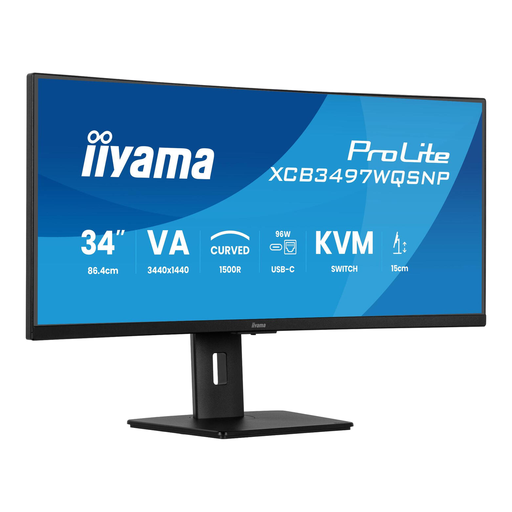
Why it suits this type of user: This 34-inch monitor combines UWQHD resolution, USB-C docking and an adjustable stand in one workstation solution for home workers and everyday office tasks.
The product specifications list USB-C docking, up to 95W Power Delivery, KVM and an RJ45 LAN port. That means the USB-C connection does more than simply display video.
3440 x 1440, 120Hz, 1500R curvature, 15 cm height adjustment, KVM switch and 1Gbps Ethernet, according to the product information.
Why it suits this type of user: For users who want to combine several devices with a tidy business workspace, this model offers more than just a large screen.
With KVM, LAN and USB-C docking, there’s less need to put separate adapters and a dedicated USB switch on your desk.
VA panel, 95W Power Delivery, 120Hz, 2 USB-C ports and an ergonomic stand with 150mm of height adjustment, according to the listed specifications.
Why it suits this type of user: IT professionals and multitaskers can use the KVM switch to control several computers with one set of input devices.
The built-in KVM function means you don’t have to rely solely on multiple screens or a separate KVM solution. Check the manual for the required USB connections.
Four video inputs, a KVM switch, DisplayPort 1.4, HDMI 2.0 and an integrated 1Gbps RJ45 LAN connection.
We’ve put together a complete, up-to-date list of products that meet these strict selection criteria and the applicable European safety regulations.
It depends on how much charging power your laptop needs. 95W may be suitable for many office and business laptops. Check your laptop’s power adapter and the specifications of its USB-C port. A monitor can’t always replace all the charging functionality of the original adapter.
You can if the monitor has a KVM switch and the correct USB and video signals are connected. According to the product information, the iiyama ProLite XCB3497WQSNP-B1 lets you control several computers through one console. Check the manual to see how to switch between systems.
Power consumption varies depending on brightness, picture mode and connected devices. The iiyama ProLite XCB3497WQSNP-B1 is listed as using 32 kWh per 1,000 hours in SDR, with a stated power consumption of 55W. Switch the monitor off when you won’t be using your workspace for a while, and check the energy label information for your particular usage.
