
Vandaag of morgen in huis

Kwaliteit gegarandeerd

Welkomstaanbiedingen ontgrendelen: GRATIS bezorging | Tot 80% korting | Gratis 30 dagen JoyPlus-proefperiode
Download de app
A USB-C docking station can expand your laptop’s capabilities, connecting monitors, USB devices and Ethernet, and charging it through a single cable. But that doesn’t mean every dock is right for every workspace. For example, your laptop may have a USB-C port that doesn’t support video output. And a high number of ports doesn’t always mean a dock will be practical to use.
For professionals, home workers, creative users and IT administrators, there are three main pitfalls to watch out for:
So, a good choice starts with your laptop and workspace requirements, not the number of ports.
A basic USB-C hub usually uses USB 3.2 and is suitable for peripherals, a memory card, networking and sometimes one external screen. For faster data transfers and multiple screens, a USB4 or Thunderbolt 4 docking station is often a better choice.
Look out for the following:
A USB-C-shaped port doesn’t automatically mean you can use a 4K docking station or a docking station for multiple monitors.
For office work, one 4K monitor is often enough. If you work with spreadsheets, design software or video editing, you may need a docking station for two monitors or even three screens.
Always check:
According to the product information, the Kensington SD4781P supports two external 4K screens and has HDMI 2.0 and DisplayPort 1.2 connections. The Acer D501 is aimed at Chromebooks, according to the manufacturer, and is listed as supporting up to three monitors. Always check these claims against your own laptop’s compatibility list.
USB-C Power Delivery, often shortened to USB PD, determines how much charging power can be passed through to your laptop. A dock with a 100 W PD port won’t necessarily deliver 100 W to every laptop. The laptop, charger, cable and dock all affect the actual power output.
Check the following:
The Baseus Metal Glow Series 2 lists a PD input of up to 100 W, but the charger is sold separately, according to the product description. The AC adapter is included in the product information for Lenovo or Dell Thunderbolt docks. This affects the total cost.
The recommendations below are based on the listed ports, data transfer speeds, screen support, power supply and compatibility information. Check your laptop’s specifications before buying.
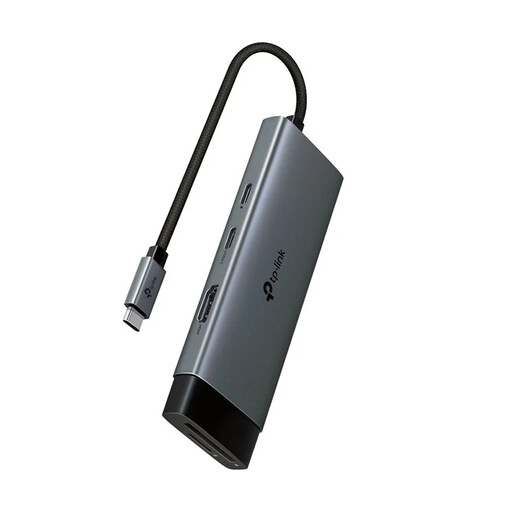
Why it suits this user: A compact option for a simple home-working setup with USB devices, HDMI and SD or microSD cards.
The product specification lists seven ports and a data transfer speed of up to 5,000 Mbit/s. So it’s clear that this is a USB 3.2 hub, not a Thunderbolt dock.
HDMI, USB-A, USB-C and built-in SD and microSD card readers; compact dimensions of 127 × 40 × 12,2 mm.
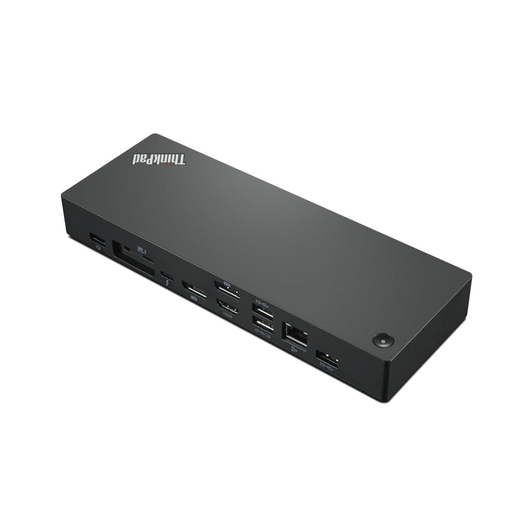
Why it suits this user: Suitable for business Windows workspaces where multiple monitors, Ethernet and management features matter.
The listed Thunderbolt 4 host interface and 40 Gbit/s speed make it easy to distinguish from a standard USB-C hub. An AC adapter is included.
Supports up to four screens, according to the product information, and has two DisplayPort connections, HDMI and Gigabit Ethernet.
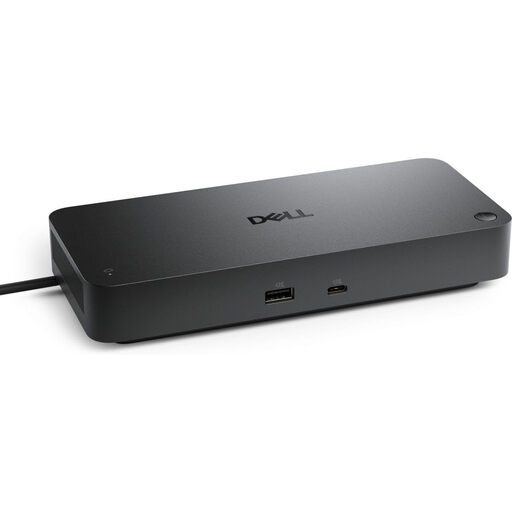
Why it suits this user: Designed for demanding workspaces with heavy network use, multiple screens and a laptop that supports higher-power charging.
The listed 2,5GbE port, Thunderbolt 4 interface and included power supply provide more specific information than a vague claim such as ‘fast connection’.
Lists support for up to four screens, up to 130 W Power Delivery, HDMI 2.1, DisplayPort 1.4 and 2,5GbE Ethernet.
We’ve put together a complete, up-to-date list of products that meet these strict selection criteria and current European safety regulations.
No. Your laptop must support video output over USB-C, for example through DisplayPort Alt Mode, USB4 or Thunderbolt. The dock must also have enough video outputs and bandwidth. Check support for Windows, macOS, ChromeOS or Linux too.
Not always. A small USB-C hub can be bus-powered, but a mains adapter is often more practical when you’re using multiple screens, hard drives and USB devices. For USB-C Power Delivery, you should also check that the charger and cable can handle the required power output.
Its lifespan depends on heat, workload, cable quality and everyday use. Keep the dock in a well-ventilated spot, protect it from moisture, and use certified cables and adapters. A model with a current connection standard may remain useful for longer if you replace your laptop or monitor later, but you’ll need to check compatibility with each device again.
