
Volunteer archive manager
You organise the preservation of animation projects submitted to the archive. Keeping separate copies and checking files matters more than a high advertised speed.


Use a USB stick to transfer project files or keep an additional copy, not as your only storage location. The Digital Preservation Coalition recommends keeping separate copies and checking them regularly. Then choose a stick based on the total size of the project, the ports on the computers involved and the write speed you need. If the folder contains personal data, also consider what access protection is appropriate.
You organise the preservation of animation projects submitted to the archive. Keeping separate copies and checking files matters more than a high advertised speed.
You transfer source files and exports, and want to know how much space the whole folder needs, how large the individual files are and how quickly your computer can write to the stick.
You share files between computers that may have different USB ports or operating systems. So check the connections and file system before transferring files or formatting a stick.
Choose this when: you want to transfer project files or need an additional copy.
Bear in mind: a stick is no substitute for separate archive copies and checks.
Choose this when: long-term preservation matters and losing a project is not an option.
Bear in mind: you’ll need extra storage, management and regular checks.
Choose this when: a portable copy contains confidential files and access needs to be restricted.
Bear in mind: check the capacity and make arrangements for managing access codes.
For community archives, the Digital Preservation Coalition recommends keeping multiple separate copies and checking their integrity regularly. A USB stick can be part of your approach, but it shouldn’t be your only storage location.
| What to consider | What to check before buying | Who should pay particular attention? |
|---|---|---|
| Recoverable copies | Plan separate copies and decide how files will be checked after transfer. | As an archive manager, I want to be able to retrieve and check projects, even if a stick goes missing; around 33% of consumers prioritise recoverability. |
| Storage space and write time | Measure the entire project folder and the largest file; compare the advertised write speed for the exact model. | For large projects or ones copied often, I want to know whether the whole folder will fit and how long it will take to copy; around 27% of consumers prioritise storage space and write time. |
| Computer compatibility | Check which USB-A and USB-C ports are available and test whether the file system works with all the computers. | When sharing files between different computers, I want the connection and file system to work with every device; around 20% of consumers focus mainly on compatibility. |
| Access to confidential files | Consider what level of security is appropriate for the files and risks; also check the access method and capacity. | If the project folder contains confidential files, I want to restrict unauthorised access and manage codes carefully; around 20% of consumers prioritise access protection. |
The file system also matters for large files: Microsoft Learn states that FAT32 has a 4 GiB limit per file. Apple lists exFAT as a format that is compatible with Windows when using a Mac; check the other devices in the archive too.
A handy way to transfer files won’t prevent your only copy from being lost or damaged. The Digital Preservation Coalition recommends keeping separate copies and checking them.
Plan separate copies and integrity checks before adding the stick to your archive process.
This takes extra storage space and time for management and checks.
A high advertised read speed doesn’t tell you how quickly large project folders will be written to the stick. Manufacturers don’t always list both speeds.
Compare the write-speed specification for the exact model. Don’t treat a test of a different model or a version from another year as proof of how the stick you want to buy will perform.
When copying large folders repeatedly, a lower write speed can mean longer transfer times.
A file larger than 4 GiB won’t fit on a FAT32 stick, even if there’s enough free space. Microsoft Learn lists this file-size limit for FAT32.
Check the largest project file and compatibility with all your devices. Keep the files somewhere else before formatting: formatting erases existing files.
Transferring files safely, reformatting and then testing all take extra time.
Authorised archive managers need to be able to access the passcode. Verbatim has announced a security update for its Keypad Secure product.
Decide who will manage the codes and follow the manufacturer’s update information. Keep a separate copy of encrypted files too.
The JetFlash 930C range is worth considering if you need the same stick to work with computers that have USB-A and USB-C ports.
The DataTraveler Max USB-C range includes models up to 1 TB for large transfers on computers with a compatible USB-C port.
The Ultra Dual Drive Go USB Type-C is designed for transfers between computers with USB-A and USB-C connections.
The USB Type-C Flash Drive MUF-256DA/APC is an option for computers with USB-C.
The Keypad Secure USB-C range is worth considering if you need to restrict access to a portable copy containing confidential files.
These USB sticks are for transferring animation projects or keeping an additional copy; don’t use a stick as your only archive copy.
 No image available
Suitable for transfers or as an additional copy on a computer with USB Type-A.
128 GB storage; USB 3.2 (Gen 1) Type-A.
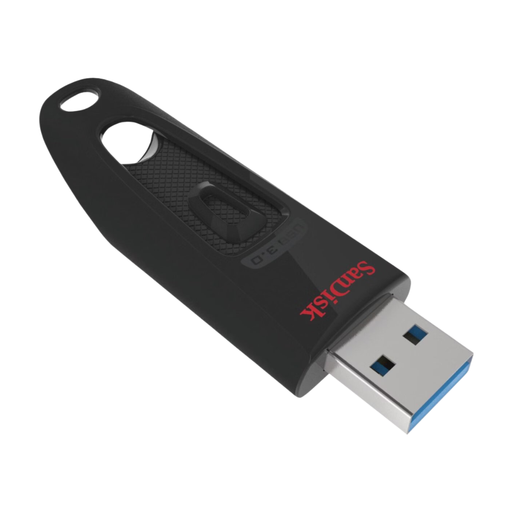 No image available
A 512 GB option for project files and an additional copy on a computer with USB-A.
512 GB storage; USB 3.0.
 No image available
Suitable for transfers between computers with USB-A and USB-C connections.
512 GB storage; USB 3.1; USB-A and USB-C connections.
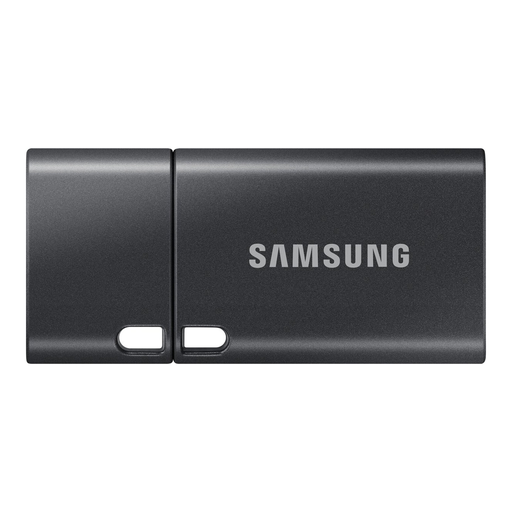 No image available
Suitable for transfers or as an additional copy on devices with USB Type-C.
512 GB storage; USB Type-C; USB 3.2 Gen 1 (3.1 Gen 1).
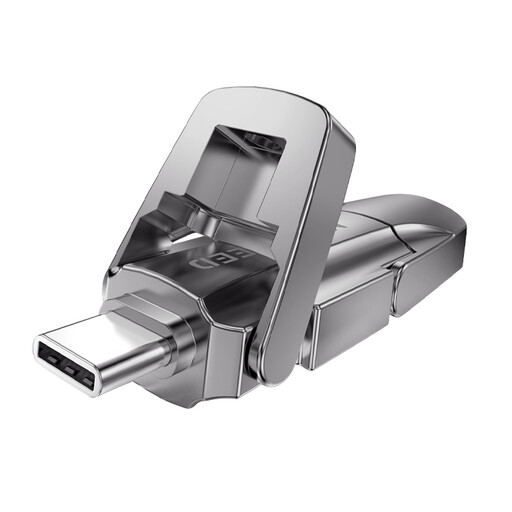 No image available
Suitable for transfers between devices with USB-A and USB-C connections.
256 GB storage. The product title lists read speeds of up to 1090 MB/s; check performance on the computer you use.
Don’t use a USB stick as your only storage location. The Digital Preservation Coalition recommends keeping separate copies on different storage media, with at least one copy elsewhere, and checking files regularly. This is archival advice, not a legal requirement for USB sticks.
Check the file system: FAT32 has a limit of 4 GiB per file. exFAT supports larger files, and Apple lists it as a Windows-compatible format for Macs; check that it’s supported on all the computers that will use the stick. Make a separate copy before formatting, as formatting erases existing files.
Keep a checksum of the received file as a reference, then compare it with newly calculated checksums after copying and during later checks. A mismatch signals a change; a checksum won’t restore the file unless you have a good separate copy.
The Dutch Data Protection Authority does not specify a single product requirement for every archive stick. An organisation processing personal data must assess the risks and decide on appropriate security measures; the Authority notes that losing a stick containing unencrypted personal data could constitute a data breach.
First check the applicable privacy and copyright rules. According to the Dutch Data Protection Authority, identifiable people in images are personal data. The Dutch Government states that other people’s copyright-protected work must not be distributed or made public without permission. So check the specific images, music and permissions before publishing.