Start with a USB stick that has a connector compatible with both the shared workstation and the device you’ll use later to access the handouts. For everyday handouts, a standard stick may be all you need. If the files contain personal data, decide what level of security is appropriate and check that you can unlock the stick at the workstation. If you’ll be copying files regularly, the stated write speed matters more than read speed alone.
Who is this guide for?
Workshop leader using several devices
You copy handouts on a shared computer and later open them on your own device. The available ports and file system are important here. SanDisk describes models with USB-A and USB-C, while Apple Support outlines file system options for Mac.
Organiser handling participant details
You may be carrying personal data as well as handouts, so you’ll need to consider whether removable storage is allowed and what level of security is appropriate. The Dutch Data Protection Authority and the National Cyber Security Centre provide guidance on handling sensitive data and removable storage media.
Creator of regular workshop handouts
You transfer files for multiple sessions and need enough space and a manageable copying time. Samsung and Transcend provide product specifications that you can compare for the exact model.
What should you look for in a USB stick?
First, check whether the shared computer allows USB storage and which ports are available. Then consider the data you’ll be carrying, how much storage you need and the write speed required for your copying tasks.
| What to consider |
What to look for when buying |
Who should consider this? |
| Connector and access |
Check the ports on both devices and whether the shared workstation allows external USB storage. |
If I’m transferring handouts between devices with different ports, I don’t want to choose a connector that won’t fit. Around 36% of consumers put connector type first. |
| Data protection |
Decide what data you’ll be carrying, then check your organisation’s policy and whether the security features will work at the workstation. |
If I’m also carrying personal data, I want to know what type of storage and security my organisation considers appropriate. Around 29% of consumers give protection top priority. |
| Storage capacity |
Compare the total file size with the stated capacity, and bear in mind how much space is actually available. |
If I’m carrying several handouts or different versions, I want enough space without having to delete files at the last minute. Around 21% of consumers put storage capacity first. |
| Copying time |
Look for a stated write speed for the exact model, and consider the computer and files too. |
If I regularly copy files to the stick, I want to know how quickly it’s stated to write data. Around 14% of consumers put copying time first. |
Common buying mistakes
-
Confusing read speed with write speed
An advertised read speed doesn’t tell you how quickly handouts will transfer from the computer to the stick. Samsung lists a sequential read speed for the BAR Plus MUF-128BE3/APC, while Kingston gives separate read and write speeds for the IronKey Locker+ 50 G2.
Compare the write speed for the exact model, and don’t treat a manufacturer’s stated figure as a guaranteed copying time at your workstation.
-
Choosing a USB-C stick without checking the workstation
USB-A and USB-C are different connectors. A stick with both can be handy when switching between devices, but it won’t automatically overcome restrictions on the shared computer.
Check the ports on both devices and choose a compatible connector. Also check whether the workstation allows USB storage.
-
Carrying sensitive files without protection
The Dutch Data Protection Authority cites losing a stick containing unencrypted personal data as a possible data breach. The National Cyber Security Centre advises storing as little sensitive material as possible on removable storage media.
Only take the files you need, and discuss with your organisation what type of storage and security is appropriate.
-
Formatting without backing up your files
Apple Support warns that formatting erases the existing files on the selected storage device.
First check which file systems the workstation supports, and save any existing files elsewhere before formatting.
Brands to compare
Kingston
DataTraveler Exodia is a USB-A range for everyday document transfers; IronKey Locker+ 50 G2 is a separate range with hardware encryption.
- Kingston lists USB-A and USB 3.2 Gen 1 for Exodia. This interface alone doesn’t indicate a specific write speed.
- For IronKey Locker+ 50 G2, Kingston describes hardware encryption and compatibility with the specified Windows and macOS versions.
- Check that the operating system and unlocking process will work on the shared workstation. Kingston states that repeatedly entering the wrong password for this range can lead to the device being locked or data being erased.
SanDisk
Ultra Dual Drive Luxe is designed for anyone switching between devices with USB-A and USB-C.
- SanDisk describes both connectors for this product range.
- Having two connectors doesn’t guarantee that the shared workstation allows USB storage or that the files will be readable on every device.
Samsung
BAR Plus is a USB-A option. Compare the specifications for the exact model.
- For the Dutch MUF-128BE3/APC, Samsung states a sequential read speed of up to 400 MB/s.
- This is a manufacturer’s stated read speed, not a confirmed write speed when copying handouts.
Transcend
JetFlash 790 is a USB-A option with a retractable connector.
- Transcend lists capacities from 16 to 512 GB for this product range.
- The USB designation alone doesn’t prove a specific write speed.
USB sticks at Joybuy
This selection focuses mainly on USB-A sticks for workshop files, with a SanDisk option for switching between devices with USB-A and USB-C. Before buying, check that the connector and intended use are compatible with the shared workstation.
 No image available
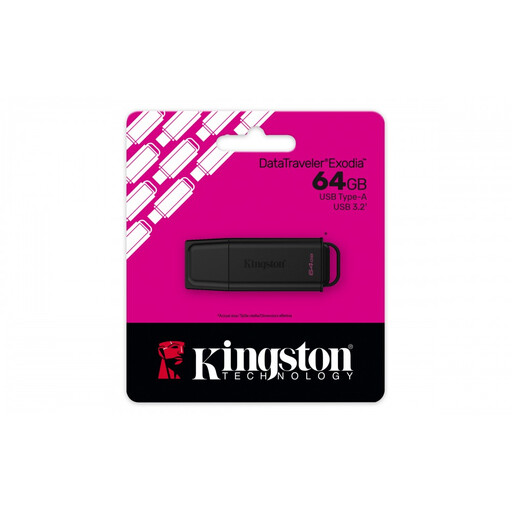
Kingston DataTraveler Exodia 64 GB
An option for handouts when the workstation has a compatible USB-A port.
Joybuy’s product information lists 64 GB, USB 3.2 Gen 1 and a stated write speed of up to 60 MB/s. Actual copying time also depends on the computer and files.
The product information mentions a loop for attaching the stick to a keyring.
View at Joybuy
 No image available
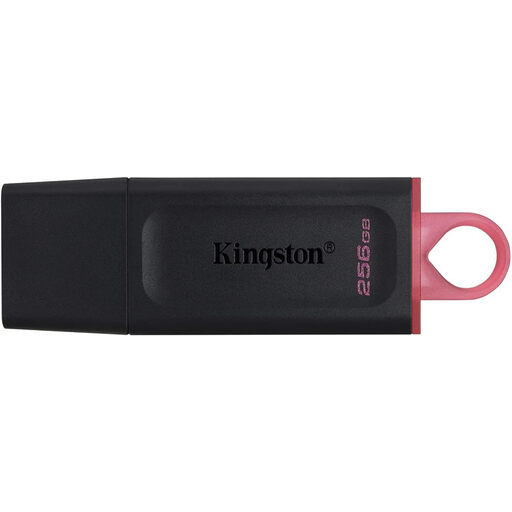
Kingston DataTraveler Exodia DTX 256 GB
This USB stick could suit you if you want to carry a larger set of workshop files and the workstation supports USB-A.
Joybuy’s product title lists 256 GB, USB 3.2 Gen 1 and a stated write speed of up to 625 MB/s. Check that these specifications apply to the exact model and suit your needs.
View at Joybuy
 No image available
SanDisk Ultra Flair 64 GB
A USB-A option for handouts on a computer with a compatible USB-A port.
Joybuy’s product title lists 64 GB and USB 3.0.
View at Joybuy
 No image available
SanDisk Ultra Dual Drive Go 512 GB
The product information describes this model as suitable for transferring files between USB-A and USB-C devices. Check that your devices have the connectors you need.
Joybuy’s product title lists 512 GB and USB 3.1.
View at Joybuy
 No image available
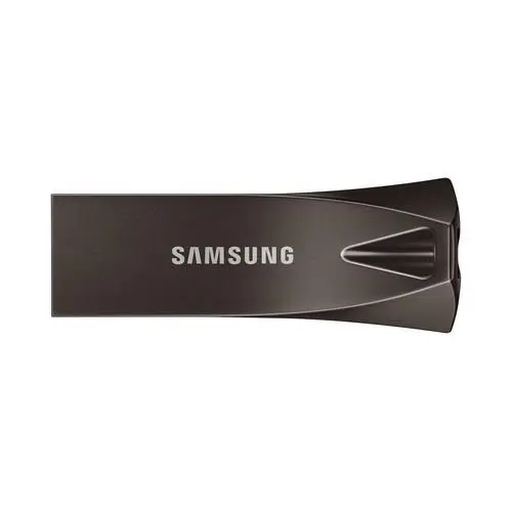
Samsung MUF-256BE 256 GB
An option for handouts on a workstation with a compatible USB Type-A port.
Joybuy’s product title lists 256 GB and USB Type-A 3.2 Gen 1.
View at Joybuy
Frequently asked questions
Which file system should you use for handouts on a Mac and Windows computer?
According to Apple Support, exFAT can be used for Windows-compatible volumes larger than 32 GB. First check what the shared computer supports. Formatting erases the files on the stick, so save them somewhere else beforehand.
Can I remove the USB stick from the Windows workstation as soon as the files have copied?
First, safely eject the stick using Windows. Microsoft recommends this to help prevent data loss. Then check that the handouts are on the stick.
Is an encrypted USB stick compulsory for every workshop?
No. Dutch government guidance doesn’t set a general requirement for every workshop or USB stick. If an organisation processes personal data, it must protect it appropriately under the GDPR, taking the processing and risks into account. The Dutch Data Protection Authority lists encryption as one possible measure. Discuss with your organisation what security is needed in your situation.
How long is the warranty on a USB stick I buy as a consumer in the Netherlands?
According to the Dutch government, there’s no fixed term for the statutory guarantee in the Netherlands: you can expect a product to work properly for a reasonable time under normal use. A manufacturer’s warranty is in addition to this. If a product is faulty, contact the seller.


